Free tools Windows power users keep installed
One-click scans. No signup required.
Some links on this page are affiliate links: if you buy through them we may earn a commission, at no extra cost to you.
To let people hear music in a Discord voice channel, the simplest no-bot option is to share the music app or screen with audio and start a Go Live stream. Listeners may need to join that stream separately from the voice channel. If you want to listen to Spotify together, use Listen Along instead—but it is not a voice-channel broadcast and cannot run while you are voice chatting.
Choose the method that fits what you want to do
| Goal | Best-fit method | What to know |
|---|---|---|
| Play local music or audio from an app for people in a voice channel | Discord screen share with audio | The host starts Go Live; listeners may need to watch the stream. Spotify may pause during sharing. |
| Synchronize Spotify playback with a friend | Spotify Listen Along | This is personal synchronized listening, not music broadcast into a voice channel. Voice chat cannot be active during Listen Along. |
| Use queue, skip, or playlist commands | A currently operating third-party music bot | Availability, permissions, commands, and supported sources vary by bot. |
Discord does not provide a universal built-in music player. Screen sharing sends supported app audio through a stream; it does not make ordinary computer playback audible to everyone in the voice channel automatically.
Play music with Discord screen sharing
Discord’s Go Live and Screen Share instructions describe sharing an application window or screen from a voice channel. For audio capture, Discord lists Windows and macOS desktop, Chrome, and mobile clients as supported. It says audio sharing is unavailable on Linux and in browsers other than Chrome.
Quick wins for a faster PC:
Fix the driver behind crashes, sound loss and screen glitchesFind Drivers →Clear out junk files and repair common Windows errorsFree Scan →Scan for outdated or missing drivers - takes under a minuteDriver Scan →- Open the music player or browser page you plan to share. Use audio you are permitted to transmit.
- Join the server’s voice channel. Confirm you have the channel’s Video permission; an administrator can check it under Server Settings → Roles, or for one channel under Edit Channel → Permissions.
- In Discord’s voice status panel, select the Screen streaming icon.
- Choose the music application window if Discord offers it. If it does not, select the entire screen. Sharing just the app is preferable when available because it avoids exposing unrelated windows and notifications.
- Select Go Live, then start or resume playback in the music app.
- Ask someone else to confirm they can hear it. Stop the stream when finished.
Discord says up to 50 people can share video or screens in a voice chat, and a Go Live stream can have up to 50 concurrent viewers, separate from the broadcaster. Its support page lists 720p/30fps as the standard stream allowance; higher quality limits depend on Nitro tier. Nitro is not required for basic supported screen sharing.
#1 Best Overall

- Outdoor-Proof Speaker: Portable design with IPX7 waterproof protection to safeguard against splashes, waves, and water vapor. Get incredible sounds at home, on camping trips, or for outdoor adventures.
- 24H Non-Stop Music: With Anker's world-renowned power management technology and a 5,200mAh Li-ion battery, the soundcore 2 speaker delivers a full day of great sound.
- Powerful Sound: The speaker features 12W power with enhanced bass from dual neodymium drivers. An advanced digital signal processor ensures pounding bass and zero distortion at any volume.
- Intense Bass: Our exclusive BassUp technology and a patented spiral bass port boost low-end frequencies to make the beats hit even harder. The soundcore 2 speaker delivers vibrant audio for home theater nights, beach parties, and sitting around a campfire.
- Grab, Go, Listen: A classic design refined with simple controls and effortless portability. Easy to use and take anywhere, and supports wireless stereo pairing.
What listeners need to do
- Join the same voice channel.
- Find the member marked Go Live, then click or tap that member.
- Choose Watch Stream or the option to join the stream.
- Check that the stream is not muted and raise its volume if needed.
Being in the voice channel alone may not be enough to hear shared application audio: the listener may need to watch the stream.
If nobody can hear the music
Check these items in order:
- The stream started: Confirm the host selected Go Live, not just a window in the selection dialog.
- The right source is playing: Make sure the selected app or screen is the one producing sound, and that playback has started.
- The listener joined the stream: Have them select Watch Stream, rather than only joining the voice channel.
- The stream is audible: Check the stream’s mute state and volume, then check Discord’s output device and the computer’s app and master volume.
- Streaming is permitted: Verify the relevant role or member has the channel’s Video permission.
- The platform is supported: If you are using Linux or a browser other than Chrome, Discord does not support audio sharing there. Try another method or a supported client.
- Discord detects the app: Open the music app before opening the stream picker. If it is missing, restart Discord and try sharing the full screen instead.
If the stream is lagging, lower its resolution or frame rate, share only the music app where possible, close unnecessary high-CPU apps, and use a stable connection. Discord lets a live streamer change stream quality through the stream settings.
Rank #2

- Outdoor-Proof Speaker: Portable design with IPX7 waterproof protection to safeguard against splashes, waves, and water vapor. Get incredible sounds at home, on camping trips, or for outdoor adventures.
- 24H Non-Stop Music: With Anker's world-renowned power management technology and a 5,200mAh Li-ion battery, the soundcore 2 speaker delivers a full day of great sound.
- Powerful Sound: The speaker features 12W power with enhanced bass from dual neodymium drivers. An advanced digital signal processor ensures pounding bass and zero distortion at any volume.
- Intense Bass: Our exclusive BassUp technology and a patented spiral bass port boost low-end frequencies to make the beats hit even harder. The soundcore 2 speaker delivers vibrant audio for home theater nights, beach parties, and sitting around a campfire.
- Grab, Go, Listen: A classic design refined with simple controls and effortless portability. Easy to use and take anywhere, and supports wireless stereo pairing.
Spotify: why screen sharing may pause it
Spotify is not a dependable source for broadcasting into a Discord voice stream. Discord documents that Spotify may automatically pause when you transmit through voice chat, screen share, or Go Live. Its Spotify Auto-Pause guidance suggests Push-to-Talk or adjusting voice-activity sensitivity to reduce microphone-triggered pauses, but that does not guarantee Spotify will continue during a stream. Do not treat the pause as proof that the stream is misconfigured.
If Spotify pauses, use Listen Along for synchronized Spotify listening, or choose another audio source you are allowed to share. Do not use workarounds intended to defeat Spotify’s restrictions.
Rank #3

- 4 Dynamic Lighting Modes: Soulion newly upgraded R50 has 4 dynamic LED lighting modes: gradient mode, breathing mode, rhythm mode and monochrome fixed mode, which you can customize according to your preferences. The light button can turn on/off the light
- USB Mode: Plug into the USB port for power, press the "M" key to select "Aux Mode", the 3.5mm jack for sound. The soundbar is widely compatible with various devices such as PCs, laptops, tablets, smartphones and more
- Bluetooth Mode: Plug into the USB port for power supply and press the "M" key to select "Bluetooth Mode". Search "R50" on your smartphone and connect. Press and hold the light key for three seconds to clear the Bluetooth memory and connect again. The Bluetooth connection must be within a certain range (10 meters / 33 feet) to remain stable
- Clear Sound: This bluetooth computer speaker is equipped with unique boosters and two independent diaphragms, providingcrisp, rich sound to meet your audio needs for watching movies, listening to music and gaming
- Slanted Design: The PC sound bar has a compact design, a 30-degree slightly tilted design, and a layer of breathable cloth on the outside to prevent dust from entering. The volume knob adjusts the volume, fits for under the monitor
Use Spotify Listen Along instead
Listen Along synchronizes Spotify playback for eligible listeners; it does not pipe Spotify audio into a Discord voice channel. Spotify says it cannot be used while voice chatting. Discord’s Listening Along with Spotify instructions explain the connection and invitation flow.
- In Discord desktop, open User Settings → Connections, select Spotify, and sign in.
- Start playback in Spotify.
- Open the profile or friend list of someone listening to Spotify and select Listen Along. Discord also documents inviting listeners with the + button in a text box while Spotify is playing.
The person joining Listen Along needs Spotify Premium. If a Spotify Free listener’s playback reaches an advertisement, the Premium listener may hear silence during that ad. Interface wording and feature availability can vary by platform, account, and region. Spotify’s Discord and Spotify guidance also covers the connection and voice-chat limitation.
Rank #4
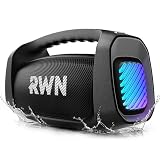
- Epic 160W OUTDOOR SOUND: This portable speaker is equipped with two 3.5-inch 60W woofers and two 20W tweeters. DSP Intelligent Crossover technology adds depth and clarity to the sound. With up to 160 W, it's easy to navigate backyard parties and movie Night.
- IP67 FULL PROTECTION:Built for outdoor adventures, this waterproof speaker shrugs off pool splashes, pumps your favorite tunes through hike rainshowers, and stays with you always.
- 24-HOUR BATTERY LIFE: 30W fast-charging bluetooth speakers wireless, surpassing most similar products on the market. Whether it's an all-day beach party or a long-distance driving trip, it should transform into a mobile charger in time to completely solve the power anxiety in outdoor activities.
- 6 DYNAMIC LIGHT SHOWS: This party bluetooth speaker has a built-in vibrant light show that changes colors with the rhythm of the music, creating a dazzling visual and auditory feast that instantly transforms terraces, outdoor gardens into party scenes.
- LIGHTWEIGHT & PORTABLE: Ergonomic adjustable shoulder strap + sturdy handle make it easy to carry the outdoor speaker without burden. Free your hands when adventuring, quick access in the kitchen - perfect for active lifestyles.
Use a third-party music bot for queue controls
A bot may be a better fit if your group wants queue, skip, or playlist controls without one member continuously sharing a screen. Bots are third-party services, not an official Discord music player. Do not assume a bot can play any Spotify, YouTube, or other streaming link: source support and platform rules vary, and a Spotify link does not necessarily grant a bot the right to stream its audio.
- Find a bot that is currently operating, then read its official documentation, supported-source list, privacy practices, and permission requests.
- Authorize it only for the intended server, granting only the permissions it needs. Review the authorization screen before approving.
- Join the voice channel and use the bot’s current documented slash commands or controls. Commands such as
/play,/pause,/skip,/queue, and/leaveare examples only; they are not universal commands. - When you no longer need the bot, remove it from the server and revoke its authorization if appropriate.
A bot can go offline, discontinue service, change commands, or stop supporting a source. Its presence does not make music use lawful or override copyright, service terms, or server rules.
Quick Recap
Device, privacy, and rights considerations
- Windows or macOS desktop: Use Discord screen share with audio for a local player or supported app.
- Chrome: Discord lists Chrome browser audio sharing as supported; other browsers are not listed as supported.
- Mobile: Discord lists mobile clients as supporting audio capture. The screen-sharing controls and behavior vary by device and app.
- Linux: Discord’s documented application-audio sharing is unavailable. Consider a currently supported bot or another audio-routing option rather than repeatedly retrying the native route.
- Whole-screen sharing: It may reveal private messages, email alerts, browser tabs, files, or account details. Prefer sharing only the music application window when possible.
- Music rights: Use music you are permitted to play and respect copyright law, the music service’s terms, and your server’s rules. A Discord feature or bot does not grant redistribution rights.
Product prices and availability are accurate as of the date/time indicated and are subject to change. Any price and availability information displayed on Amazon at the time of purchase will apply.

