Recommended Free Tools
Some links on this page are affiliate links: if you buy through them we may earn a commission, at no extra cost to you.
If your M2 Mac mini’s Wi‑Fi is slow, dropping, or connected without internet, first find out whether the problem follows the Mac or the network. Test another Wi‑Fi network, temporarily disconnect USB 3 and Thunderbolt devices, and check whether Ethernet works. Then work through macOS, router, and software settings before considering hardware service. An M2 Wi‑Fi issue is not, by itself, proof of a known model-wide defect.
Start by identifying the failure
Wi‑Fi connection and internet access are different things. A Mac can join a router successfully while DHCP, DNS, a VPN, or the internet provider is preventing websites from loading. Match your symptom to the first checks below.
| What you see | Check first |
|---|---|
| Wi‑Fi is missing or cannot be turned on | Network settings or service, software interference, then hardware |
| Your network appears, but the Mac will not join | Password, router security or access controls, and saved network settings |
| Wi‑Fi says connected, but websites do not load | DHCP, DNS, VPN or filters, router/WAN, and captive-portal sign-in |
| Connection is slow | Signal and congestion, nearby USB 3 devices, and router channel settings |
| Connection drops repeatedly | Interference, mesh roaming, router firmware, or VPN/filter software |
| Wi‑Fi and Bluetooth both misbehave | Nearby radio interference is worth testing early |
| Other devices fail on the same network too | Router, modem, or internet service—not just the Mac |
Run a quick isolation test
- Try the Mac on an unrelated Wi‑Fi network, such as an iPhone hotspot. If it works there, focus on your home router, mesh system, ISP, or network settings.
- Test another device on the same home Wi‑Fi, in the same room. If that device also fails, investigate the network rather than repeatedly changing the Mac.
- If practical, connect the Mac mini to the router by Ethernet. The M2 Mac mini has built-in Ethernet, so you normally do not need an adapter for this test. If Ethernet works while Wi‑Fi does not, the internet service is likely available and the wireless path deserves attention. See Apple’s Mac mini specifications.
- Note whether the issue affects one network or band, begins after sleep, occurs only in one location, or appears only while a particular dock, drive, cable, or Bluetooth device is connected.
For a short decision tree: if other devices fail too, start with the router or ISP; if the Mac works on a hotspot but not at home, start with the home network; if it fails on multiple networks, investigate Mac software, settings, and eventually hardware.
Check USB 3 and Thunderbolt interference early
Fast peripherals can interfere with nearby wireless connections. Apple documents that USB 3 and Thunderbolt 3 devices can create interference and recommends moving hubs and devices away from wireless equipment, avoiding placement on top of the Mac, using high-quality shielded cables, and switching off unused USB 3 devices. The guidance applies to wireless interference generally; it does not establish that every M2 Mac mini has an antenna defect. Apple’s wireless-interference guidance explains the mitigations.
#1 Best Overall

- AC1300 Dual Band Wi-Fi Adapter for PC, Desktop and Laptop. Archer T3U provides 2.4G/5G strong high speed connection throughout your house.
- Archer T3U also provides MU-MIMO, which delivers Beamforming connection for lag-free Wi-Fi experience.
- Usb 3.0 provides 10x faster speed than USB 2.0, along with mini and portable size that allows the user to carry the device everywhere.
- World's 1 provider of consumer Wi-Fi for 7 consecutive years - according to IDC Q2 2018 report
- Supports Windows 11, 10, 8.1, 8, 7, XP/ Mac OS X 10.9-10.14
- Disconnect USB 3 hard drives and SSDs, USB hubs, docks, Thunderbolt docks, display adapters, and other nonessential peripherals. Leave only what you need to operate the Mac.
- Test Wi‑Fi for several minutes in the same place where it usually fails.
- Reconnect devices one at a time. If the problem returns, move that device and its cable farther from the Mac mini; try another port or a shorter, better-shielded cable.
- Do not stack a drive, hub, or dock on the Mac. Turn off USB 3 devices you are not using.
Apple Community discussions include reports linking M2 Mac mini dropouts or speed changes with hubs, SSDs, and cables. These are user reports, not controlled evidence of a universal defect. They make the unplug-and-retest experiment sensible, not a guaranteed fix. See one report and another.
Restart, then update
- Restart the Mac using Apple menu > Restart.
- Power-cycle your modem/gateway and router or mesh system. Unplug them, wait about 30 seconds, power the modem or gateway on first, wait for it to reconnect, then power the router or mesh system back on.
- Test again before changing several settings at once. A restart can help the Mac obtain a fresh DHCP address, while a router restart may prompt automatic channel selection to recalculate.
Install available macOS updates at Apple menu > System Settings > General > Software Update. If Wi‑Fi is unavailable, use Ethernet, another network, or a hotspot if practical. Update router or mesh firmware using the maker’s app or web interface. Updates are worthwhile maintenance, but do not assume a particular macOS release fixes this symptom unless its official release notes say so. Apple’s Wi‑Fi troubleshooting guidance recommends checking updates and restarting; its router guidance recommends current firmware.
Forget and rejoin the network
If the Mac cannot join one network, or the router’s name, password, security mode, or band setup recently changed, remove the saved network and join again:
Windows Errors? Fix Them Before They Spread
Repair common Windows errors and clear accumulated junk for a smoother, more stable PC - no reinstall needed.Free scan · no reinstallOutdated Drivers Are Slowing You Down
One free scan finds every outdated or missing driver and matches the right update for your exact hardware.Free scan · exact hardware match- Open Apple menu > System Settings > Wi‑Fi.
- Open Details beside the relevant known or connected network.
- Choose Forget This Network or the network-removal control shown there, and confirm.
- Select the network again and enter its password.
Labels can vary slightly by macOS release. Forgetting a network will not fix an ISP outage, failed router, or problem affecting every device. Apple recommends forgetting and rejoining when changed router settings may have left incompatible saved settings: router settings guidance.
Renew DHCP and check DNS
DHCP assigns the Mac a local network address. A stale or conflicting lease can leave Wi‑Fi connected but unable to communicate properly.
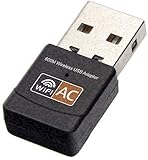
Rank #2

- AC600 Nano size wireless Dual band USB Wi-Fi adapter for fast and high speed Wi-Fi connection.
- Strong 2.4G/5G connection allows the user to use the Internet with lag-free experience.
- Sleek and miniature sized design allows the user to plug and leave the device in it's place.
- Industry leading support: 2-year and free 24/7 technical support
- This network transceiver supports Windows 11, 10, 8.1, 8, 7, XP/ Mac OS X 10.9-10.14
- Go to Apple menu > System Settings > Network > Wi‑Fi.
- Click Details beside the network, then open TCP/IP.
- Click Renew DHCP Lease, then OK or Apply if shown. Re-test.
For DNS testing, open System Settings > Network > Wi‑Fi > Details > DNS. If you or an administrator added custom DNS servers, return to automatic/default DNS temporarily unless the network requires a specific resolver. DNS changes cannot repair weak signal, failed Wi‑Fi association, or a missing DHCP address. Captive networks at hotels, schools, and workplaces may also require a browser sign-in even after Wi‑Fi connects. Apple includes DHCP renewal and other connection checks in its Mac Wi‑Fi troubleshooting steps.
Temporarily test VPNs and network filters
Disconnect a VPN and, if appropriate, quit its app briefly to test. Network filters can also come from antivirus products, parental controls, traffic monitors, or corporate security software. Test without the suspected filter only when it is safe and permitted; do not leave protection disabled as a permanent workaround. On a managed work or school Mac, check with IT before changing security software.
What’s actually slowing this PC down?
Pick the symptom - the matching free tool is one click away.
Confirm that date and time are set automatically; incorrect time can interfere with secure connections and authentication. Do not disable Private Wi‑Fi Address or other privacy features by default. Consider a temporary test only if a known captive portal, MAC-address allowlist, or managed enterprise network is incompatible with that setting. Apple notes that VPN and other connection-intercepting software can affect internet access: Apple’s Mac Wi‑Fi guide.
Improve the Mac’s position and use Apple diagnostics
Test the Mac mini in a clear position, away from metal shelving, dense cable bundles, power cables, large speakers, cordless-phone bases, microwaves, and fluorescent lights. Keep docks and drives away from the Mac. Place the router in an open, elevated spot if possible. Distance matters in both directions: if the router is very close, test a little farther away; if the signal is weak, test closer. There is no single best orientation or distance for every room. Apple lists potential sources and obstructions in its wireless-interference guidance.
Wi‑Fi Recommendations
Click the Wi‑Fi icon in Control Center or the menu bar and look for Wi‑Fi Recommendations. Follow a recommendation if one appears. The option may not be available on personal hotspots or networks using certain enterprise security protocols. Details are in Apple’s troubleshooting guide.
Rank #3

- USB Wi-Fi Adapter: Upgrade your Wi-Fi speeds up to 150 Mbps for lag free video streaming and Internet calls
- Stronger Wi Fi Coverage: 2.4GHz band Wi Fi covers your house everywhere
- Mini Design: allows you to plug it in and forget it is even there; Wireless modes ad hoc/ infrastructure mode; Wireless security supports 64/128 WEP, WPA/WPA2, WPA psk/WPA2 psk (TKIP/AES), supports IEEE 802.1x
- Industry leading support: 2 Year and Free 24/7 technical support
- Compatibility: Compatible with Windows (XP/7/8/8.1/10/11) Mac OS (10.9 - 10.15) Linux Kernel (2.6.18 - 4.4.3)
Wireless Diagnostics
- Hold Option while clicking the Wi‑Fi icon.
- Choose Open Wireless Diagnostics and follow the assistant.
- Save the report if you plan to contact Apple, your network administrator, or the router maker.
The report is evidence to help narrow the cause, not an automatic repair.
Do these 3 things before closing this tab:
1Clear out junk files and repair common Windows errors2Scan for outdated or missing drivers - takes under a minute3Repair Windows errors before they cause bigger problemsReview router settings carefully
If the Mac works on other networks, or multiple devices have trouble at home, check the router or mesh configuration. Make changes one at a time and record the original settings so you can revert. Apple’s router recommendations are at support.apple.com/en-us/102766.
- Security: Use WPA3 Personal or WPA2/WPA3 Transitional where supported. Avoid weakening security just to make a connection work unless a compatibility test establishes the need and you understand the trade-off.
- Channel and width: Automatic channel selection is a sound baseline. Apple recommends 20 MHz width on 2.4 GHz and automatic/all widths on 5 GHz and 6 GHz. Manually forcing a channel may be useful as a targeted test in a congested environment, but is not a universal fix.
- SSID and bands: Enable supported bands. A single name across bands is a reasonable default. Temporarily separating 2.4 GHz and 5 GHz names can help identify band-steering or roaming trouble, but may reduce seamless roaming and need not be a permanent change. 5 GHz is often faster nearby; 2.4 GHz generally reaches farther and can work better through walls.
- DHCP: Ensure there is only one DHCP server on the network. Apple lists a typical lease time of 8 hours for home or office networks and 1 hour for hotspots or guest networks.
- Other options: Keep router firmware current, leave WMM enabled, and avoid hidden SSIDs or MAC filtering unless you have a specific managed-network reason. Check NAT configuration to avoid accidental double NAT; NAT should be enabled on the device acting as the router.
Do not factory-reset the router until less disruptive checks fail. First record ISP credentials, network names and passwords, port forwards, parental controls, and other settings you would need to restore.
Optional Terminal checks
Use these only if you are comfortable in Terminal. The graphical settings above are fine for most people. First check the Mac’s network service names, since a service may have been renamed:
networksetup -listallnetworkservicesThen inspect the Wi‑Fi configuration and DNS:
networksetup -getinfo "Wi-Fi"
networksetup -getdnsservers "Wi-Fi"
scutil --dns
To renew the lease from Terminal, if the service is named Wi‑Fi:
networksetup -renewdhcp "Wi-Fi"For a basic connectivity check, substitute your router’s actual gateway address for the example below:
ping -c 10 192.168.1.1
ping -c 10 1.1.1.1- If the Mac cannot reach the router, focus on local Wi‑Fi association, signal, interference, or the LAN.
- If it can reach the router but not the public IP, investigate the router’s internet connection, WAN, ISP, or firewall.
- If it can reach the public IP but websites fail, DNS or browser/security filtering becomes more likely.
- Packet loss or high latency to the router points to a local wireless or LAN problem; do not blame the ISP yet.
These are clues, not definitive proof: firewalls or network policies can affect test results. Apple’s network support training covers built-in troubleshooting tools including ping and Wireless Diagnostics.
Independent reader supportYour contribution helps us test, update, and keep practical guides available for everyone.When to suspect hardware—and what to bring to support
Contact Apple or an authorized service provider if Wi‑Fi fails across multiple known-good networks, the Wi‑Fi option disappears or cannot be enabled, Apple Diagnostics reports a wireless-related issue, or Wi‑Fi and Bluetooth remain unreliable after nearby peripherals are removed. Hardware becomes more plausible if Ethernet is consistently fine while Wi‑Fi fails regardless of network and location, or if the problem began after physical damage or liquid exposure.
For an Apple silicon Mac, shut it down, then press and hold the power button until startup options appear; follow Apple’s current Apple Diagnostics instructions for the next steps. Do not rely on old Intel-only SMC or NVRAM reset recipes as universal fixes for an M2 Mac.
Before contacting support, collect:
- Whether the Mac has an M2 or M2 Pro chip and which macOS version/build it runs.
- The symptom, how often it occurs, and whether it happens after sleep or in a particular room.
- Router and mesh model, and whether other devices work.
- Results on a hotspot or another Wi‑Fi network, and over Ethernet.
- A Wireless Diagnostics report, connected USB/Thunderbolt devices, and recent software, router, migration, or hardware changes.
What not to do first
- Do not reinstall macOS or erase the Mac before testing another network and removing nearby USB/Thunderbolt equipment.
- Do not delete undocumented network preference files as a first-line fix; it can remove useful configuration without addressing the cause.
- Do not buy a USB Wi‑Fi adapter before checking Apple-silicon and macOS driver compatibility. The Mac mini already has Ethernet, which is a simpler diagnostic path and can be a reliable permanent option for a stationary computer.
- Do not buy a new router for a problem that affects only this Mac until you have tested a hotspot and peripherals.
- Do not leave security or privacy features disabled simply because a temporary change allowed a connection.
Ethernet is often the best wired fallback for video calls, file transfers, or other work where a stable connection matters. If running a cable is impractical, address coverage or interference based on the tests rather than assuming a new adapter will fix it.
Best Value

- Unlock High-Speed WiFi: This AX900 dual-band USB WiFi 6 adapter enhances your PC WiFi with speeds and flexibility, offering up to 600Mbps on the 5GHz band and up to 286Mbps on the 2.4GHz band
- Faster and Flexible Connection: Our WiFi 6 adapter delivers up to 38% faster 5GHz speeds (600Mbps vs. 433Mbps) and 43% faster 2.4GHz speeds (286Mbps vs. 200Mbps) than the AC600 adapter. Effortlessly stream on 5GHz and switch to 2.4GHz for less demanding tasks
- Tiny Size: With a compact design measuring 1.4 × 0.7 × 0.3 inches, this USB WiFi 6 dongle seamlessly integrates with your desktop or laptop computer, ensuring both portability and a clutter-free workspace
- Advanced WiFi Tech: WiFi 6 technologies, such as OFDMA, MU-MIMO, and 1024-QAM, enable fast and reliable WiFi performance for your PC. Enjoy uninterrupted wireless connectivity with this USB WiFi 6 adapter
- Easy Initial Setup: It comes with a pre-loaded driver for Windows 11/10/7, eliminating the need for CD installation. Simply plug it in and install. Note: Mac and Linux are NOT supported. For optimal performance, please connect it to a WiFi 6 router
Frequently Asked Questions
Why is only my M2 Mac mini affected?
That points toward the Mac’s saved network settings, software, local USB/Thunderbolt interference, or its wireless hardware, but does not prove an M2-wide defect. Test a hotspot and disconnect peripherals to narrow it down.
Can USB 3 cause Wi‑Fi problems?
It can contribute to nearby wireless interference. Disconnect USB 3 and Thunderbolt devices, test, then reconnect them one at a time; move any device or cable that brings the problem back.
Should I disable Private Wi‑Fi Address?
Not by default. Test that setting only when a known captive portal, MAC-address allowlist, or managed network is incompatible with it, and restore privacy protections when possible.
Quick wins for a faster PC:
Clear out junk files and repair common Windows errorsFree Scan →Fix the driver behind crashes, sound loss and screen glitchesFind Drivers →Does an M2 Mac mini need a Wi‑Fi adapter?
Usually not. First troubleshoot its built-in Wi‑Fi; for a wired test, the Mac mini has built-in Ethernet, so an adapter is generally unnecessary.
Do I need to reinstall macOS?
Not as an early step. First isolate the network, test without USB/Thunderbolt peripherals, update macOS, and check VPNs, DHCP, DNS, and router settings.
Quick Recap
Product prices and availability are accurate as of the date/time indicated and are subject to change. Any price and availability information displayed on Amazon at the time of purchase will apply.

