Some links on this page are affiliate links: if you buy through them we may earn a commission, at no extra cost to you.
To reset a MikroTik hEX S RB760iGS without logging in: unplug it, hold the recessed Reset button while reconnecting power, and release the button when the green SFP LED starts flashing. Do not keep holding it until the LED goes out unless you intend to start Netinstall.
After a normal configuration reset, the username is usually admin. The password is blank on older units, while newer units may require the device-specific password printed on the router, packaging, or Quick Guide. The usual default management address is 192.168.88.1.

What a factory reset does
On the RB760iGS, a normal button reset clears the RouterOS configuration and restores the device’s default configuration. It does not normally reinstall RouterOS. Your firewall rules, VPNs, VLANs, DHCP reservations, port forwards, scripts, user accounts, and other custom settings will be lost.
A reset performed from RouterOS normally creates an automatic backup first, unless backup creation is disabled. That backup is not a complete record of every secret or system database, so export anything important separately if you can still log in.
#1 Best Overall

- Wired Gigabit Router – 5x Gigabit Ethernet ports, 2.5G SFP, PoE-Out, USB, powered by RouterOS
| Operation | Result | Best use |
|---|---|---|
| Normal configuration reset | Deletes the configuration and loads the standard defaults | Forgotten password or broken configuration |
no-defaults=yes |
Deletes the configuration without adding a normal LAN, DHCP, NAT, or firewall setup | Advanced manual configuration |
| Netinstall | Reinstalls RouterOS and reformats the system drive, erasing configuration and user files | Corrupt RouterOS or a device that will not boot normally |
See MikroTik’s configuration-reset documentation and Netinstall documentation for the current RouterOS behavior.
Before resetting the hEX S
- If the router still works, photograph the configuration and export it before resetting.
- Save any
.backupor.rscfiles somewhere outside the router. - Record the RouterOS version and serial number.
- Disconnect the WAN cable and unnecessary network equipment while recovering the router.
- Remember that an export may not include user passwords, SSH keys, certificates, or every sensitive database.
Where the reset controls are
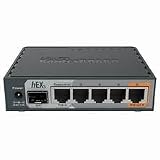
The RB760iGS has a recessed physical Reset button and an SFP status LED. The green SFP LED is the visual signal used by the hEX S reset procedure. The router also has five Ethernet ports; for initial recovery, connect a computer directly to an Ethernet port and try the standard LAN arrangement first.
[Rear/side controls] Reset button — recessed push button
Do these 3 things before closing this tab:
1Repair Windows errors before they cause bigger problems2Scan for outdated or missing drivers - takes under a minute3Clear out junk files and repair common Windows errors[Status indicator] SFP LED — release the Reset button when this green LED begins flashing
Rank #2
- POWERFUL PROCESSOR: Features an 880MHz dual-core processor and 256MB RAM for efficient network management and high-performance routing capabilities
- GIGABIT CONNECTIVITY: Equipped with 5 Gigabit Ethernet ports supporting up to 1000 Mbps data transfer speeds for fast network connections
- POE FUNCTIONALITY: Includes Power over Ethernet capability, enabling power delivery through Ethernet cables to compatible network devices
- ADVANCED SECURITY: Implements Layer 4 firewall protection and network access control for enhanced network security and traffic management
- VERSATILE DESIGN: Compact desktop form factor suitable for home or small office use, with Linux-based operating system for reliable performance
[Network connection] Ethernet ports 1–5 — connect the recovery computer directly to one of these ports
Do not open the case or look for a reset jumper. The model-specific procedure uses the physical button.
How to factory reset the RB760iGS with the button
- Unplug the hEX S power adapter.
- Disconnect the WAN cable and other unnecessary network cables.
- Press and hold the recessed Reset button.
- While continuing to hold the button, reconnect power.
- Watch the green SFP LED.
- Release the Reset button as soon as the SFP LED begins flashing.
- Wait for the router to reboot. Do not remove power during the restart.
- Connect a computer directly to an Ethernet port and try to log in.
The LED state matters more than a stopwatch. Avoid instructions such as “hold the button for exactly five seconds,” because the useful release point is the flashing LED.
Default username, password, and IP address
| Device situation | Username | Password |
|---|---|---|
| Older or original hEX S documentation | admin |
Blank; leave the password field empty |
| Unit with a factory password label | admin |
Password printed on the router, box, or Quick Guide |
| Router that has not been reset | Previously configured account | Its former custom password |
Do not assume the password is admin. MikroTik distinguishes older blank-password devices from newer units with a device-specific password. Check the sticker and packaging if a blank password fails; MikroTik’s default-password guidance explains this distinction.
Under the normal default configuration, the router is typically reachable at 192.168.88.1. A reset using no-defaults=yes, however, may provide no management IP address, DHCP server, NAT, or firewall rules.
Log in after the reset
WinBox by IP address
- Connect the computer directly to an Ethernet port.
- Temporarily disable Wi-Fi and VPN software so traffic uses the direct cable.
- Leave the computer set to obtain an IP address automatically.
- Open WinBox and try
192.168.88.1. - Use
adminand either a blank password or the password printed on the device.
If the router does not appear at that address, use WinBox’s Neighbors list. A MAC-address connection can work when the router has no known IP address, provided it has booted and is visible on the same Layer-2 network.
WebFig
Open http://192.168.88.1 in a browser, or try https://192.168.88.1 where supported. WebFig will not work if the router has no IP address or your computer is not on the same subnet, so WinBox is usually the better first recovery tool.
Rank #4

- Mikrotik Routerboard hEX RB960PGS 128MB Router Gigabit 5 Ports PoE in
- hEX PoE is a five port gigabit ethernet router for locations where wireless connectivity is not required.
- The device has a USB 2.0 port and a SFP port for adding optical fiber connectivity. The ports 2-5 can power other PoE capable devices with the same voltage as applied to the unit.
- It is affordable, small and easy to use, but at the same time comes with a very powerful 800MHz CPU, capable of all the advanced configurations that RouterOS supports. Less power adapters and cables to worry about! Max current is 1A per port, Ethernet ports are shielded.
- PoE out: 802.3at
If the computer receives no address
Try another Ethernet cable and port, and remove switches or other routers temporarily. As a troubleshooting measure, manually assign the computer 192.168.88.10/24 and try 192.168.88.1. This is not required for every default configuration and should be undone after recovery.
Reset from WinBox, WebFig, or the CLI
If you can still log in, use System → Reset Configuration in WinBox or WebFig. Select the normal reset unless you specifically need an empty configuration, review the options, confirm, and wait for the reboot.
The equivalent CLI command is:
/system reset-configurationFor an empty configuration:
/system reset-configuration no-defaults=yesThat option is generally unsuitable for a beginner because the router may come back without the familiar address, DHCP service, NAT, or firewall. To skip the automatic backup before a software-triggered reset:
What’s actually slowing this PC down?
Pick the symptom - the matching free tool is one click away.
/system reset-configuration skip-backup=yesOnly use skip-backup=yes when you understand the consequence.
Best Value
If the button reset does not work
- Confirm that you are pressing the recessed Reset button, not another control.
- Start with the router fully powered off.
- Press the button before applying power.
- Release it when the green SFP LED begins flashing; do not wait for the LED to go out.
- Try a different power outlet, adapter if appropriate, and Ethernet cable.
- Remove managed switches, extra routers, and other DHCP servers.
- Try MAC-based WinBox discovery.
- If the router is waiting for Netinstall, power it off and repeat the reset with an earlier release.
No LED activity, repeated reboots, or no normal power indication can indicate a power or hardware fault. A configuration reset will not necessarily repair damaged RouterOS, a failed RouterBOOT upgrade, or defective hardware.
Last resort: reinstall RouterOS with Netinstall
Use Netinstall when RouterOS is corrupted, the router cannot complete a normal boot, or a clean reinstall is genuinely required. Do not use it merely because you forgot the password; a button reset is less destructive.
At a high level, the process is:
- Download the appropriate Netinstall utility and RouterOS package from MikroTik’s official downloads area.
- Use a Windows or Linux computer.
- Connect the computer and router on the same Layer-2 network, preferably directly or through a simple unmanaged switch.
- Start Netinstall.
- Use the reset-button sequence to put the router into Etherboot/Netinstall mode.
- Select the RB760iGS, choose a compatible RouterOS package, and start the installation.
- Allow the router to reboot, then configure it from scratch.
Netinstall reformats the system drive and erases configuration and user files. It normally does not remove the RouterOS license key or reset RouterBOOT settings. Choosing an unsuitable package or mode can complicate recovery, so follow MikroTik’s current Netinstall instructions.
A reset can also execute an initial configuration script previously supplied through Netinstall. If a device repeatedly returns to an unexpected custom setup, a full reinstall may be needed to remove that behavior.
Secure the router immediately after access is restored
- Set a strong, unique administrator password.
- Create a named administrator account and test it.
- Disable or remove the default
adminaccount where appropriate. - Confirm the RouterOS version, then update it after checking compatibility and package requirements.
- Restrict WinBox, WebFig, SSH, and other management services to trusted LAN interfaces.
- Do not expose management services directly to the Internet.
- Rebuild firewall, DHCP, NAT, VLAN, VPN, and port-forwarding rules deliberately rather than assuming the old configuration survived.
MikroTik warns that a lost password has no normal recovery path; another reset or reinstall is required. Treat the new credentials as important recovery information.
Quick Recap
Product prices and availability are accurate as of the date/time indicated and are subject to change. Any price and availability information displayed on Amazon at the time of purchase will apply.

