The Tool Desk
Outbyte PC Repair FREERepair Windows errors before they cause bigger problemsFix Now →Outbyte Driver Updater FREEScan for outdated or missing drivers - takes under a minuteDriver Scan →Some links on this page are affiliate links: if you buy through them we may earn a commission, at no extra cost to you.
In Microsoft Edge for Windows or macOS, open Settings and more (…) → Settings → Cookies and site permissions → Media autoplay. Choose Block for the strongest restriction, Limit for a compromise, or Allow to let sites start media automatically. Limit is not the same as off: Edge may still allow autoplay on sites you have used or interacted with before.
Change Edge’s media-autoplay setting
- Open Microsoft Edge on your Windows or Mac computer.
- Select Settings and more (…) in the upper-right corner, then select Settings.
- Open Cookies and site permissions.
- Select Media autoplay.
- Choose Allow, Limit, or Block, depending on what you want.
The labels or their availability can vary slightly by Edge version, platform, profile, or organizational policy. If you do not see the option, search for autoplay in Settings.
- To enable autoplay: select Allow.
- To reduce unexpected playback: select Limit.
- To restrict automatic media playback as strongly as possible: select Block, if available.
If the page was already open, refresh it or close and reopen its tab. A full browser restart is not usually the first step, but can help if the tab continues to behave as before.
What Allow, Limit, and Block mean
| Setting | Practical effect |
|---|---|
| Allow | Sites may start media automatically. Other browser, site, or policy behavior can still affect playback. |
| Limit | Edge restricts autoplay but may permit it on sites where you have previously interacted or built up media engagement. |
| Block | The strictest user-facing choice where offered. Ordinary media generally needs an explicit user action before it plays automatically. |
Microsoft describes Limit as Edge’s default behavior and notes that previous interaction and site media engagement can affect whether playback is allowed. So a familiar video site may behave differently from a site you have never used. For details, see Microsoft’s guide to managing autoplay in Edge.
#1 Best Overall

- [Ultra-Slim and Lightweight] – Designed for portability, it easily fits into your bag or pocket without adding bulk.
- [Snaps Flat for Easy Travel] – Folds flat to slip effortlessly into your pocket or laptop sleeve — perfect for on-the-go use.
- [Natural, Intuitive Design] – Ergonomically shaped for comfort and optimized for smooth, natural interaction.
- [Scroll in Every Direction] – Innovative full scroll plane supports both vertical and horizontal scrolling for easier navigation.
- [Precise and Responsive] – Enjoy accurate tracking with optimized left and right click functionality for everyday use.
Autoplay means a webpage starts audio or video without you first pressing Play. It is different from playback you start by clicking a player control. Muted video can also be treated differently from audible playback: a page may show moving, silent video even when automatic sound is restricted. Edge’s media setting does not necessarily stop GIFs, CSS animations, animated ads, or other moving effects that are not ordinary audio or video.
If autoplay continues after you change the setting
Work through these checks in order:
- Reload the page, then reopen its tab. A tab that was already loaded may retain its existing media state.
- Check whether the video is muted. Silent autoplay is not the same as a site starting audible playback.
- Check the content type. A GIF, animated advertisement, or custom page effect may not be controlled by the media-autoplay permission.
- Review the site’s player settings. A website may have its own autoplay preference or use an embedded player with different behavior.
- Confirm the Edge profile. Settings belong to the profile in which you changed them; another profile may have a different preference.
- Try an InPrivate window. If the page behaves differently there, an extension or profile setting may be involved. Extensions may also affect how pages behave.
- Test another site. If only one site autoplays, the cause may be specific to that site or its player.
- Check for device management. A work or school policy may control the setting, regardless of what the Settings page appears to show.
A video that begins after a click, key press, scroll, or other action may have been treated by the site as user engagement. Selecting Block is the strongest general restriction, not a promise that every moving image or nonstandard player will stop.
Rank #2

- Dual-Mode Connection & Simultaneous Dual Device Use - Built with Bluetooth 5.2 + 2.4GHz USB dual cordless connection. Connect two devices simultaneously: one via Bluetooth, the other with the 2.4GHz receiver. Features fast response, accurate positioning, stable signal and smooth cursor tracking. Quickly switch your operation between desktop, laptop, Mac and tablet freely
- Ultra-Thin Rotatable & Easy-to-Carry Design - This mouse features a rotatable body for flexible storage. The curved mouse fits easily into pockets or travel bags for commute, business trips and outdoor use. Powered by 2 AAA batteries (batteries are NOT included in package) for stable long-term power supply
- Silent Click Buttons for Quiet Working & Travel - Upgraded optical sensor delivers sensitive, smooth and rapid cursor movement. Mute left & right button design eliminates loud clicking sounds. You can work, study or leisure & entertainment quietly in offices, libraries and home spaces without disturbing others nearby
- 4 Levels Adjustable DPI Sensitivity - Four optional DPI speeds: 800/1600/2400/3200 DPI. Freely adjust cursor speed to meet different needs for document typing, web browsing, drawing and daily office work
- Ergonomic Sweatproof Shell - Ergonomic curved shape fits your hand naturally to reduce palm fatigue during long-hour use. The skin friendly surface is sweatproof and dustproof for clean daily usage, matched with premium optical tracking for instant click feedback
Allow autoplay only on selected sites
If you want autoplay on one trusted site but not everywhere, check the site-information menu from the address bar and the website’s own player settings. The precise site controls can differ between Edge releases and websites; do not assume every installation has an identical per-site autoplay switch.
For organization-managed Edge installations, administrators can use Microsoft’s AutoplayAllowlist policy to permit autoplay for specified URL patterns. Microsoft documents Windows and macOS support from Edge 93. Examples include https://www.contoso.com and [*.]contoso.edu; a bare * is not accepted. This is an administrator policy, not a routine consumer setting.
Rank #3
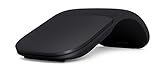
- Ultra slim and lightweight. Battery life: Up to 6 months
- Snaps flat and slips easily into a pocket or bag
- Innovative full scroll plane lets you scroll both vertically. Wireless range: 32.8 feet (10 meters) in open area, and 16.4 feet (5 meters) in office environment
- Dimensions: 5.17 x 2.17 x 0.56 inches. Weight: 2.91 ounces (including batteries). Battery: 2 AAA alkaline batteries (included). Battery life Up to 6 months
- Compatibility: Microsoft Windows 10 / 8.1 / 8. Must be Bluetooth 4.0 enabled. Wireless frequency 2.4 GHz frequency range. PC must meet these requirements to download: Microsoft Windows 11 Home/Pro / 10 / 8.1 / 8, 150MB available hard disk space.
Check whether a work or school policy controls autoplay
On a managed computer, Group Policy, mobile-device management, or another organizational configuration can override your preference or prevent you from changing it. To inspect policies applied to Edge, enter edge://policy in the address bar and look for AutoplayAllowed or AutoplayAllowlist. This page is for diagnosis; it is not a control panel for changing the policies.
Microsoft documents AutoplayAllowed for Windows and macOS from Edge 78. When the policy is enforced, users cannot override it. Close and reopen affected tabs after a policy change. If a setting is greyed out, unavailable, or ineffective on a managed device, contact your administrator rather than trying to bypass the policy or editing the registry.
Rank #4

- Sleek and Compact: Compact and lightweight, this mouse is ideal for on-the-go professionals and is powered by a single AA battery. Its design eliminates the hassle of tangled cables, providing the freedom to work in various environments
- Uncompromised Quality: Built to withstand extensive use, the left and right buttons are engineered to last up to 3 million clicks. The scroll wheel is designed to endure up to 300,000 cycles, ensuring long-lasting durability and consistent performance
- Sculpted Grip Bluetooth Mouse: Experience all-day comfort with a sculpted grip that conforms to your hand's natural contours, providing ergonomic support for extended periods of use. Effortlessly pair your device with Bluetooth 5.0 and Microsoft Swift Pair technology
- Smooth Navigation: Maximize your workflow with a 5-button mouse featuring left click, right click, scroll click, forward, and backward buttons, coupled with an anti-slip scroll wheel. The precise optical sensor and 3-level DPI adjustment caters to various tasks, offering 800, 1200, and 1600 DPI
- Silent Efficiency: Designed to work seamlessly on different surfaces such as wood, leather, fabric, paper, and resin, the WL300 offers silent left, right, and scroll wheel buttons, allowing for efficient and quiet operation
Administrators should consult Microsoft’s current policy documentation for the target Edge version. Microsoft’s policy references differ on how a disabled AutoplayAllowed policy maps to the user-facing behavior in some newer versions, so that mapping should not be assumed without checking the applicable documentation and build.
Quick wins for a faster PC:
Clear out junk files and repair common Windows errorsFree Scan →Scan for outdated or missing drivers - takes under a minuteDriver Scan →Desktop and mobile scope
The menu path above is for Microsoft Edge on desktop Windows and macOS. Microsoft’s documented AutoplayAllowed enterprise policy is supported on Windows and macOS, but not through that policy on Android or iOS. Do not assume the desktop menu or enterprise-policy controls work the same way in Edge mobile.
Best Value

- It is compatible with Mac iMac Macbook Pro Macbook Air 2012/2013/2014/2015/2016/2017/2018/2019/2020/2021/2022/2023/2024,XP, Vista, Win 7, 8, 10,11 Windows and is suitable for desktop computer,laptop, notebook, PC, and other devices.
- [Rechargeable Wireless Mouse] Built-in durable 450mAh lithium rechargeable battery can last up to 500 hours after fully charged, and standby time is super long with auto sleep and wake mode. Easily recharged through the included USB cable, no need to change the battery
- 【Wireless Mouse·1600 DPI】It can move freely within a range of up to 10 m through 2.4 GHz wireless transmission.You can use it easily without interference from cables, and enjoy more freedom than I thought.Adjustable with three levels precision (800/1200/1600 DPI), which can be tracked more precisely and correctly, the speed of the mouse can be controlled more freely and the operation can be more precise.
- 【Skin-Friendly for Comfort & Mute Click】Silent click Mouse with classic design with anti-fingerprint finish offers your hand maximum support and comfort. The sturdy anti-slip rubber scroll wheel ensures that your hand will not slip when scrolling.Quiet click sound when pressing buttons, which let you not worry about the mouse sound can disturbing others, especially at home or office, when other members having rest, you can focused on your work without worry.
- This wireless mouse plug and play, just two steps, is suitable for any desktop computer and laptop. The connection is 100% stable. It does not need to connect to the computer via Bluetooth, nor does it need to worry about Bluetooth disconnection and complex Bluetooth connection like a Bluetooth mouse
Older guides may point to edge://flags or command-line switches. Flags are experimental and can disappear; undocumented switches are not a dependable permanent fix. Use the supported Settings control for personal use or the documented policy controls for managed environments.
Quick Recap
Product prices and availability are accurate as of the date/time indicated and are subject to change. Any price and availability information displayed on Amazon at the time of purchase will apply.

