Free tools Windows power users keep installed
One-click scans. No signup required.
Some links on this page are affiliate links: if you buy through them we may earn a commission, at no extra cost to you.
To check a page’s Open Graph image, inspect its HTML for <meta property="og:image" content="…">, confirm that URL points to the intended image, then compare the page’s declared metadata with what the relevant platform’s parser reads. A browser preview can help, but a third-party preview is not proof that every social platform’s crawler will fetch or display the same result.
Find the image the page declares
Open Graph metadata lives in the page’s <head>. The key field for the sharing image is og:image; its content value is the image URL associated with the page or object. The Open Graph protocol identifies og:title, og:type, og:image and og:url as its basic required properties. See the Open Graph protocol for the specification.




<head>
  <meta property="og:title" content="A page title">
  <meta property="og:type" content="website">
  <meta property="og:image" content="https://example.com/images/share-card.jpg">
  <meta property="og:url" content="https://example.com/article">
</head>
This is an illustrative example, not a required choice of image, title, or URL. Replace the example values with the metadata served by the page you are checking. The image URL should be the specific image you want associated with that page—not just a guess based on what appears in the page body.
Do these 3 things before closing this tab:
1Repair Windows errors before they cause bigger problems2Fix the driver behind crashes, sound loss and screen glitches3Clear out junk files and repair common Windows errorsInspect the HTML you actually receive
For a quick check, open the page’s source or use your browser’s developer tools to inspect its document head, then search for og:image. Read the complete content value and verify that the tag is in the head. If you are checking a live site, use the public page URL, not merely a local copy or an editor preview: the relevant question is what a fetcher can read from the served page.
If you find no og:image, the page is not declaring an Open Graph image in the markup you inspected. If you find one, record the exact value. Don’t assume that seeing the intended graphic somewhere on the page means the Open Graph field points to it.
Check the related image metadata
Where present, inspect the image’s structured properties as well as the root og:image tag. The protocol describes og:image:type, og:image:width, og:image:height, og:image:secure_url and og:image:alt as image-related metadata. Their values can help you understand what the page is declaring about the image.
og:image:typedeclares a MIME type.og:image:widthandog:image:heightdeclare dimensions.og:image:secure_urlprovides a secure URL for the image.og:image:altdescribes what is in the image; it is not the image’s caption.
These fields help you inspect the declaration, but their presence alone does not establish that a particular platform will display the image as expected. Check the actual image URL and the platform’s parsed result too.
What’s actually slowing this PC down?
Pick the symptom - the matching free tool is one click away.
Compare the page with a parser or preview
A metadata inspection tells you what is in the markup you examined. A parser or preview tool gives you another useful view: what a fetcher reads from a URL, and sometimes how the page might look when shared. For the platform you care about, prefer its own parser or debugger when one is available. The Open Graph protocol site identifies Facebook Object Debugger as Facebook’s official parser and debugger.
| Check | What it helps establish | What not to assume |
|---|---|---|
| Inspect the page’s served head | Whether the inspected markup declares og:image and which URL it gives. |
That every platform crawler receives the same response or displays the same preview. |
| Use the target platform’s parser or debugger | What that platform’s own debugging interface reports for the URL. | A result for one platform establishes the result for every other platform. |
| Use a third-party preview checker | A convenient view of metadata and, depending on the checker, a visual preview. | A preview fetched through a third-party proxy proves how a platform’s crawler fetches the page. |
For example, OG Preview describes a browser-based checker that fetches a public URL, lists tags and shows a preview. It also says its fetch uses an external third-party proxy. A proxy may fail independently of a platform’s own crawler, so treat its result as a diagnostic view, not a definitive account of every platform’s behavior.
Compare the raw parsed tags with the visual preview rather than relying on the preview alone. If the parsed og:image value is wrong, investigate the page’s metadata. If the value is right but a visual preview is absent or unexpected, check whether the image itself is fetchable and compare the relevant platform’s own debugger result.
Check multiple image tags and their order
A page may declare more than one og:image. The Open Graph protocol’s ordering rule says that, in a conflict, the first such tag from top to bottom takes precedence. Read the tags in order instead of stopping at the first value that looks familiar.
Quick wins for a faster PC:
Repair Windows errors before they cause bigger problemsFix Now →Fix the driver behind crashes, sound loss and screen glitchesFind Drivers →Also inspect how each image’s structured properties are grouped. The protocol specifies that an image’s structured properties follow that image’s root og:image tag. When several images are present, check that the sequence makes sense: identify each root image declaration, then its related properties, before moving on to the next root declaration.
Troubleshoot an absent, wrong or stale preview
Work from the page’s declaration outward. This separates a metadata problem from an image-fetching or cached-result problem and avoids treating every missing preview as the same failure.
No image appears in the preview
- Inspect the served page head and confirm it contains an
og:imagetag with a value. - Check whether the URL in
contentis the image you intended to share. - Confirm the image URL can be fetched. A correct-looking string in the metadata is not enough if the image itself cannot be retrieved.
- Compare the result with the target platform’s own parser or debugger, if available. A third-party proxy can fail separately from the platform crawler.
The preview uses the wrong image
- Read every
og:imagedeclaration in document order. If multiple values exist, the first takes precedence in a conflict under the protocol’s ordering rule. - Check that the chosen tag’s URL points to the intended asset, not an old or unrelated image.
- Compare the target platform’s parsed metadata with the source you inspected. If they differ, the platform may not be seeing the same served markup you reviewed.
The page or image changed, but the preview did not
Check the current served markup and the image URL first, then consider cached scrape data. Platform caching and refresh behavior vary; there is no universal refresh method established here. Use the relevant platform’s own debugging interface to compare its parsed data rather than assuming that one checker’s refresh action updates another platform’s stored result. A troubleshooting guide from OG Preview likewise recommends checking source markup, crawler access and caches, with platform-specific validators; see its Open Graph debugging guide.
A checker fails to fetch the page
Distinguish a failed checker fetch from a confirmed metadata defect. A third-party checker may fetch through a proxy, and its result can fail independently of a platform’s crawler. Compare the public page’s served markup and, where possible, the target platform’s own debugger. Then check that both the page and the declared image can be reached by the fetch path being tested.
Use ScreenshotNeo when a visual page capture also helps
A screenshot is not an Open Graph parser: it does not tell you which og:image value a social platform reads. But if you also need a visual capture of the public page while diagnosing how it renders, ScreenshotNeo can return a screenshot or PDF from one API request. Its response identifies whether the page was a bot check, blank page, timeout, failed load or cache hit, and only clean shots are billed. Its MCP server offers screenshot tools for AI agents.
Best Value
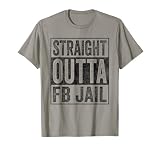
- Facebook addiction humor design. The Straight Outta FB Jail design is a fun gift for all the social media addicts in your life.
- You know someone who only looks at their smartphone and addicted to FB and Co. . Then this graphic is the perfect gift!
- Lightweight, Classic fit, Double-needle sleeve and bottom hem
Or skip the browser setup
Use the API for a visual capture of the page; continue to use the page’s metadata and the target platform’s parser to verify the Open Graph image. The request below is a ready-to-adapt cURL example from the ScreenshotNeo documentation:
curl -G "https://api.screenshotneo.com/v1/shot" -d access_key=YOUR_API_KEY --data-urlencode url=https://example.com -o shot.webp- Before capture, ScreenshotNeo accepts cookie or consent banners like a visitor and removes more than 60 known consent platforms, newsletter popups and chat widgets; each step can be turned off.
- Bot checks, blank pages, timeouts, failed loads and cache hits cost nothing. Responses include
X-Page-VerdictandX-Billedheaders. - An MCP server provides
take_screenshot,get_page_infoandcapture_pdftools for Claude, Cursor and other MCP clients. - The Free plan includes 1,000 shots per month with no card. Paid plans start at $5 for 3,000 shots; yearly billing gives two months free. Every feature is on every plan.
Sign up for ScreenshotNeo’s free plan to get 1,000 screenshots a month with no card.
A practical check sequence
- Inspect the public page’s head and locate every
og:imagedeclaration. - Confirm the first applicable image URL is the one you intended, and review any related structured properties.
- Check that the image URL can be fetched.
- Compare the markup with the target platform’s own parser or debugger where available.
- If a preview is stale or differs, investigate the served markup and cache state for that platform; do not treat a third-party proxy preview as universal proof.
This sequence answers two different questions: what the page declares and what a particular platform reports. Keep those separate when you diagnose a missing or incorrect sharing image.
Quick Recap
Product prices and availability are accurate as of the date/time indicated and are subject to change. Any price and availability information displayed on Amazon at the time of purchase will apply.

