Some links on this page are affiliate links: if you buy through them we may earn a commission, at no extra cost to you.
To switch the iCloud account on a MacBook Pro, make sure the old account’s data is synced and backed up, then go to Apple menu > System Settings > [your name] > Sign Out. Choose whether to retain any offered local copies, then return to System Settings and sign in with the other account. Apple now calls an Apple ID an Apple Account; existing sign-in details still work. Apple explains the name change.
First check what you actually need to change: the Mac’s iCloud account, the email address for the same account, or only the account used for purchases. These are separate operations.
Choose the right account change
| What you want to change | What to do |
|---|---|
| Use a different person’s iCloud account on the Mac | Sign out of the current account and sign in to the other one. This does not merge their data or purchases. |
| Keep the same account but use a different email address | Change the account’s primary email under System Settings > [your name] > Sign-In & Security. Do not sign out just to update the email. Apple says the new address cannot already be associated with another Apple Account. See Apple’s email-change instructions. |
| Use a different account only for App Store and media purchases | Change the account under System Settings > [your name] > Media & Purchases, or sign out and in from the App Store. You do not need to disconnect iCloud. Apple’s Media & Purchases guide. |
Before signing out of the old account
Signing out disconnects this Mac from the old account. It does not move that account’s cloud data into the new one. iCloud data remains in iCloud, but some local copies may be removed from the Mac unless you retain them when prompted. Apple describes what happens when you sign out.
Free tools Windows power users keep installed
One-click scans. No signup required.
- Have the current account’s password, the new account’s email address or phone number and password, and access to a trusted device or phone number for a verification code.
- Keep the Mac online and let recent changes finish syncing. Check iCloud Photos, iCloud Drive, contacts, calendars, notes, reminders, and messages on iCloud.com or another trusted device.
- Back up important Mac files, preferably with Time Machine, before making the switch. A “keep a copy” choice is not a complete offline backup of every iCloud service.
- Check available disk space if you plan to retain or download local data. The new account may have different storage and sync settings.
Apple’s Mac guidance on signing out explains that locally stored data can be removed while the cloud data remains available through the old account.
#1 Best Overall

- High-efficiency Fast Charger: Sunveza 118W USB C macbook pro charger has a high charging efficiency of up to 96%, our charger can provide fast and stable energy inflow, the charger can fully charge the macbook pro 16inch in about 1H 25mins. It can charges most of the mobile phones from 0% to 80% in 20 minutes
- Wide Compatibility: Our charger Compatible with USB-C port MacBook: Pro 16(M4'24,M3'23,M2'22,M1'21,2019), 15(2019-16), 14(M4'24,M3'23,M2'22,M1'21), 13(M2'22,M1'20,2020-16); Air 15(M4'25,M3'24,M2'23), 13(M4'25,M3'24,M2'22,M1'20); also M5; iPad Pro & Air 12.9/11/10.9", all USB-C devices, laptops, smartphones, Surface (USB-C), Dell, Lenovo, HP, M4/M2/M1 iPad Pro 13/12.9/11", iPad 10, M4/M2/M1 iPad Air 5/4, iPad Mini 6 A17 Pro, iPhone 17/16/15, etc. Works with USB-C 29W, 30W, 61W, 67W, 70W, 87W, 96W PD models. Automatic identification and conversion of charging power
- Multiple Security Protection: Our 118W macbook laptop charger adopts the most advanced technology and is made of the highest quality materials. Smart chip is installed inside, include multiple smart features safeguarding against over-current, over-voltage, overload, temperature protection, short-circuit protection, and auto recovery, fast charging speed and long service life
- Advanced Charging Technology: PD 3.0 charging technology, the performance is higher than other replacement macbook charger like 96W, 87W, 70W, 61W, 67W, 30W, 29W USB C macbook charger. Input: AC 100-240V, 1.5A, 50-60Hz. Output: 20.5V/4.7A, 15V/3A, 12V/3A, 9V/3A, 5.2V/3A( Identify your devices automatically and provide the fastest and most efficient output current )
- After Sell Service: We have always been committed to provide products of superior quality at unbeatable prices, if you have any questions about the items, please contact our customer service team, we will reply you within 24 hours
Sign out and sign in on macOS Ventura 13 or later
- Select Apple menu > System Settings.
- Click the current account name at the top of the sidebar, then scroll down and click Sign Out.
- Review the prompts for iCloud Drive, Photos, contacts, calendars, reminders, messages, and other synced data. Retain a local copy where offered and needed; the available choices vary by macOS version and enabled services.
- Confirm the sign-out. If prompted about Apple Pay cards, choose whether to remove them from this Mac.
- Return to Apple menu > System Settings and click Sign in at the top of the sidebar.
- Enter the new account’s email address or phone number and password. Enter the six-digit verification code if requested.
- Review the iCloud services and settings, then check Photos, iCloud Drive, Messages, FaceTime, and the App Store to confirm which account each service is using.
Apple’s current Mac sign-in and sign-out instructions use the Apple Account pane in System Settings.
What changes—and what does not
iCloud files and other synced data
After signing out, the Mac stops syncing changes to the old account. Depending on your choices, local copies of iCloud Drive files, photos, contacts, calendars, reminders, and messages may be removed. Data that remains in the old account is not automatically downloaded into the new one. If something disappears from the Mac, verify it at iCloud.com or on another trusted device before deleting anything. Safari bookmarks and Reading List remain in Safari, but iCloud Tabs from other devices are no longer available. Apple’s sign-out guidance covers effects on local data and services.
App Store and media purchases
Apps, music, books, movies, subscriptions, and in-app purchases generally remain associated with the account that bought them. Signing into a new iCloud account does not transfer those entitlements; updates to older apps may still request the old account’s password. Apple says the App Store and other media services do not support simultaneous sign-in with multiple Apple Accounts, and content bought with another account cannot be updated while signed in to the new one. See Apple’s account sign-in guidance.
Rank #2

- Ensure Full Compatibility with Your Device. Only Compatible with 2021-2026 MacBook Models. Not for 2012-2020 Versions.
- Enhanced Battery Protection: The Type C to Magnetic 3 cable, equipped with advanced dynamic software and hardware, intelligently adapts to your charging routine, effectively reducing battery wear. Compared to traditional Type C to Type C connections, this 140W charger utilizes top-grade electronic components, providing superior battery health protection and extending battery lifespan by up to 2x, ensuring a longer-lasting, safer charge for your MacBook Air/Pro
- 140W Super Fast Charging: Experience charging speeds that far surpass standard 96W and 70W chargers—perfect for (use with) 14/16-inch MacBook Pro or 13/15-inch MacBook Air, reaching 60-80% charge in just 30 minutes. This high-efficiency, ultra-stable charging solution is engineered to keep up with the power demands of M1, M2, and M3 Pro Max chips, ensuring uninterrupted productivity
- Extensive Compatibility for MacBook Models: Perfectly compatible with a wide range of MacBook devices, including MacBook Pro 16-inch (M5 M4 M3 M2 M1) and MacBook Pro 14-inch (M5 M4 M3 M2 M1) from 2021 to 2026, as well as MacBook Air 13-inch and 15-inch (M2, M3) models up to 2024. This charger is also suitable for models a2442, a2485, a2458, a2452, a2681, a2779, and a2780.
- 2M / 6.6FT Strong Magnetic Charging Cable: This Gen3 magnetic cable is designed to provide a secure and stable connection for( use with) MacBook devices, minimizing accidental disconnects and enhancing device protection. With a convenient 2-meter length, it offers extended reach for flexible charging. The built-in LED indicator displays yellow while charging and turns green when fully charged, providing instant feedback on your device's power status.
- Keep the old account for purchases: If you are only changing iCloud, you may continue using the old account for Media & Purchases. This adds account-management complexity but can preserve access to earlier purchases.
- Use Family Sharing: It can provide access to eligible purchases and subscriptions, but not every subscription, in-app purchase, or item is shareable. Apple’s Family Sharing guide explains purchase access.
- Check purchase migration: Apple offers a process for eligible accounts, but it is not a general account merger. Eligibility includes account and region conditions; Apple’s instructions say the accounts need the same country or region for purchases, and the feature is unavailable in India. Other disqualifying conditions can apply, including some Family Sharing, child-account, TestFlight, special-access, locked-account, or music-library situations. Apple’s current instructions start the process on an iPhone or iPad. Check Apple’s migration eligibility rules before deleting or abandoning the old account; deletion can permanently cost access to its purchases.
Find My and related services
Signing out stops this Mac from using the old account’s iCloud services, including iCloud Keychain, iCloud Photos, Messages in iCloud, and related Continuity features, and turns off Find My for that account. A Mac with Activation Lock still requires the previous owner’s authorization before it can be activated by someone else.
If you only want a different App Store account
Leave the main iCloud account signed in. On macOS Ventura or later, go to Apple menu > System Settings > [your name] > Media & Purchases and review or change the account there. You can also open the App Store, choose Store > Sign Out, then Store > Sign In. The exact available controls depend on the media service and macOS version. Apple documents Media & Purchases settings.
If you are in Family Sharing and the issue is which account shares purchases, change the purchase-sharing account rather than replacing the Mac’s iCloud account. On Ventura or later, open Apple menu > System Settings > Family, select your name, and under purchase-sharing information choose Share using secondary Apple Account > Use Different Apple Account. Apple says this account can be changed only once every 90 days, and family members may lose access to eligible content tied to the previous account. See Apple’s instructions and conditions.
Rank #3

- Product information:If you have purchased our product you will receive 1 AC Adapter and 1 Power Cord ;Input:100-240V;Output:20V 4.7A;DC interface:Type-C ;Don't miss out on our AC adapter and power cord kit - it's a worthwhile purchas
- Wide Compatibility with MacBook Pro & Air: Specifically engineered for high-performance laptops, this 100W charger works flawlessly with MacBook Pro 16, 15, 14, 13 inch (2016-2024) and MacBook Air 15, 13 inch (2018-2025). It provides full-speed charging support for all M1, M2, M3, M4, and M5 chip models
- Universal Support for USB-C Devices: Beyond the specified series, our 100W Type-C charger is a versatile replacement for various laptops and smartphones. It intelligently identifies and charges devices like Mac Charger, MacBook Pro Charger, MacBook Air Charger, iPad Pro Charger, iPad Air Charger
- Safe and Reliable: Equipped with a built-in cooling system, the charger prevents overheating even at full power output. The built-in IC chip technology provides protection against overload, short circuit, and overheating, ensuring the safety of your devices. With a maximum power output of 100W and support for 5A, our USB C charger delivers faster charging speeds and allows for data syncing at an impressive 480Mbps
- WHAT YOU GET:1 Pack 100 Watt Wall Charger; 6.6ft Fast Charging Cord; 1 x Instruction for USB C Charger.Enjoy a worry-free purchase with our 60-day support. If you encounter any issues more than 60 days , our friendly support team is available 24/7 via email. Simply click "ASK A QUESTION" and contact us for assistance
If the Mac is used, being sold, or changing hands
You bought a used Mac
If setup or activation asks for someone else’s account, that is an Activation Lock issue, not a normal account switch. The previous owner must remove the Mac from their account or turn off Find My. Ask the seller to do this; reinstalling macOS does not legitimately remove Activation Lock. Apple may review a support request with proof of purchase, but approval is not guaranteed. Do not pay for an unofficial bypass. Apple’s Activation Lock guidance.
Quick wins for a faster PC:
Fix the driver behind crashes, sound loss and screen glitchesFind Drivers →Clear out junk files and repair common Windows errorsFree Scan →Scan for outdated or missing drivers - takes under a minuteDriver Scan →You are handing off your Mac
For a Mac you are selling, donating, trading in, or recycling, use Erase All Content and Settings when available: Apple menu > System Settings > General > Transfer or Reset > Erase All Content and Settings. Apple documents this option for macOS Ventura 13 or later; it erases settings, data, and apps while keeping the installed operating system. Read Apple’s erase instructions. For older Macs or when that option is unavailable, follow Apple’s Mac handoff steps.
Menu paths on older macOS versions
| macOS version | Sign-out path |
|---|---|
| Ventura 13 or later | Apple menu > System Settings > account name > Sign Out |
| Monterey 12, Big Sur 11, or Catalina 10.15 | Apple menu > System Preferences > Apple ID > Overview > Sign Out |
| Earlier versions | Apple menu > System Preferences > iCloud > Sign Out |
Apple documents these older paths in its Mac preparation instructions.
Rank #4

- 120W Fast Charger: 120W USB C laptop fast charger has a high charging efficiency of up to 97%. It can fully charge most laptops in about 1 hour and 20 minutes, and fast charge most mobile phones from 0% to 80% in 18 minutes
- Wide Compatibility: Our charger is compatible with USB C port macbook pro & macbook air 16 15 14 13 inch, ipad pro & air and all type c devices. With the features of automatic identification and conversion of charging power according to your devices
- Safe and Durable: Each of chargers has built-in IC chip technology that provides protection from short-circuits and over-heating. The usb c cord passes BW-TC17 test and 20000+ times bending test. Ensure charging safety and provide a longer service life
- Foldable and Portable: Our USB C mac charger has a foldable design that can protect the screen from scratches and is portable for travel. The 6.6ft long cable allows you to easily charge your laptop or phone whether you are working or lying in bed
- Original Quality Helps Keep Battery Health: built-in original dynamic hardware and software systems to keep Maximum Battery Capacity to 97%, intelligently charging routine to reduce battery aging and provide 2 times longer battery lifespan
Troubleshoot common problems
“Sign Out” is missing
Open the main account pane, click the account name, and scroll down; the control is not in Media & Purchases. If it is still absent, the Mac may already be signed out, use older menu labels, or be restricted by work or school management. Account status or missing credentials can also matter. Check whether the Mac is managed by an organization and consult its administrator rather than assuming one fix applies to every case.
The Mac keeps asking for the old password
First check which service is requesting it. An app update or media item may belong to the old account, or an old account may remain signed in to the App Store, Apple Music, Apple TV, Apple Books, or Messages. Inspect the App Store account and System Settings > [your name] > Media & Purchases. If you reinstall an app using the new account, its local data and paid entitlements may differ; retain the old account for updates to purchases that cannot be transferred. Apple’s Media & Purchases instructions and sign-in guidance cover these account distinctions.
Recommended Free Tools
Files or photos disappeared from the Mac
Disappearing locally does not necessarily mean deletion from iCloud. Sign in to the old account at iCloud.com or check another trusted device before changing or removing files. If you retained local copies during sign-out, search the Mac for the relevant files and folders and verify what completed syncing before moving or deleting them. Apple explains local data after sign-out.
Best Value
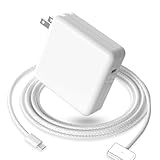
- 【Full Compatibility】 Works with Mac Book Pro 14"/16" (2021-2026) & Mac Book Air 13"/15" (2022-2026) including M1/M2/M3/M4/M5 chip models.
- 【Fast Charging】 Experience lightning-fast charging with the Power Adapter - Fully rejuvenate your 14-inch MacBook Pro in just 90 minutes! Our intelligent power-boost technology keeps your creative flow uninterrupted, transforming charging time into creating time.
- 【Strong magnetic】 This USB C Magnetic 3-cable has a strong magnetic attraction during use, which can keep the charger firmly in place when charging your MacBook.This can help protect your MacBook and prevent the charger from disconnecting or falling off during use.
- 【Ultra-Durable Armor Weave】 Lab-proven endurance: 3,0000 bend tests (3x industry average) with HD nylon fibersStain-resistant surface sheds coffee spills ("Wipe clean with a napkin - good as new!")
- 【365-Day Stress-Free Warranty】 Your satisfaction is our driving force! Enjoy 12-month hassle-free return/replacement for any quality concerns. Our dedicated team responds within 24 hours with personalized solutions.
The new account cannot sign in or no code arrives
Check the email address or phone number and password, confirm the Mac is online, and look for the verification code on a trusted device or phone number. If connection attempts repeatedly hang, check Apple’s System Status. If the password is unknown, use Apple’s account recovery process from its sign-in and recovery guidance.
Activation Lock remains
The previous owner must remove the Mac from their account, or the buyer can ask Apple to review a support request with proof of purchase. A standard macOS reinstall is not a removal method. Apple’s Activation Lock page describes the legitimate options.
Quick Recap
Product prices and availability are accurate as of the date/time indicated and are subject to change. Any price and availability information displayed on Amazon at the time of purchase will apply.
What’s actually slowing this PC down?
Pick the symptom - the matching free tool is one click away.

