Do these 3 things before closing this tab:
1Clear out junk files and repair common Windows errors2Fix the driver behind crashes, sound loss and screen glitches3Repair Windows errors before they cause bigger problemsTo capture an element’s full scrollable extent with html2canvas, set the cloned render window to the element’s scroll dimensions: windowWidth: element.scrollWidth and windowHeight: element.scrollHeight. That can fix clipping caused by a render window that is too small. It does not remove the browser’s maximum canvas width, height, or pixel-area limits. If the requested bitmap exceeds the target browser’s practical limits, lower its scale or capture bounded sections and check the seams.
Why a document over 30,000 pixels can render blank or cut off
html2canvas does not ask the browser for a native screenshot. It reads the page’s DOM and supported styles, then reconstructs the result in a canvas. The canvas is subject to browser and platform limits, and a failed oversized render may be blank or truncated without a useful error. The html2canvas FAQ identifies canvas limits as a common cause of empty or partly rendered output: html2canvas FAQ.
There are two different problems that can look alike:
- Render-window mismatch: the cloned page viewport is shorter or narrower than the element’s scrollable content. Setting
windowWidthandwindowHeightappropriately can address this. - Canvas limit: the resulting bitmap itself is too large for the browser or device. Changing the render window cannot raise that limit; use a smaller output or split the capture.
The FAQ gives rough, undated guidance of about 32,767 pixels as a maximum dimension for Chrome/Chromium, Firefox, and desktop Safari. It lists approximate maximum pixel areas of 268 million for Chrome/Chromium and 472 million for Firefox. These are reference values, not guarantees for every browser release, operating system, device, or available-memory condition. MDN notes that limits vary by environment and that iOS devices may be limited to 4096 × 4096 pixels: MDN: The canvas element.
Recommended Free Tools
#1 Best Overall

- 🎯 2400 DPI High-Resolution Output with 48-bit Color – Capture every detail with stunning clarity. The scanner delivers maximum 2400 x 2400 DPI optical resolution, producing up to 196 million effective pixels per image. Important Note: For full A3 size at 2400 DPI, use MacOS with native ICA driver support. Windows users achieve 1200 DPI for A3 via ViiScan software.
- 🚀 Fastest 4-Second A3 Scanning at 200 DPI – Achieves maximum scanning speed of 4 seconds for A3 color documents at 200 DPI resolution. Important: This is the fastest speed under specific conditions (200 DPI, A3 size, color mode). Actual scanning time varies based on resolution, document size, and scan settings. Perfect for high-volume office environments where efficiency matters.
- 🔧 Frameless Design & Intelligent Auto-Scan – The frameless scanner glass allows edge-to-edge scanning of large materials. Auto-Scan function automatically starts when the lid closes, boosting productivity in continuous scanning workflows. Four-button control panel (Scan/Email/Print/PDF) simplifies operation.
- 💻 Windows & MacOS Compatibility with Global Power – Works seamlessly with Windows 7/8.1/10/11 (TWAIN/WIA drivers) and MacOS 10.15+ (ICA driver). Universal power adapter (AC 100-240V) ensures worldwide compatibility—no extra converters needed. Compliance Note: WIA driver on Windows is limited to 600 DPI due to Microsoft restrictions.
- 📐 Perfect for CAD Drawings, Blueprints & Large Documents – Handle oversized materials that standard scanners can't accommodate. Ideal for engineering drawings, architectural blueprints, legal documents (up to 12" x 17"), newspapers, magazines, and painting albums.
The area limit can bind before either dimension reaches 30,000 pixels. For example, a 20,000 × 20,000 bitmap is 400 million pixels. Both dimensions are below 32,767, but that area is above the FAQ’s rough Chrome/Chromium reference. Actual behavior still depends on the target environment.
Match the render window to the element
For a single capture intended to include the element’s full scroll dimensions, use the element’s scrollWidth and scrollHeight for the render window. The option names and behavior are documented in the html2canvas configuration options.
const element = document.querySelector('#document');
if (!element) throw new Error('Could not find #document');

const canvas = await html2canvas(element, {
  windowWidth: element.scrollWidth,
  windowHeight: element.scrollHeight,
});

// Use or export the canvas here.
This is a complete capture call when html2canvas is loaded and the code runs in a context where await is valid. If it is not, put the call inside an async function. The element must exist and have layout dimensions before measuring it; wait for page content and images that affect layout to be ready if necessary.
windowWidth and windowHeight configure the cloned/rendered window. They are not an instruction to allocate unlimited canvas memory. The resulting document layout may also change when the render window changes: responsive breakpoints, line wrapping, sticky elements, and viewport-dependent scripts can affect what html2canvas reconstructs.
Check dimensions, scale, and output area
Measure before rendering
Record the CSS dimensions and the effective bitmap dimensions you intend to produce. html2canvas’s scale option defaults to window.devicePixelRatio. A scale of 2 turns a 15,000 CSS-pixel height into roughly 30,000 bitmap pixels; the pixel area grows by the square of the scale. Use an explicit lower scale when a high-density default would make the bitmap too large, understanding that the output loses resolution.
Rank #2

- COMPATIBILITY NOTICE: The bundled scanning software OfficeCam supports only x64 and x86 architectures on Windows PCs and macOS. Not compatible with ARM-based devices, such as the Surface Pro X.
- [A2 Large Format Scanner] The S21 scanner is a perfect A2 large format overhead document camera. Large A2 Size scanning at 594x420 mm, ideal for scanning large format journals, manuscripts, newspapers, and maps. Overhead scanner height adjustable (A2/A3) design with a 90-degree foldable hinge. And the S21 allows for taking snapshots, books, documents, business cards, 3D objects, Remote Collaboration, and recording videos
- [Excellent Scanning Quality] When paired with VIISAN’s scanning software, the document scanner can deliver up to 26MP (5888 × 4522 pixels) resolution, and supports Software-Enhanced up to 600 DPI for capturing stunning detail. It features an adjustable height (A2/A3) with a 90-degree foldable hinge, making it easy to adapt to different scanning needs. Ideal for scanning snapshots, books, documents, business cards, 3D objects, and supporting remote collaboration and video recording.
- [Intelligent Scanning Software] You can use the bundled VIISAN scanning software with the smart device to get great results while scanning books. For example, it can automatically digitally flattens curved pages, erases fingers from the scanned photos, repairs the damaged edges of documents, and automatically splits double-page into separate images. and the embedded OCR feature you can convert all the scanned files into PDF or editable Word/Excel/Epub/Txt files
- [Built-in 3-Level LED Light Control] Portable document scanner built-in high brightness LED lamp that allows you to take clear photos even in the dark. (Note: It is not recommended to use the built-in LEDs of the book scanner in bright light. And very glary papers are NOT recommended.)
const element = document.querySelector('#document');
if (!element) throw new Error('Could not find #document');

const width = element.scrollWidth;
const height = element.scrollHeight;
const scale = 1; // Choose deliberately for the target browser and output needs.

console.log({
  cssWidth: width,
  cssHeight: height,
  scale,
  bitmapWidth: Math.ceil(width * scale),
  bitmapHeight: Math.ceil(height * scale),
  bitmapPixels: Math.ceil(width * scale) * Math.ceil(height * scale),
});

const canvas = await html2canvas(element, {
  windowWidth: width,
  windowHeight: height,
  scale,
});
These calculations estimate the primary canvas size; browser internals and available memory still matter. A lower scale may reduce total area enough to help, but it should not be treated as a way to bypass a hard dimension limit. Test the exact output dimensions in each browser and device you support.
Choose width and height intentionally
Use scrollWidth and scrollHeight when the goal is the element’s full scrollable content. Supply explicit width or height only when you deliberately want a bounded output or crop. Those values control the render dimensions; they do not make content beyond the chosen bounds appear.
For an element that is wider than its visible box, or whose CSS changes at a breakpoint, verify the rendered layout rather than assuming the scroll dimensions alone describe the desired composition. The project’s options reference documents additional configuration such as custom window dimensions and scale.
Crashes, No Sound, or Screen Glitches?
Random freezes, missing sound and display glitches usually trace back to one bad driver. Find and replace yours safely.Free scan · under a minuteWindows Errors? Fix Them Before They Spread
Repair common Windows errors and clear accumulated junk for a smoother, more stable PC - no reinstall needed.Free scan · no reinstallWhen one canvas is too large: capture sections
If the estimated single bitmap exceeds the target browser’s dimension or area limit, or it fails in the target environment, divide the work into bounded sections. There is no universal chunking recipe in the html2canvas documentation because the right boundaries depend on the page’s layout and content. A sectioned approach generally requires rendering a viewport-sized slice with controlled scroll or render offsets, then assembling or exporting those slices downstream.
Rank #3
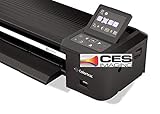
- Colortrac SmartLF 36" Wide Format Scanner
Validate each slice and the assembled result for:
- Gaps, overlaps, or repeated rows at section boundaries.
- Fixed and sticky headers, footers, and floating controls that may appear in every slice.
- Page breaks, absolute positioning, and content whose layout changes when the window size or scroll position changes.
- Images, fonts, and other resources that load late or alter document height.
- The final assembled dimensions and memory use; splitting capture does not guarantee that a single enormous assembled canvas will fit.
For document output, consider producing pages or separate image files rather than reassembling all slices into one giant bitmap. That avoids simply moving the same canvas-limit problem to a later step.
Check image, iframe, and CSS limitations
A correctly sized canvas can still differ from the page. html2canvas reconstructs from DOM information and supported CSS rather than capturing browser pixels directly; its documentation on how html2canvas works explains this distinction.
- Cross-origin images: the browser’s same-origin and canvas security rules can cause an image to be skipped or make a canvas unreadable.
useCORS: trueonly works when the image server returns suitable CORS headers. Otherwise, serve the resource through a same-origin proxy you control.allowTaintdoes not make a tainted canvas readable. - Cross-origin iframes: browser security prevents access to their documents, so html2canvas cannot render their contents as if they were part of the parent document.
- Unsupported or complex styling: because the library rebuilds a representation, CSS features may not match a native browser screenshot exactly.
See the project’s FAQ and configuration reference for the relevant caveats and options. Increasing dimensions will not repair a fidelity or cross-origin issue.
The Tool Desk
Outbyte Driver Updater FREEFix the driver behind crashes, sound loss and screen glitchesFind Drivers →Outbyte PC Repair FREERepair Windows errors before they cause bigger problemsFix Now →For browser extensions, consider the native tab screenshot API
The html2canvas FAQ says browser extension screenshot APIs are more reliable for extension captures and do not have canvas size limits. It names chrome.tabs.captureVisibleTab() and browser.tabs.captureVisibleTab(). These capture the visible tab, not an automatic full-document export, so a full-page workflow still has to scroll and coordinate multiple captures if that is what the extension needs. See the FAQ for context. Do not substitute these APIs for html2canvas in an ordinary web page: they are extension APIs with different permissions and capture semantics.
Rank #4

- [Office-friendly] - The S30 can scan documents up to 12 inches wide, meeting a wide range of business needs. A fast, powerful, large-format desktop scanner ideal for high-volume office use.
- [Cost Savings] - The S30 can scan A4/Letter size and 12" wide documents at the same time, so you won’t have to spend extra on a separate scanner just for a few wide-format documents.
- [Flexible Paper Handling] - The S30 handles a wide range of documents, from standard office paper in various sizes to blueprints, architectural plans, and engineering drawings, as well as thin papers like purchase orders and delivery notes.
- [Broad Compatibility] - Horizontal mode suit for matrix printer paper, thin or fragile documents can use carrier sheet protect during scanning. larger than Tabloid but smaller than Cut Sheet size, fold in carrier sheet and scan to save as a single image
- [Job Button] - The included software lets you register frequently used scanning tasks to the job button on the scanner. Once set up, you can simply press the job button to perform one-touch scanning.
Troubleshoot a blank, short, or distorted result
| Symptom | Likely cause | What to check or change |
|---|---|---|
| Canvas is blank or capture stops partway down | Canvas dimension or area limit; render window too short | Log scroll dimensions and estimated bitmap dimensions. Match the window to the intended scroll dimensions; if the bitmap is still too large, reduce scale or capture sections. |
| Output is much larger than expected and fails on some devices | Default scale follows window.devicePixelRatio |
Set a deliberate scale and calculate bitmap width, height, and area before rendering. Test on the actual browser/device combinations you support. |
| Images are missing or canvas export fails | Cross-origin image lacks CORS permission or taints the canvas | Use useCORS: true only if the remote server permits it; otherwise use an appropriate same-origin proxy. Do not expect allowTaint to make a tainted canvas readable. |
| Iframe contents are absent | Cross-origin document access is blocked by browser security | Capture content in the iframe’s own origin or use an allowed capture method; html2canvas cannot read a cross-origin iframe document. |
| Layout differs from the visible page | DOM reconstruction, unsupported CSS, or responsive layout changed in the cloned window | Check supported styling, compare with the selected render-window dimensions, and test the page at its intended breakpoint. Use a native screenshot method if pixel-faithful browser output is required. |
| Sectioned output has repeated headers or visible seams | Fixed/sticky elements or incorrect section offsets and boundaries | Inspect each slice and adjust offsets or hide/reposition repeated fixed content for the capture. Verify the assembled output at every join. |
The FAQ notes that fixed browser limits change and points to the canvas-size project for browser/platform test results. Treat those results as environment-specific evidence, not a permanent cross-browser contract.
Or skip the browser setup
If you need a screenshot rather than a DOM-reconstructed canvas, ScreenshotNeo is a website screenshot API and MCP server. Its one-call endpoint returns a PNG, JPEG, WebP, or PDF and handles the browser capture remotely. For a page longer than 30,000 pixels, confirm the service’s current output behavior and limits in its documentation rather than assuming a particular very-tall export size.
Install the Python dependency with python -m pip install requests, set your API key, and make the request as follows. The response body is written to a file; use a supported output format and URL for your task.
What’s actually slowing this PC down?
Pick the symptom - the matching free tool is one click away.
import requests

r = requests.get(
    "https://api.screenshotneo.com/v1/shot",
    params={"access_key": "YOUR_API_KEY", "url": "https://stripe.com"},
    timeout=90,
)
open("shot.webp", "wb").write(r.content)
See the ScreenshotNeo API documentation for request details. ScreenshotNeo removes cookie and consent banners, newsletter popups, and chat widgets before capture; each step can be turned off. Bot checks, blank pages, timeouts, failed loads, and cache hits are not billed, and response headers identify the page verdict and billing status. Its MCP server exposes take_screenshot, get_page_info, and capture_pdf for AI agents and MCP clients. The free plan includes 1,000 screenshots per month with no card required; paid plans start at $5 for 3,000 screenshots.
Sign up for 1,000 free screenshots a month, with no card.
Best Value
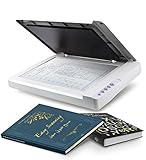
- Maximum Scan size - 11.7"x 17" (297 x 431.8 mm) Large Format Scanning, easy digital Tabloid or A3 size paper.
- No more waiting - by LED Light Source, Save Energy, No Warm Up
- Hassle fre operation - Pre Set Function One-Touch Button for Your Quick Use.
- Powerful software bundle - Enhanced OCR Accuracy with ABBYY, and DocAction for File Sharing
- Scan mode - 48 bit Color /16 bit Gray-Scale for Scan Art, Documents and Other Items
FAQ
Does setting the window height to 40,000 make html2canvas support a 40,000-pixel canvas?
No. It configures the cloned render window; the browser still imposes canvas dimension and area limits.
Is 32,767 pixels a guaranteed safe limit?
No. It is rough, undated guidance on the live html2canvas FAQ, not a guarantee for every version, platform, device, or memory condition.
Can I use html2canvas to capture a cross-origin iframe?
No. Browser security prevents html2canvas from accessing a cross-origin iframe’s document.
Quick Recap
Product prices and availability are accurate as of the date/time indicated and are subject to change. Any price and availability information displayed on Amazon at the time of purchase will apply.

