You can make YouTube thumbnails faster with templates, but the process is assisted rather than fully automatic: choose a layout, replace its text and imagery, apply your channel’s style, check the result at small size, then export and upload it in YouTube Studio. Canva offers prompt-based thumbnail generation and editable templates; Adobe Express offers searchable and AI-generated templates, brand assets, and reusable shareable templates. You still need to tailor the design and follow YouTube’s current image requirements.
What “auto-generate” means for YouTube thumbnails
A template automates the starting structure, not the editorial decisions. It can give you a layout with a focal image, text area, and visual hierarchy; AI features can suggest or generate a starting design. You must still decide what the thumbnail should communicate, choose suitable imagery, replace placeholder text, check rights, and review the exported file before uploading it.
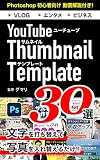

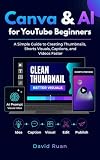

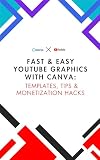
YouTube describes custom video and Shorts thumbnails as a quick snapshot of the content. A coherent template system makes recurring videos easier to recognize, but neither a template nor AI generation guarantees more views or a higher click-through rate.
Choose a template tool
| Tool | Starting workflow | Reuse and brand consistency | Export and caveats |
|---|---|---|---|
| Canva | Start with a prompt-based AI thumbnail generator or an editable template, then refine the design in the editor. | Canva describes brand colors and collaboration features for keeping designs consistent. | Canva describes JPG and PNG downloads. Its AI generation is limited on the free offering, with more generations on paid plans; check the current account and plan details. Canva says AI outputs may not be exclusive and users are responsible for checking whether permissions are needed for depicted art, photographs, trademarks, or logos. |
| Adobe Express | Search templates by topic, start with a blank canvas, or use a prompt-generated template. | Adobe describes Brand Kits and shareable templates. It says any new or existing project can be turned into a shareable template. | Adobe says designs can be downloaded. Its thumbnail page presents a 1280 × 720 canvas; use YouTube’s current upload guidance when setting final dimensions. |
These are different documented workflows, not a quality ranking. Choose based on whether you prefer prompt-led generation or template search, and on the brand and collaboration features you need. Do not assume Canva’s AI-use terms apply to Adobe Express, or vice versa.
What’s actually slowing this PC down?
Pick the symptom - the matching free tool is one click away.
#1 Best Overall
Build a repeatable thumbnail workflow
-
Decide the one idea the image should carry
Write a short description of the video’s central promise, reveal, or subject before opening the editor. Pick one image that supports it: for example, a video still, behind-the-scenes photo, headshot, or suitable stock image. Adobe suggests those image types depending on the subject. Avoid using a generic template image that implies something the video does not deliver.
-
Choose a layout that fits the subject
Browse templates by topic in Adobe Express, or begin from an editable template or prompt-led generator in Canva. Treat generated designs as drafts. Keep the parts that create useful hierarchy—such as a clear focal point and a distinct text area—but remove elements that compete with the subject.
-
Replace every placeholder
Use wording that accurately identifies the video’s hook, rather than leaving template copy or cramming in a second headline. Adobe recommends high contrast, a strong focal point, and 3–5 words; regard that as Adobe’s design guidance, not a universal measured rule. A shorter phrase is often easier to inspect at small display sizes.
-
Apply your channel’s visual system
Reuse a limited set of colors, type styles, and logo treatment so recurring uploads look related. In Adobe Express, use Brand Kit features and save a shareable template if you want a reusable starting file. In Canva, use the channel’s brand colors and collaboration features where available. Keep enough variation that viewers can distinguish the subject of each video; consistency does not mean repeating identical imagery.
Special offer. See more information about Outbyte and uninstall instructions. Please review EULA and Privacy policy. -
Check the thumbnail at reduced size
Zoom out or preview the exported image at approximately the size where a viewer is likely to encounter it. Confirm that the main subject and essential words remain clear, that text is not obscured by the background, and that small decorative details are not doing important communication work. If the message disappears when reduced, simplify the copy or strengthen the focal image.
-
Set dimensions and export for the target upload
Check YouTube Help immediately before export because YouTube’s current recommendations differ from the thumbnail-editor page presets. Canva’s thumbnail page and Adobe Express’s thumbnail page present 1280 × 720, while YouTube Help currently recommends 3840 × 2160 for standard video thumbnails and 2160 × 3840 for Shorts. YouTube also specifies a minimum width or height of 640 pixels. Follow YouTube’s current guidance rather than assuming an editor preset is the latest platform recommendation. Export an allowed image type such as JPG or PNG, then verify the actual file size and dimensions.
-
Upload in YouTube Studio and verify the result
For a video, open YouTube Studio, select the video, use its thumbnail controls to upload the custom image, and save the change. YouTube says a verified account can upload custom video thumbnails. Check the live video page after saving to confirm the intended image appears. Shorts have a separate thumbnail workflow and eligibility conditions; YouTube recommends a 9:16 image for Shorts, so follow the current Shorts-specific Studio flow rather than assuming the standard video workflow applies.
What image size and file limits should you use?
As of the YouTube Help guidance accessed September 29, 2026, standard video thumbnails are recommended at 3840 × 2160 pixels and Shorts thumbnails at 2160 × 3840 pixels, with a minimum width or height of 640 pixels. Canva and Adobe’s thumbnail pages show 1280 × 720 presets. The discrepancy matters: a 1280 × 720 editor preset is not the same as YouTube’s current stated recommendation. When the tool permits custom dimensions, use the dimensions YouTube Help currently recommends for the media type; if it does not, check the current upload requirements and avoid relying on a stale preset.
PC Slower Than It Used to Be?
A free scan shows the junk files, broken settings and background clutter dragging Windows down - then fixes them in one click.Free scan · Windows 10 & 11Crashes, No Sound, or Screen Glitches?
Random freezes, missing sound and display glitches usually trace back to one bad driver. Find and replace yours safely.Free scan · under a minuteYouTube’s current listed file-size limits vary by device and media type: 2 MB for mobile video thumbnails, 10 MB for mobile podcast thumbnails, and 50 MB for desktop video, Shorts, and podcast thumbnails. The same Help page lists JPG or PNG as supported formats. Since the limits differ by upload context, check the instructions shown for your actual Studio workflow if a file is rejected.
Independent reader supportYour contribution helps us test, update, and keep practical guides available for everyone.Make the template genuinely reusable
- Keep editable source files. Save the project or template, not just the exported JPG or PNG, so the next thumbnail can reuse the layout.
- Separate fixed styling from changing content. Keep logo placement, typography, and recurring color choices stable; replace the image and headline for each video.
- Use a small set of layout variants. A face-led video, a product demonstration, and a list-style explainer may need different compositions. Make variants within one visual system instead of forcing every subject into one arrangement.
- Review AI-generated material. Inspect text, visual details, and likenesses before publishing. Canva states its AI images may be used for personal or commercial projects under its terms, but outputs may not be exclusive and users are responsible for determining whether permissions are needed. Check the applicable tool terms and rights for any asset you use.
- Retain a rights record where needed. Note the origin and license of stock photos, logos, or other assets, especially when they are not your own. A template does not grant permission to use its imagery outside the terms that apply to that asset.
Or skip the browser setup
ScreenshotNeo is a website screenshot API and MCP server, not a thumbnail-design editor or YouTube uploader. It can be useful when a thumbnail needs a clean capture of a public web page—for example, a page you want to use as a visual reference or background—then you can place that capture into your template and complete the design yourself. One GET request returns an image or PDF. The example below captures a page as WebP; see the ScreenshotNeo API documentation for parameters and response details.
Quick Recap
curl -G "https://api.screenshotneo.com/v1/shot" -d access_key=YOUR_API_KEY --data-urlencode url=https://stripe.com -o shot.webpScreenshotNeo accepts cookie and consent banners before capture and removes more than 60 known consent platforms, newsletter popups, and chat widgets; each step can be turned off. Bot checks and CAPTCHAs, blank pages, timeouts, failed loads, and cache hits cost nothing, and responses identify the page verdict and billing status in headers. Its MCP server provides take_screenshot, get_page_info, and capture_pdf for Claude, Cursor, and other MCP clients. The Free plan includes 1,000 screenshots a month with no card; paid plans start at $5 for 3,000. Every feature is available on every plan. Learn more at ScreenshotNeo, or sign up for 1,000 free screenshots a month with no card.
Troubleshooting common problems
- The upload says the image is too large. Check whether you are uploading from mobile or desktop and whether the item is a video, Short, or podcast; YouTube’s listed limits differ by those cases. Re-export in JPG or PNG and reduce file weight without making the subject or wording unreadable.
- YouTube rejects the dimensions or format. Confirm the media type and current requirements in YouTube Help. Standard video and Shorts use different recommended orientations, and JPG or PNG are the listed image formats.
- The text looks fine in the editor but is unreadable on YouTube. Preview the design reduced, remove secondary copy, and increase the separation between text and its background. Do not use tiny wording to explain details better suited to the video title or description.
- The saved thumbnail does not appear immediately. Return to the video’s Studio thumbnail controls, confirm the upload was saved, and refresh the video page. If the custom-thumbnail option is unavailable, check account verification and the current video or Shorts eligibility instructions.
- The generated design contains an inaccurate image or claim. Treat generated content as an editable draft. Replace the questionable asset or wording and check permissions before publishing; automatic generation does not verify factual accuracy or grant rights.
Product prices and availability are accurate as of the date/time indicated and are subject to change. Any price and availability information displayed on Amazon at the time of purchase will apply.
Recommended Free Tools

