Quick wins for a faster PC:
Scan for outdated or missing drivers - takes under a minuteDriver Scan →Clear out junk files and repair common Windows errorsFree Scan →Fix the driver behind crashes, sound loss and screen glitchesFind Drivers →The quickest route depends on what you are selling. Use a WooCommerce payment gateway when the form belongs to a product catalog and cart. Use a standalone plugin such as WP Simple Pay for a donation, service invoice, booking deposit, or one-time or recurring charge without building a store.
Choose the right payment-form approach
Decide whether customers need to browse products, add several items to a cart, and complete a store checkout.
| Use case | Recommended route | What you set up |
|---|---|---|
| Online store with products, inventory, shipping, coupons, or a cart | WooCommerce with WooPayments or the official WooCommerce Stripe Payment Gateway | WooCommerce checkout and a payment gateway in the WordPress admin |
| Donation, membership payment, service fee, event deposit, or a simple payment page | WP Simple Pay or another standalone payment-form plugin | A form connected to your Stripe account and inserted into a page |
A payment plugin does not create a merchant account for you. You must connect an eligible Stripe or WooPayments account, complete identity and business verification, and confirm that your country, currency, and payment methods are supported.
Check requirements before installing
- WooPayments: its plugin listing specifies WordPress 6.0 or newer, WooCommerce 7.6 or newer, and PHP 7.3 or newer.
- WP Simple Pay: its listing specifies WordPress 6.1 or newer, PHP 7.4 or newer, and an SSL certificate.
- SSL: your site should load over HTTPS before you accept payments. Payment providers and wallet methods may refuse insecure pages.
- Account access: have administrator access to WordPress and access to the payment account that will receive funds.
- Compatibility: update WordPress, your active theme, and related plugins in a staging copy first when possible; exact requirements and supported methods can change.
Option 1: Add payments to a WooCommerce store with WooPayments
WooPayments is intended for a WooCommerce store rather than an isolated form.
#1 Best Overall

- With Square Terminal, you can ring up sales, accept payments, and print receipts, all with one device. Use it at the counter or ring up customers anywhere in your store.
- Accept all major credit and debit cards and pay one low rate with no hidden fees and no long-term contracts.
- Process chip cards in just two seconds.
- Get your money as soon as the next business day.
- Use it cordlessly with the built-in battery, designed to last all day.
Install and connect WooPayments
- In WordPress, go to Plugins → Add New Plugin, search for WooCommerce, install it, and activate it.
- Complete WooCommerce’s initial store settings, including business location, currency, and product configuration.
- Open Plugins → Add New Plugin, search for WooPayments, install it, and activate it.
- In the WordPress admin, open Payments and follow the WooPayments setup prompts.
- Connect the intended account and complete the requested business and identity checks. WooPayments requires a WordPress.com connection/account for the service; your site does not have to be hosted on WordPress.com.
The WooPayments listing says there are no setup or monthly fees. That does not mean processing is free: rates and other charges depend on your location, account, currency, and payment method, so check the current terms shown during onboarding.
Enable and verify checkout methods
- Return to Payments after onboarding.
- Open the WooPayments settings and enable the methods your connected account is eligible to use.
- Confirm that the checkout displays the expected methods for the countries, currencies, devices, and browsers you serve.
- Place a test order using the provider’s test mode or a documented test method before switching to live payments.
Option 2: Use the official Stripe gateway for WooCommerce
The WooCommerce Stripe Payment Gateway is the official Stripe-and-WooCommerce gateway route. It adds Stripe to a WooCommerce checkout, not to a separate form page.
Rank #2

- Get your money as soon as the next business day.
- Get set up quickly with no long-term commitments. Download the Square Point of Sale app for free, create an account, and start taking payments anywhere.
- Run your business all in one place with the free Square Point of Sale app. Track your sales, manage inventory, accept tips, send receipts digitally, and more.
- Works with Apple devices with a Lightning connector.
Typical setup
- Install and activate WooCommerce if it is not already active.
- Install and activate WooCommerce Stripe Payment Gateway from Plugins → Add New Plugin.
- Open WooCommerce → Settings → Payments and select the Stripe gateway.
- Connect the Stripe account using the gateway’s onboarding flow, then save the settings.
- Enable the eligible methods you need, such as cards or wallets, and review the gateway’s checkout and webhook settings.
- Run a complete test order, including any authentication step, before accepting a live order.
The gateway uses hosted Stripe Elements fields and supports Strong Customer Authentication flows. Those features help with the checkout integration, but they are not a blanket compliance guarantee for every site; your business, data handling, hosting, and other systems still matter.
Option 3: Add a standalone Stripe form with WP Simple Pay
WP Simple Pay is designed for a payment form without WooCommerce, a product catalog, or a cart. It supports one-time and recurring Stripe payments, subject to the connected account, plan, country, currency, and payment configuration.
Do these 3 things before closing this tab:
1Scan for outdated or missing drivers - takes under a minute2Repair Windows errors before they cause bigger problems3Fix the driver behind crashes, sound loss and screen glitchesRank #3

- MSR90 is a USB emulation keyboard interface that not need any driver or software,USB simply plug and play
- Reads up to 3 tracks of information,can reads ISO7811, AAMVA, CA DMV and most other card data formats
- Threaded inserts for mounting. LED indicator, green light is on when connecting,green light blinks when cards swiped
- Bi-directional swipe reading, superior reading of high jitter, scratched, and worn magstripe cards, reliable for over 1,000,000 card swipes
- Configuration software makes configuration changes easy,works with: Windows OS and Mac OS
Create and publish the form
- Verify that the site meets the listed minimums: WordPress 6.1 or newer, PHP 7.4 or newer, and an SSL certificate.
- Go to Plugins → Add New Plugin, search for WP Simple Pay, install it, and activate it.
- Use the plugin’s onboarding screen to connect the Stripe account that should receive the payments. Complete Stripe’s verification steps.
- Choose a form template and configure the amount, currency, payment type, customer fields, confirmation behavior, and any recurring schedule.
- Save the form and copy its generated shortcode. The listing documents the format
[payment-page-payment-form id=N], withNreplaced by the form’s ID. - Edit or create the page where the form should appear, paste the shortcode into a Shortcode block, and publish or update the page.
- If you use Elementor, insert the plugin’s Elementor widget instead of the shortcode.
- Open the published page in a private browser window and complete a test payment before enabling live mode.
Configure recurring payments carefully
Recurring payments create a subscription rather than a single charge. State the billing interval, cancellation terms, renewal behavior, and refund policy near the form. A recurring method may not be available for every payment method or customer location even when one-time payments work.
Payment methods are conditional, not universal
WP Simple Pay’s listing describes support for cards, SEPA Direct Debit, Apple Pay, Google Pay, Alipay, and WeChat Pay, with additional choices varying by plan. WooCommerce gateways also expose methods according to the connected account and checkout context.
Rank #4
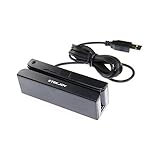
- USB interface, keyboard emulation, no need to install software to read, configuration software for changing settings available.
- Read data from all 3 tracks, high and low coercivity cards, ISO7811, AAMVA, CA DMV and most magnetic card data formats.
- Work on Windows, Mac and other USB capable systems. Work with TXT, notepad, Word, Excel, POS systems and son on.
- Compact size, with 145cm USB cord, two 3mm-diameter screw holes for fixing at the bottom, a LED indicator light
- Perfect for POS, Banking, Loyalty, Access Control, ID verification and other applications.
- Check merchant-country and customer-country eligibility.
- Check whether the currency is supported.
- Check browser, device, and wallet requirements; Apple Pay and Google Pay will not appear in every environment.
- Check whether the method supports subscriptions, refunds, delayed confirmation, or your chosen checkout flow.
- Do not advertise a method until it appears in a successful test for the account and configuration you will use.
Test before accepting real money
- Confirm the page uses HTTPS and loads without mixed-content warnings.
- Submit the form in the provider’s test mode, using the provider’s documented test credentials.
- Verify the success message, confirmation email, order or payment record, and webhook or subscription status.
- Test a declined payment and any required authentication challenge so you know how errors are shown.
- Check the page on a phone and desktop, and test the wallet buttons only on supported devices and browsers.
- Switch to live mode only after the complete flow works; then make a small real transaction and verify its settlement in the payment dashboard.
Common problems and fixes
The payment option is missing
Recheck account verification, country, currency, plan, device, browser, and whether the method supports the selected one-time or recurring configuration. A plugin update can also change available settings.
The form appears blank or the shortcode prints as text
Confirm that the plugin is active, the form ID is correct, and the shortcode is in a Shortcode block rather than a paragraph or code block. Clear page and optimization caches, then test while logged out.
PC Slower Than It Used to Be?
A free scan shows the junk files, broken settings and background clutter dragging Windows down - then fixes them in one click.Free scan · Windows 10 & 11Crashes, No Sound, or Screen Glitches?
Random freezes, missing sound and display glitches usually trace back to one bad driver. Find and replace yours safely.Free scan · under a minuteBest Value

- Pay one transparent rate per swipe for Visa, Mastercard, Discover and American Express.
- Works in conjunction with most downloadable Square point-of-sale apps on your device. Customers can pay, tip and sign directly on your device. Track payments in cash, gift cards and more. Also lets you send receipts via e-mail or text message, makes it easy to apply discounts, keeps a data and sales history log and more.
- Accepts magstripe credit card payments, including those from Visa, Mastercard, Discover and American Express (fees apply).
- App sends deposits to your bank account within 1 to 2 business days, or enjoy instant deposits (fees apply).
Payments fail after moving to live mode
Ensure the live account and live API connection are selected, webhooks are configured, HTTPS is valid, and no security or caching layer is blocking provider requests. Review the provider dashboard’s decline reason instead of repeatedly retrying the same card.
Customers complete payment but your site does not update
Inspect webhook delivery and subscription status in the payment dashboard, then check WordPress logs for blocked requests or plugin conflicts. Do not mark an order as paid solely because a customer reached a thank-you page.
Fees, compliance, and maintenance
Plugin setup or subscription pricing and payment-processing fees are separate. The available evidence does not establish a complete, current processing-fee schedule for every region, so use the rate and payout information displayed for your connected account.
Quick Recap
- Keep WordPress, PHP, WooCommerce, and payment plugins within their supported versions.
- Review payment-method eligibility and provider terms when you change country, currency, pricing, or billing intervals.
- Limit administrator access and use strong authentication for WordPress and the payment account.
- Publish clear refund, cancellation, privacy, and contact information appropriate to your business.
- Re-test checkout after major plugin, theme, caching, or security changes.
Product prices and availability are accurate as of the date/time indicated and are subject to change. Any price and availability information displayed on Amazon at the time of purchase will apply.
Free tools Windows power users keep installed
One-click scans. No signup required.

