Do these 3 things before closing this tab:
1Scan for outdated or missing drivers - takes under a minute2Repair Windows errors before they cause bigger problems3Fix the driver behind crashes, sound loss and screen glitchesSome links on this page are affiliate links: if you buy through them we may earn a commission, at no extra cost to you.
The BOOX Mira is worth buying only if your computer work is mostly static text and you deliberately prefer E Ink’s paper-like viewing to an LCD’s smoothness. It can be a comfortable screen for documents, code, email, terminals, and web pages, but it is not a normal monitor. Scrolling, cursor movement, window dragging, video, gaming, ghosting, monochrome rendering, and price all require major compromises.
There is also an important naming issue: “BOOX Mira” can mean the older 13.3-inch Mira, while BOOX’s current monitor family is centered on the 25.3-inch Mira Pro, available in monochrome and Kaleido 3 color versions. They are very different products.
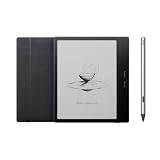
Which BOOX Mira are you considering?
This review covers the Mira family rather than treating every model as interchangeable:
What’s actually slowing this PC down?
Pick the symptom - the matching free tool is one click away.
- BOOX Mira: the original 13.3-inch E Ink monitor. It is the more portable, secondary-screen-oriented model and should be treated as older stock unless an authorized seller confirms current availability and warranty support.
- BOOX Mira Pro: a 25.3-inch desktop monitor with a 3,200 × 1,800 display, 145 ppi, multiple video inputs, speakers, a VESA-compatible stand, and front-light versions where applicable.
- BOOX Mira Pro Color: the same large-format concept using Kaleido 3 color E Ink. It can show 4,096 colors and 16 grayscale levels, but its subdued color and reduced effective detail do not make it equivalent to a conventional color monitor.
Before buying, confirm the exact model, monochrome or color panel, front-light configuration, seller, region, firmware, included stand, and warranty. BOOX’s official product pages are the appropriate places to check the current family and available configurations: Mira family and Mira Pro. The official store’s captured product information showed an “Order Now” path, but not a dependable current U.S. checkout price, so historical launch prices and reseller listings should not be presented as today’s price.
#1 Best Overall
Verdict: a specialist monitor, not an LCD replacement
The Mira’s central strength is static readability. E Ink reflects ambient light instead of producing a conventional emissive desktop image, which can make long sessions with text more comfortable for some people. It is particularly compelling for writers, researchers, programmers, terminal users, and office workers who spend most of the day reading or editing text.
Its central weakness is interaction. E Ink moves physical ink particles, so it cannot provide the effortless motion of a conventional LCD or OLED. Scrolling can look uneven, the pointer may leave remnants behind, moving windows can redraw awkwardly, and faster modes generally increase ghosting. BOOX itself warns that higher refresh speed produces more ghosting than a conventional monitor. See BOOX’s explanation of E Ink and ghosting.
Buy it if you value reflective, low-glare text viewing more than fluidity and can afford a niche display. Skip it if you expect smooth 60-Hz-or-better motion, play games, watch substantial video, edit photos or video, need vivid color, or simply want the most screen area per dollar.
PC Slower Than It Used to Be?
A free scan shows the junk files, broken settings and background clutter dragging Windows down - then fixes them in one click.Free scan · Windows 10 & 11Outdated Drivers Are Slowing You Down
One free scan finds every outdated or missing driver and matches the right update for your exact hardware.Free scan · exact hardware matchDoes E Ink really reduce eye strain?
It may improve perceived comfort for some users, but “protects your eyes” is too strong a conclusion. BOOX describes its monitors as non-backlit, paper-like displays, and its E Ink guidance explains the reflective display technology. Comfort still depends on room lighting, font size, viewing distance, contrast, refresh behavior, front-light settings, and the reason for your symptoms.
The benefit is most plausible during static reading in a suitably lit room. It does not make scrolling, cursor movement, dark-mode redraws, or video inherently comfortable. It is not a treatment for migraine, photophobia, dry eye, or eye disease; persistent or severe symptoms warrant professional medical advice. Do not assume that every front-light or refresh setting is flicker-free without testing the exact unit and configuration.
What it is like for everyday desktop work
Documents, web pages, email, and PDFs
This is the Mira’s strongest category. Black text on a light background is the natural workload for E Ink, and the Pro’s 25.3-inch workspace is much more practical for full-page documents, side-by-side windows, and large amounts of text than the original 13.3-inch model.
Long pages expose the trade-off immediately. A static page can look excellent, but scrolling requires a compromise between responsiveness and clean rendering. You will likely change modes depending on whether you are reading a settled page or navigating quickly through it. PDFs with small type, gray diagrams, and frequent page movement are more demanding than plain text.
Coding and terminals
Monochrome Mira Pro is the better choice for code, terminals, and text-heavy development. High-contrast themes, restrained syntax colors, larger fonts, and reduced animation help. The display can be useful when your work consists of reading and writing code, but rapid cursor movement, autocomplete panels, scrolling logs, and dragging windows are less natural than on an LCD.
Office apps and spreadsheets
Email and ordinary text editing can work well. Spreadsheets are more conditional: static grids are readable, while horizontal scrolling, selection highlights, animated menus, and dense color coding expose E Ink’s limits. The color model can help distinguish categories, but its colors are muted and should not be relied on for subtle visual analysis.
Video calls, video, and games
The Mira can technically display moving content, but technical compatibility is not the same as a good experience. Faces may become difficult to follow during motion, video playback can show obvious redraw artifacts, and games are a poor fit. Treat video calls as occasional-only and video as a compromise, not a reason to buy the monitor.
Refresh modes: choosing between speed and clarity
The Mira software provides task-oriented modes, although labels can differ by software version. BOOX documentation describes Speed, Text, Image, and Video modes; the product page also lists labels such as Speed, Fast, Text, and Reading. Check the labels shown by your installed Mira software rather than assuming every firmware and operating system presents the same menu. The official Mira software is available from BOOX Downloads.
Rank #2
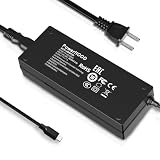
- Output Voltage: DC 12V; Input Voltage: AC 100-240V, 50/60Hz; Connecter Size: USB Type-C (Refer to the pictures)
- Replacement 12V USB Type C Power AC Adapter fits for Onyx Boox Mira Pro 25.3" 16:9 Monochrome E-Ink Monitor ePaper Display
- Features: Low interference and noise. Advanced technology and high quality. High efficiency and reliability
- Safety& Reliability: PowerHOOD products has been tested many times for providing protection, featuring overcharging, overheating, overvoltage and short circuit protection, which will charge your devices efficiently and keep you and your devices safe
- Warranty: We offer 14-Days money-back guarantee and 30-Days exchange service. If you have any questions, please feel free to contact us, we'll reply within 24 hours
| Mode | Best use | Trade-off |
|---|---|---|
| Speed/Fast | Browsing, ordinary desktop navigation, scrolling | More ghosting and lower apparent clarity |
| Text/Reading | Typing, documents, coding, settled pages | Less suitable for moving content |
| Image | Still images and diagrams | Slower interaction; may use a refresh timer |
| Video | Dynamic playback or online courses | Still substantially less fluid than LCD or OLED |
BOOX documents the available mode behavior in its Mira mode guide and provides general information about refresh modes and full refreshes. In practice, the useful question is not “Which mode is fastest?” but “How much ghosting can I accept for this task?” When artifacts accumulate, switch to a cleaner text or reading mode and trigger a full refresh using the monitor’s refresh control.
Do not convert BOOX’s mode names into an unsupported refresh-rate claim. The available product information does not establish a conventional maximum-Hz figure, and mode performance varies with content, firmware, operating system, cable, and connection path.
Ghosting, latency, and what to expect
Ghosting is a normal E Ink behavior rather than evidence that one particular unit is defective. Incomplete ink transitions can leave remnants of the previous image. Faster settings reduce some of the apparent delay but can make those remnants more visible; cleaner settings improve text quality at the cost of responsiveness.
Earlier user discussions of the original Mira report noticeable latency, frustrating mouse movement, dithered or “fax-like” rendering in some modes, and the need for repeated refreshes. These accounts are anecdotal and model-, firmware-, OS-, cable-, and mode-dependent; they should not be treated as universal measurements. The practical expectation is simple: static text can be satisfying, while ordinary interactive navigation may remain distracting even after tuning.
Quick wins for a faster PC:
Fix the driver behind crashes, sound loss and screen glitchesFind Drivers →Repair Windows errors before they cause bigger problemsFix Now →Mira Pro hardware and desk requirements
BOOX lists the current Mira Pro family with the following broad specifications:
- 25.3-inch display
- 3,200 × 1,800 resolution and 145 ppi
- 16:9 aspect ratio
- HDMI, Mini HDMI, USB-C, DisplayPort, and DC power input
- Dual speakers
- 75 × 75 mm VESA mounting
- Stand with tilt, height adjustment, and 90-degree pivot
- Panel weight of approximately 2.75–2.9 kg depending on version and front-light configuration
- Stand weight of up to approximately 2.85 kg
The stand makes the Pro a desk monitor rather than a casual tablet accessory. Its VESA interface allows a compatible arm or mount, but check both the 75 × 75 mm pattern and the mount’s weight capacity before buying.
The original Mira’s 13.3-inch size is its defining advantage. It makes more sense as a document, terminal, or laptop companion display on a tight desk. It is less convincing as a primary desktop monitor because the workspace is limited and scaling or window management becomes more important.
Connections and operating-system compatibility
The Mira Pro accepts HDMI, Mini HDMI, DisplayPort, and USB-C video connections. BOOX lists Windows, macOS, and Linux compatibility, but “works with” should not be read as identical behavior on every computer. BOOX’s second-monitor guidance says HDMI-based connections generally provide the smoothest results with Windows systems and identifies USB-C connections that use DisplayPort Alt Mode as a supported route.
The Tool Desk
Outbyte PC Repair FREERepair Windows errors before they cause bigger problemsFix Now →Outbyte Driver Updater FREEScan for outdated or missing drivers - takes under a minuteDriver Scan →USB-C is the most common source of confusion. The computer’s port must support video output through DisplayPort Alt Mode or Thunderbolt, and the cable must carry video. A USB-C port used only for charging and data cannot produce a display signal. Docks and adapters can also change behavior or prevent output altogether.
Recommended setup
- Install the Mira application from the official BOOX downloads page.
- Connect the monitor to power.
- Connect HDMI, Mini HDMI, DisplayPort, or a video-capable USB-C connection directly from the host where possible.
- In the operating system’s display settings, choose Extend rather than Duplicate for a second-screen workflow.
- Select the monitor’s supported resolution, or use operating-system scaling if text is too small.
- Open Mira and select a mode appropriate to the content.
- Use a faster mode while navigating, then switch to Text or Reading mode for settled documents.
- Perform a full refresh when ghosting becomes distracting.
BOOX’s second-monitor compatibility notes and the quick-start documentation provide the relevant connection cautions.
Common failures and fixes
No image: confirm the cable is connected to a video-capable port, try HDMI or DisplayPort instead of USB-C, remove the dock or adapter, select the monitor manually in display settings, try another cable, and confirm that the host supports the selected resolution.
Rank #3
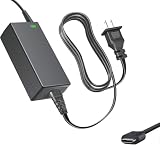
- Product Type: Replacement AC Adapter
- Input: 100–240V 50/60Hz Output: 12V
- Certification: ETL Listed, with FCC,CE,ROHS certified
- Compatibility: Onyx Boox Mira Pro 25.3" 16:9 Monochrome E-Ink Monitor ePaper Display 12VDC DC12V 12volt 12.0 Volts USB Type-C Power Supply Cord Charger Cable
- Protection: OVP / OCP / SCP
USB-C does not work: verify DP Alt Mode or Thunderbolt support on the computer. Try the supplied cable or another known video-capable USB-C cable. Charging and data support alone is not enough.
Recommended Free Tools
Too much ghosting: move from Speed or Fast to Text or Reading mode, increase full-refresh frequency, use the physical refresh control, reduce animated interfaces and large moving windows, and test a different connection path.
Text looks fuzzy or dithered: use a higher-quality text mode, disable unnecessary transparency, shadows, and animation, choose a high-contrast theme, test font-smoothing settings, and use operating-system scaling rather than an unusual non-native resolution.
Independent reader supportYour contribution helps us test, update, and keep practical guides available for everyone.Mira Pro Color: useful color, not a color monitor
The color version uses Kaleido 3 E Ink and is intended for muted visual differentiation. Color can help with highlighted passages, calendar categories, basic charts, syntax distinctions, and diagrams where a few hues make structure easier to understand.
Do not buy it for photo editing, video production, vivid graphics, accurate gradients, or high-saturation content. Kaleido color is deliberately subdued and can show dithering, banding, and lower apparent sharpness than monochrome E Ink. BOOX lists 4,096 colors and 16 grayscale levels, but a color-count specification says little about saturation, accuracy, or motion performance. A third-party product description characterizes color operation as effectively 1,600 × 900; treat that figure as model-specific and verify it against the exact documentation before relying on it.
For coding, documents, and maximum text clarity, choose monochrome. Choose color only when its organizational benefits genuinely outweigh its reduced visual punch and detail.
Original Mira versus Mira Pro
| Criterion | Original Mira | Mira Pro |
|---|---|---|
| Size | 13.3 inches | 25.3 inches |
| Best role | Portable or secondary display | Desktop monitor |
| Workspace | Limited; scaling matters more | Much more practical for documents and coding |
| Portability | Better | Desk-oriented |
| Availability | Verify seller stock and support | Current BOOX product family |
| Color option | No known color version in the original line | Monochrome and color versions |
| Mounting | Verify the exact unit | 75 × 75 mm VESA |
| Main concern | Small workspace and older availability | High cost, large footprint, and motion limits |
The original Mira can still make sense if you specifically need a smaller companion screen and find verified stock at a sensible price with clear warranty coverage. Otherwise, the Pro is the more practical desktop format, provided you actually want E Ink rather than simply a low-glare monitor.
What should you buy instead?
For most people seeking comfortable text viewing, a good matte IPS monitor is the more rational purchase. It offers smoother motion, broader compatibility, better color, fewer connection surprises, and dramatically better screen area per dollar. OLED is stronger for contrast and motion than E Ink but may be a poor choice for users specifically avoiding emissive displays or concerned about its own characteristics.
Other E Ink-monitor brands, including Dasung and BIGME, are worth comparing, but model names, availability, prices, and performance change and should be checked directly. A BOOX E Ink tablet used as a second display can also be more versatile because it may offer standalone reading, handwriting, and Android applications. BOOX notes that tablets generally rely on third-party apps for secondary-display use, whereas the Mira Pro is a dedicated monitor intended for direct connections.
Free tools Windows power users keep installed
One-click scans. No signup required.
Final recommendation
The BOOX Mira is a compelling niche tool, not a universally better monitor. The 25.3-inch monochrome Mira Pro is the strongest fit for people who spend most of their day reading, writing, coding, or working in terminals and who are willing to trade fluidity for a reflective display. The color Mira Pro is worthwhile only when muted color helps organize information; it is not a replacement for a color-accurate monitor.
The original 13.3-inch Mira is best treated as a deliberately compact second screen, and only after verifying current stock, firmware support, seller reputation, and warranty. For gaming, video, design, fast scrolling, general-purpose desktop use, or value-focused buying, choose a matte IPS monitor instead.
Most importantly, do not buy the Mira because of a blanket claim that E Ink is “healthier.” Buy it because your specific text-heavy workflow benefits from a paper-like image enough to justify slower interaction, ghosting, limited color, and a premium price.
Quick Recap
Product prices and availability are accurate as of the date/time indicated and are subject to change. Any price and availability information displayed on Amazon at the time of purchase will apply.

