Quick wins for a faster PC:
Repair Windows errors before they cause bigger problemsFix Now →Scan for outdated or missing drivers - takes under a minuteDriver Scan →Clear out junk files and repair common Windows errorsFree Scan →Some links on this page are affiliate links: if you buy through them we may earn a commission, at no extra cost to you.
To stop ordinary users from viewing BitLocker recovery keys for devices they own, set Restrict users from recovering the BitLocker key(s) for their owned devices to Yes in Microsoft Entra admin center under Devices → Device settings. This is an Entra tenant setting, not an Intune BitLocker profile setting. Microsoft Graph and PowerShell can support authorized key lookup and recovery, but Microsoft documents the restriction itself as a portal setting—not a Graph or PowerShell command. The restriction does not delete or rotate keys.
What blocking self-service BitLocker recovery does
Ordinarily, a user can sign in to Microsoft My Account, select an owned device, and choose View BitLocker Keys. Restricting recovery removes that default self-service route for member users and directs them to the organization’s help desk. It does not block the whole My Account portal or every device-related action. Microsoft’s documentation on default user permissions describes the setting and its effect.
- Administrator recovery remains possible: appropriately authorized administrators can retrieve keys through supported Entra, Intune, or Graph workflows.
- Existing copies remain usable: the setting cannot recall a key already copied, printed, emailed, or saved elsewhere. A recovery password is a sensitive credential that can unlock the drive and enable administrative actions on the system. Microsoft’s BitLocker recovery guidance explains its sensitivity.
- Other storage locations are unaffected: the Graph workflow applies to recovery information backed up to Microsoft Entra ID. It does not retrieve a key stored only in AD DS, on paper, on USB, or in another system. Microsoft’s recovery overview describes recovery storage options.
Before changing the setting
- Have a staffed or on-call recovery process ready; disabling self-service can add help-desk work and delay recovery.
- Use an account with at least the Privileged Role Administrator role to update the device setting, as specified in Microsoft’s device identity management documentation.
- Confirm that BitLocker recovery information is being backed up to Entra ID. A Graph query cannot return a key that was never backed up there. Intune can be configured to store recovery information in Entra ID and require a successful backup before enabling BitLocker: Configure endpoint protection settings for Windows.
- Decide who may disclose keys, how requesters will be verified, and how access will be recorded. Microsoft’s security guidance identifies unrestricted user access to their own keys as a risk if an account is compromised: Protect tenants with Zero Trust.
Disable user self-service recovery in Entra
- Open the Microsoft Entra admin center.
- Go to Devices → Device settings.
- Find Restrict users from recovering the BitLocker key(s) for their owned devices.
- Set the control to Yes, then save.
Use the setting’s complete name if portal navigation or labels change. Microsoft documents it under Entra device settings in default user permissions and device identity management. This action changes who can use the default self-service route; it does not rotate the recovery password.
Crashes, No Sound, or Screen Glitches?
Random freezes, missing sound and display glitches usually trace back to one bad driver. Find and replace yours safely.Free scan · under a minutePC Slower Than It Used to Be?
A free scan shows the junk files, broken settings and background clutter dragging Windows down - then fixes them in one click.Free scan · Windows 10 & 11Verify the user experience
Test with a non-admin account that owns a test device, rather than relying only on the saved setting:
#1 Best Overall

- AES 256-Bit Hardware Encryption: Provides top-tier, military-grade encryption with "Always On" protection. Unlike software encryption, cryptographic keys are never exported from the hardware, ensuring superior security and performance.
- High-Speed Performance: Features an NVMe PCIe Gen 4 x 4 interface with sequential read speeds up to 7200MB/s and write speeds up to 6500MB/s, delivering exceptional data throughput and fast access for critical applications.
- TCG Opal-Compliant with Pre-Boot Authentication: Ensures full drive encryption and secure access with pre-boot authentication, making it suitable for high-security environments such as government, military, and corporate sectors.
- Kanguru Opal Commander & Workforce Provisioning Tool: Allows administrators to manage and enforce security policies, ensuring data protection across a global workforce. The Commander software simplifies configuration, management, and monitoring.
- TAA Compliant and Tamper-Resistant: Compliant with federal regulations, ideal for government contracts and high-security industries. Features tamper-resistant hardware for protection against unauthorized access and physical breaches.
- Sign in to Microsoft My Account as the test user.
- Open the device list and check that the user cannot view or copy that device’s BitLocker recovery key. The rest of the user’s permitted account and device functions should not be treated as blocked by this setting.
- Run a separate administrator recovery test using an approved account and a test key. Confirm that the operator can access the key and that the secret retrieval is recorded in the Entra audit log.
Ownership affects this experience. Hybrid-joined devices may lack an owner unless a primary user is set in Intune, and Autopilot reuse or ownership changes can alter which user is treated as the owner. See Microsoft’s recovery process guidance and device identity management documentation.
Use Microsoft Graph to list and retrieve backed-up keys
The Microsoft Graph v1.0 BitLocker API exposes recovery-key objects. The list operation returns metadata, not the secret recovery password by default. To retrieve the secret, request the individual key with $select=key. Microsoft records that secret request as an Entra audit event in the KeyManagement category. See the list recovery keys API and the get recovery key API.
List keys, optionally filtered by device ID
GET https://graph.microsoft.com/v1.0/informationProtection/bitlocker/recoveryKeysTo filter by the Entra device ID associated with the most recently backed-up key:
GET https://graph.microsoft.com/v1.0/informationProtection/bitlocker/recoveryKeys?$filter=deviceId eq '{deviceId}'The list response can include an @odata.nextLink; production clients must follow it to process all results. The operation does not support $top. deviceId identifies the device; the recovery-key object’s ID is a different value.
Rank #2

- Accelerate your system with the Micron 5300 PRO SATA SSD and get the best combination of reliability, security, and solid performance
- Innovative 96-layer 3D NAND technology - increase storage density with 3.84TB of storage in a 2.5 inch form factor
- Comprehensive security - AES 256-bit encryption, power-loss protection, enterprise data path protection, adaptive thermal monitoring, and TCG Enterprise
- Enhanced Read Write speeds - sequential read and write performance levels of up to 540 MB/s and 520 MB/s
- Optimized to deliver high-performance for media streaming, OLTP, block and object stores, and business intelligence
Request one secret explicitly
GET https://graph.microsoft.com/v1.0/informationProtection/bitlocker/recoveryKeys/{bitlockerRecoveryKeyId}?$select=keyDo not add the secret to routine reports or logs. Restrict its display to the authorized recovery interaction, and keep ticket notes, screenshots, transcripts, and pipeline output free of the password.
Choose Graph permissions deliberately
| Access type | Least-privileged permission documented for the API | Higher permission |
|---|---|---|
| Delegated work or school account | BitlockerKey.ReadBasic.All |
BitlockerKey.Read.All |
| Application permission | BitlockerKey.ReadBasic.All |
BitlockerKey.Read.All |
| Personal Microsoft account | Not supported | Not supported |
For delegated access, the caller must be the registered owner of the device from which the key was backed up or hold a supported Entra role. Microsoft lists Cloud Device Administrator, Helpdesk Administrator, Intune Service Administrator, Security Administrator, Security Reader, and Global Reader. The permission and role needed in practice depend on whether the workflow only lists metadata or requests the secret and on the caller’s authorization. Start with the least privilege that meets the task; do not grant BitlockerKey.Read.All automatically. The API permission details are in Microsoft’s list and get references.
Retrieve keys with Microsoft Graph PowerShell
Install and import the Graph module that contains the recovery-key cmdlet, then connect with a scope authorized for the operation. This delegated example requests BitlockerKey.Read.All; use the narrower permission if it is sufficient for your documented workflow and tenant authorization.
Install-Module Microsoft.Graph.Identity.SignIns -Scope CurrentUser -Force
Import-Module Microsoft.Graph.Identity.SignIns

Connect-MgGraph -Scopes 'BitlockerKey.Read.All' -NoWelcome
The cmdlet is Get-MgInformationProtectionBitlockerRecoveryKey. Microsoft’s reference includes examples for retrieving the secret with -Select "key": Get-MgInformationProtectionBitlockerRecoveryKey.
Rank #3
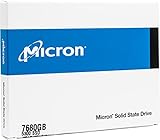
- Accelerate your system with the Micron 5300 PRO SATA SSD and get the best combination of reliability, security, and solid performance
- Innovative 96-layer 3D NAND technology - increase storage density with 7.68TB of storage in a 2.5 inch form factor
- Comprehensive security - AES 256-bit encryption, power-loss protection, enterprise data path protection, adaptive thermal monitoring, and TCG Opal Encryption
- Enhanced Read Write speeds - sequential read and write performance levels of up to 540 MB/s and 520 MB/s
- Optimized to deliver high-performance for media streaming, OLTP, block and object stores, and business intelligence
Resolve and validate the device first
A display name is not guaranteed to be unique. Resolve the device to an immutable Entra device ID using your inventory or an appropriately validated lookup; do not assume a name-only match identifies the right machine. For example, if you have already confirmed the result is unique:
$device = Get-MgDevice -Filter "displayName eq 'DESKTOP-53O32QI'"
$deviceId = $device.DeviceId
Check the result count and validate the device assignment before continuing. Use deviceId to filter keys; use the returned recovery-key object’s Id with -BitlockerRecoveryKeyId.
List metadata before asking for the secret
$keys = Get-MgInformationProtectionBitlockerRecoveryKey `
    -Filter "deviceId eq '$deviceId'"

$keys | Select-Object Id, CreatedDateTime, DeviceId
More than one object can exist after rotation, reprovisioning, or repeated backup. Review available metadata and match the recovery screen’s key ID and the device before disclosing a password. Do not assume the first result is current.
Do these 3 things before closing this tab:
1Fix the driver behind crashes, sound loss and screen glitches2Repair Windows errors before they cause bigger problems3Scan for outdated or missing drivers - takes under a minuteMake secret retrieval a separate, deliberate action
$keyId = Read-Host "Enter the authorized recovery-key object ID"

$secret = Get-MgInformationProtectionBitlockerRecoveryKey `
    -BitlockerRecoveryKeyId $keyId `
    -Select "key"

# Display only in the approved, access-controlled recovery workflow.
$secret.Key
This is an illustrative command sequence, not a complete privileged-access-management system. The final line writes the secret to the host; omit it in unattended scripts and substitute an approved secure display or one-time disclosure mechanism. Avoid transcripts and logging around the secret-handling step, and clear variables when practical. A custom workflow should record operator, ticket, device, and time separately from the password.
Rank #4
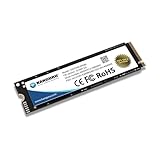
- FIPS 140-2 Certified, Level 2: Meets stringent government security standards, ensuring compliance with high-level security regulations like GDPR, HIPAA, and Sarbanes Oxley for government, healthcare, and financial industries.
- AES 256-Bit Hardware Encryption (FIPS 197 Certified): Provides robust, "Always On" encryption, securing data at rest without the performance limitations of software-based encryption, ideal for high-security environments.
- High-Speed PCIe M.2 NVMe Performance: Delivers exceptional performance with sequential read speeds up to 3300MB/s and write speeds up to 3000MB/s, making it suitable for fast data access and transfer.
- Kanguru Opal Commander & Workforce Provisioning Tools: Manage encryption settings and enforce security policies with dedicated tools for seamless deployment across organizations, ensuring compliance and data security.
- TAA Compliant & Tamper-Resistant Design: Compliant with federal regulations for government use and featuring tamper-resistant hardware, offering extra security for sensitive data storage in high-risk sectors.
Build a controlled help-desk recovery process
- Verify the requester’s identity using the organization’s established process, and confirm that they are assigned to or authorized for the device.
- Ask for the key ID shown on the BitLocker recovery screen and match it to the stored recovery record before retrieving the password.
- Have an appropriately authorized operator retrieve the key through Entra, Intune, or Graph. Request the secret only when needed.
- Disclose it through an approved secure channel; do not put it in ordinary email, chat history, ticket comments, or screenshots.
- Record the ticket, operator, device, reason, and outcome without recording the recovery password itself. Investigate unexpected recovery prompts or signs of compromise.
- After a suspected disclosure, assess whether to rotate the recovery password. Rotation is a separate device-management action, not an effect of disabling self-service.
For a narrower delegation model, Microsoft documents the BitLocker key read action microsoft.directory/bitlockerKeys/key/read for custom Entra roles. Where supported, scope role assignments to appropriate Administrative Units and test the result, particularly after Autopilot reuse or ownership changes. See Microsoft’s recovery process documentation. Custom roles can reduce broad access but require careful design and validation.
Choose the recovery source that matches the device
- Microsoft Entra ID: use the Graph endpoint for recovery information backed up to Entra ID.
- Intune-managed device: an authorized administrator can use device properties in the Intune admin center, subject to Intune RBAC and device-management scope. Microsoft’s recovery guidance describes this route.
- Active Directory Domain Services: for domain-joined devices whose recovery information is stored in AD DS, follow the organization’s AD DS process rather than querying Entra Graph. See Microsoft’s recovery overview.
- Configuration Manager tenant attach: this has distinct prerequisites, including Configuration Manager 2107 or later, applicable update support, BitLocker management policy, collection permissions, and an Intune role. Follow Microsoft’s tenant-attach recovery instructions.
Troubleshoot common recovery failures
No key is returned
Confirm the device ID, whether recovery information was backed up to Entra ID, and whether the key may instead be stored in AD DS or another approved location. Verify device ownership where relying on user self-service; hybrid-joined devices may not have an owner set. Intune’s BitLocker policy can require backup before encryption is enabled: Windows endpoint protection settings.
The query returns metadata but no password
This is expected for the list operation. Retrieve the specific key object using its recovery-key ID and explicitly select key; that secret request creates a KeyManagement audit event. See the list API and get API.
Free tools Windows power users keep installed
One-click scans. No signup required.
Access is denied
- Check that the signed-in operator consented to the required delegated scope, or that the application has the required permission and administrator consent.
- Confirm the workflow has permission to retrieve the secret, not merely list basic metadata.
- For delegated access, confirm the caller is the registered device owner or has a supported Entra role.
- Review custom-role and Administrative Unit scope; the role assignment may not cover the device.
Several keys appear or the wrong device is selected
Validate the Entra device ID and distinguish it from the recovery-key object ID. Check the screen’s key ID and available creation or backup metadata; multiple keys can exist. Avoid selecting a result solely because it appears first or shares a display name.
Quick Recap
Security trade-offs
| Approach | Benefit | Cost or risk |
|---|---|---|
| Allow user self-service | Fast recovery with fewer help-desk requests | A compromised user account may expose the recovery key |
| Block user self-service | Centralized verification and disclosure | More help-desk workload and possible recovery delays |
| Give help desk broad BitLocker access | Simpler operational setup | Excessive privilege and a larger blast radius |
| Use custom roles and scope | Can narrow who can recover keys and which devices are covered | More complex role design and testing |
| Automate with Graph | Repeatable, auditable lookup workflows | Requires careful permission and secret-handling controls |
| Rotate after disclosure | Limits reuse of a disclosed key | Requires reliable device connectivity and an operational rotation process |
Product prices and availability are accurate as of the date/time indicated and are subject to change. Any price and availability information displayed on Amazon at the time of purchase will apply.

