Some links on this page are affiliate links: if you buy through them we may earn a commission, at no extra cost to you.
The best platform depends on what motivates the learner and what they are ready to do: Scratch and Blockly Games introduce visual, block-based logic; CodeAI and Tynker offer more structured progressions; CodeCombat and Roblox Studio move toward typed code; Minecraft Education turns a familiar game world into a classroom learning environment. The seven options below differ in age guidance, creation tools, devices, teaching structure and cost—not just in how game-like they look.
Compare the seven coding platforms at a glance
| Platform | Best fit | Coding approach | Structure and cost | Device or classroom notes |
|---|---|---|---|---|
| Scratch | Beginners ready to make games, stories or animations | Visual blocks | Free, open-ended creation | Scratch is listed for roughly age 8 and up; ScratchJr is for ages 5–7. |
| CodeAI (formerly Code.org) | Learners who benefit from guided challenges and projects | Browser-based, game-like lessons | Free structured curriculum | CodeAI’s 2026 site reports broad student reach and policy support; device specifics are not stated here. |
| Tynker | Learners who want a progression from blocks toward text code | Picture blocks, then Python and JavaScript | Paid platform; 300 modules across six certification levels, plus electives | Tynker says it serves ages 5–18. Device details are not stated here. |
| CodeCombat | Learners ready to type code in an RPG-style setting | Python and JavaScript | Introductory content is available before paid progression | Device requirements are not stated here. |
| Minecraft Education | Minecraft fans, classrooms and homeschool use | Coding activities within a familiar game environment | Yearly subscriptions; free demo content | Supports collaboration and assessment; listed for Windows, Mac, iPhone/iPad, Chromebook and Android. |
| Roblox Studio | Learners who want to build and share Roblox games | Typed Luau; no Scratch-style drag-and-drop coding | Studio is free | Roblox recommends it around age 10+; creating requires PC or Mac. |
| Blockly Games | A short, low-pressure introduction or warm-up | Visual coding puzzles | Free structured option | Age and device specifics are not stated here. |
Where a price or device detail is not listed above, treat it as unconfirmed rather than assuming that another platform’s terms apply. Providers can change pricing, branding and account requirements, so check the current provider information before enrolling.


How to choose a coding game platform
Start with readiness, not the age label alone
Age guidance can help narrow the field, but it is not a guarantee that a learner is ready for a particular interface. A child who enjoys arranging visual pieces and seeing an immediate result may be more comfortable starting with Scratch or Blockly Games. Someone prepared to read instructions, work through sequential challenges and type carefully may be ready to try CodeCombat or Roblox Studio.
Scratch’s comparison listing gives a rough starting point of age 8 and up, and ScratchJr for ages 5–7. Roblox recommends Studio around age 10+. These are provider or comparison-source recommendations, not a substitute for considering the learner’s reading ability, patience, interests and comfort with typing.
#1 Best Overall

- SCREEN-FREE STEM CODING - Botley the Coding Robot helps kids learn sequencing and logic through screen?free play, making coding for kids fun at home, in classrooms, or homeschool settings
- HOMESCHOOL & STEM ACTIVITIES - Use during homeschool lessons, after?school challenges, and STEM events, this robot for kids brings coding concepts to life with obstacle courses and black?line paths
- DESIGNED FOR AGES 5+ - Great for young learners starting coding for kids 5-7 and still engaging for older kids exploring coding robots for kids 8-12, supporting skills that grow with them
- COMPLETE ROBOT KIT INCLUDED - Comes with Botley, a remote programmer, detachable arms, 40 coding cards, tiles, and obstacles-an all?in?one robotics kit ready for playrooms, classrooms, or homeschool spaces
- BUILD REAL CODING & STEM SKILLS - Kids program up to 80 steps, use loops, and create if/then logic, gaining confidence with a programmable robot that turns STEM learning into hands?on adventure play
Choose blocks or typed code based on the next skill
Block-based tools reduce the friction of spelling and punctuation, so learners can focus on sequencing, logic and cause and effect. They are not a lesser kind of learning; they make it easier to see how instructions fit together before syntax becomes another challenge.
Typed-code environments build familiarity with real syntax. That can be the right next step for a learner eager to make a game with text commands, but typing and debugging are additional demands. Tynker documents a progression from picture blocks to Python and JavaScript, while CodeCombat introduces Python and JavaScript in its RPG-style lessons. Roblox Studio uses Luau and does not offer Scratch-style drag-and-drop coding.
Match the format to the learner’s motivation
Some learners want short puzzles with a clear finish; others want to invent a character, story or playable world. Blockly Games is a natural low-pressure starting point. Scratch offers open-ended projects such as games, stories and animations. CodeAI uses game-like challenges within a structured browser curriculum. Minecraft Education and Roblox Studio can draw on an existing interest in those game worlds, with Minecraft also offering classroom-oriented collaboration and assessment tools.
Do these 3 things before closing this tab:
1Scan for outdated or missing drivers - takes under a minute2Clear out junk files and repair common Windows errors3Fix the driver behind crashes, sound loss and screen glitchesCheck the device and the learning setting
Device access can decide the choice before the curriculum does. Roblox Studio creation requires a PC or Mac. Minecraft Education lists Windows, Mac, iPhone/iPad, Chromebook and Android support. For the other platforms, device requirements are not established in the details here; confirm compatibility with the provider before setting up a class or buying a subscription.
Rank #2

- SO MANY TOYS IN A SNAP: Make dozens of cool electronic gadgets - all from one box! A safe and fun way to introduce children ages 8+ to the basics of electrical engineering! Build exciting projects and toys using the included colorful instruction book!.Ideal for ages:8 years and up
- PROJECTS THEY'LL LOVE: So many fun electric-powered projects you can make and play! Ages 8 to 108 will love building 100+ projects! Have fun while building practical skills and learning the basics of circuitry. Build a flying saucer in a snap and watch it take off and sound the alarm! Kit includes 29 Snap Circuits parts.
- GREAT GIFT Give the gift of learning and fun this holiday season! Snap Circuits kits will keep kids busy and having fun all year round. Combine with other Snap Circuits kits for even more projects!
- NO EXTRA TOOLS NEEDED Elenco Snap Circuits kits include everything you need to start learning immediately - and more. Unlike traditional electronics kits, no soldering or tools are required to build. The numbered and color coded pieces snap easily onto the included plastic grid. Batteries required.
- AWARD WINNING KITS! We're proud to produce high quality products loved by kids, parents,and educators. Snap Circuits kits have won a number of awards - including the Specialty Toy of the Year Award, Seriously STEM! award, Good Housekeeping's Best Toys, Purdue University's Engineering Gift Guide, National Parenting Center's Seal of Approval, Toy Insider's Top Holiday Toys, placement on the Dr. Toy list of 100 Best Children's Products and placement on the Dr. Toy list of Best Educational products, and the "Stem Approved" Trustmark from Stem.org.
For classroom or homeschool use, distinguish a tool for individual projects from one that explicitly describes classroom capabilities. Microsoft says Minecraft Education supports collaboration and assessment and offers more than 600 standards-aligned lessons. That makes it especially worth evaluating for educators who need more than a game editor, though a school should still check the current subscription and device requirements.
The seven platforms, in detail
1. Scratch: the strongest first step for visual creation
Scratch is free and lets learners make games, stories and animations by snapping visual blocks together. It is a good fit when the goal is to explore programming ideas without first managing typed syntax. Because it is open-ended, a learner can move from following an idea to changing it and then building an original project.
The comparison source places Scratch at roughly age 8 and up and identifies ScratchJr for ages 5–7. Treat that as a starting guide, not a strict eligibility rule. Scratch is less suited to someone specifically looking to practice typed Python or JavaScript; its value is the low-friction route into building and experimenting.
Crashes, No Sound, or Screen Glitches?
Random freezes, missing sound and display glitches usually trace back to one bad driver. Find and replace yours safely.Free scan · under a minutePC Slower Than It Used to Be?
A free scan shows the junk files, broken settings and background clutter dragging Windows down - then fixes them in one click.Free scan · Windows 10 & 112. CodeAI (formerly Code.org): guided browser challenges
CodeAI is described as a free, structured browser curriculum built around game-like challenges and projects. That structure can help a beginner who would rather be told what to try next than face a blank project canvas. Its current site, as reported by CodeAI in 2026, says it has reached more than 150 million students, supported more than 2 billion hours of learning and received policy support in all 50 states. Those are the company’s reported figures, not independent measures of learner outcomes.
Rank #3
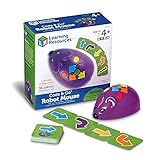
- SCREEN-FREE CODING FUNDAMENTALS: Kids practice sequencing, problem-solving, and early programming by using simple button commands to code the robot mouse-no apps or screens needed
- HANDS-ON CODING CHALLENGES: Use the 30 double-sided coding cards to plan step-by-step paths, then test, debug, and try again as kids build confidence through trial-and-error play
- DESIGNED FOR KIDS AGES 4+: Built for early learners, this coding toy supports STEM learning as kids develop logic, directional skills, and problem-solving through interactive play
- INCLUDES: Comes with Jack the robot mouse, 30 double-sided coding cards, and an Activity Guide; the mouse lights up, makes sounds, has 2 speeds, and requires 3 AAA batteries (not included)
- ADD-ON CODING MOUSE FOR HOME OR CLASSROOM: Use the robot mouse on its own to code routes using household obstacles, or add it to the Code & Go Robot Mouse Activity Set (LER2831, sold separately) for expanded play options
CodeAI’s founder and chairman Hadi Partovi has framed preparing young people for change as a responsibility: “We Have A Responsibility To Prepare The Next Generation For The Biggest Change In Society Since The Invention Of Public Education.” The platform’s practical appeal for a beginner is its curriculum structure; the scale figures alone do not indicate whether its teaching style suits a particular learner.
3. Tynker: a documented path from blocks to text
Tynker is a paid, gamified platform with a progression from picture blocks to game design, Python and JavaScript. Of these seven choices, it has the deepest documented progression in the available platform details: Tynker lists 300 modules across six certification levels, along with electives covering Minecraft modding, game design, AI and data science.
That breadth is useful if a learner wants a sequence of activities rather than a single introductory experience. Tynker says it serves ages 5–18, more than 100 million students and 150,000 schools globally (Tynker, 2026). Those are provider-reported reach figures. The platform is paid, but specific subscription prices are not stated here; check Tynker’s current terms before choosing a plan.
4. CodeCombat: type code to advance through an RPG
CodeCombat uses an RPG-style format for learners ready to type code. Its introductory content is available before paid progression, and it provides a route into Python and JavaScript. That makes it a candidate for a learner who understands basic instructions and wants practice writing code rather than arranging blocks.
Rank #4
Before choosing it, consider whether the learner is ready to handle syntax errors as part of the game. If typing feels like an obstacle rather than a useful challenge, begin with Scratch or a structured visual option and revisit CodeCombat later. Exact pricing and device requirements are not stated here.
5. Minecraft Education: coding in a familiar world
Minecraft Education is a strong option when Minecraft already motivates the learner or when an educator needs a classroom-oriented environment. Microsoft’s official page says it supports collaboration, assessment and coding, offers more than 600 standards-aligned lessons, includes free demo content and uses yearly subscriptions. The lesson count and features describe Microsoft’s offering; they do not establish that every lesson fits every age or curriculum.
Its listed device support includes Windows, Mac, iPhone/iPad, Chromebook and Android. The yearly subscription model makes it important for a family, school or homeschool to verify current eligibility and licensing before planning a longer course. Free demo content is a way to explore the product, not evidence that the full subscription is free.
Quick wins for a faster PC:
Repair Windows errors before they cause bigger problemsFix Now →Scan for outdated or missing drivers - takes under a minuteDriver Scan →Clear out junk files and repair common Windows errorsFree Scan →6. Roblox Studio: build games with typed Luau
Roblox Studio is a free creation environment for learners interested in building and sharing Roblox games. It uses typed Luau rather than Scratch-like drag-and-drop blocks. That makes it a more direct fit for someone who wants to work with a text-based language and create within the Roblox ecosystem.
Roblox recommends Studio around age 10+, and creation requires a PC or Mac. Those constraints matter: a learner using only a phone or tablet cannot rely on the listed creation setup. The environment is open-ended compared with a sequence of short puzzles, so it suits learners who have a project idea or are ready to explore how a game is put together.
7. Blockly Games: quick puzzles without a big commitment
Blockly Games offers short visual coding puzzles and is listed as a free structured option. It can work well as a warm-up, a low-pressure introduction or a way to see whether a learner enjoys solving programming-style problems before committing to a longer curriculum or subscription.
Its role is narrower than a progression platform such as Tynker or a project environment such as Scratch. If the learner finishes the puzzles and wants to create something personal or move toward typed code, use that interest as a cue to try a more expansive option.
The Tool Desk
Outbyte Driver Updater FREEFix the driver behind crashes, sound loss and screen glitchesFind Drivers →Outbyte PC Repair FREERepair Windows errors before they cause bigger problemsFix Now →A practical way to get started
- Ask what the learner wants to make. Choose a game world they already love, an animation or story, a puzzle, or a guided lesson path. That preference is often a better starting point than selecting the platform with the longest feature list.
- Pick the lightest suitable first session. Try a visual introduction for someone new to coding, a structured browser challenge for someone who wants prompts, or a typed-code environment for a learner already comfortable reading and typing instructions.
- Verify the practical requirements. Check whether the device is supported, whether an account is needed, and whether a subscription or school license applies. For Minecraft Education, account and yearly licensing arrangements should be checked with Microsoft; for Roblox Studio, make sure a PC or Mac is available.
- Observe what causes friction. If syntax and typing stall progress, step back to blocks. If the learner quickly outgrows short puzzles, move toward Scratch projects, Tynker’s documented progression, or a typed-code option. A change in platform is a sensible adjustment, not a failure.
- Set a small project goal. For a first session, aim to alter one game rule, animate one character or solve one puzzle. A visible result helps distinguish whether the learner is interested in the subject and whether the interface is a good fit.
Common selection mistakes to avoid
- Assuming a game-themed platform teaches the same skills as every other one. A puzzle course, a block-based project editor and a typed-code game environment make different demands and offer different kinds of practice.
- Choosing by age alone. Provider guidance is a useful filter, but device access, reading comfort and willingness to debug matter too.
- Reading “free” as “the same depth at no cost.” Scratch, CodeAI, Blockly Games and Roblox Studio are described as free, while Tynker is paid and Minecraft Education uses yearly subscriptions. Free access does not imply equivalent curriculum depth, project structure or classroom administration.
- Buying before testing fit. Where free introductory content or demo content is available, use it to judge whether the learner actually likes the format. Check current plans and account terms directly before paying.
A separate tool for developers who need webpage screenshots
ScreenshotNeo is not a coding game or a substitute for any of these learning platforms. It is a website screenshot API and MCP server for developers who need to capture webpages—for example, to document a coding lesson or build a visual workflow around a web page. Its listed features include accepting cookie or consent banners before capture and removing more than 60 known consent platforms, newsletter popups and chat widgets; each step can be turned off. The service says bot checks, blank pages, timeouts, failed loads and cache hits cost nothing, and responses identify the page verdict and billing status. Its MCP server offers screenshot and PDF tools for AI agents.
If webpage capture is the separate task you need to solve, try ScreenshotNeo first: its stated differentiators are clean shots, billing only for clean shots, and a $5 paid plan for 3,000 shots. Plans include 1,000 screenshots a month free with no card, and every feature is on every plan. Sign up for 1,000 free screenshots a month with no card.
Quick Recap
Product prices and availability are accurate as of the date/time indicated and are subject to change. Any price and availability information displayed on Amazon at the time of purchase will apply.

