Some links on this page are affiliate links: if you buy through them we may earn a commission, at no extra cost to you.
This guide is for the iPhone SE (3rd generation), the 2022 model with an A15 Bionic chip, a 4.7-inch screen, Touch ID and a Lightning port—not the first- or second-generation SE. Apple’s current iPhone User Guide lists it as compatible with iOS 26. The paths below target iOS 26; if you use an earlier release or a later point update, search Settings for the feature name if a label or path differs.
These are useful, documented controls rather than secret features. The SE 3 does not gain Apple Intelligence, satellite connectivity, Face ID, Dynamic Island, Camera Control or Action-button functions through a software update: those require hardware this model does not have. Check Apple’s current iPhone User Guide and feature availability page for changes and region-dependent services.
Make the small screen and physical controls easier to use
1. Assign Back Tap to a useful action
Go to Settings > Accessibility > Touch > Back Tap, choose Double Tap or Triple Tap, then select an action such as Screenshot, Control Center, Reachability, Flashlight, Magnifier or a Shortcut. For example, assign Triple Tap to a Shortcut that turns on Low Power Mode.
Windows Errors? Fix Them Before They Spread
Repair common Windows errors and clear accumulated junk for a smoother, more stable PC - no reinstall needed.Free scan · no reinstallOutdated Drivers Are Slowing You Down
One free scan finds every outdated or missing driver and matches the right update for your exact hardware.Free scan · exact hardware matchBack Tap detects taps on the back of the phone; it is not a separate button. A thick case or inconsistent tapping can make it unreliable, and accidental triggers are possible. Change the assignment or choose None to undo it. See Apple’s Back Tap guide.
#1 Best Overall

- Super Magnetic Attraction: Powerful built-in magnets, easier place-and-go wireless charging and compatible with MagSafe
- Compatibility: Only compatible with iPhone SE/8; precise cutouts for easy access to all ports, buttons, sensors and cameras, soft and sensitive buttons with good response, are easy to press
- Matte Translucent Back: Features a flexible TPU frame and a matte coating on the hard PC back to provide you with a premium touch and excellent grip, while the entire matte back coating perfectly blocks smudges, fingerprints and even scratches
- Shock Protection: Passing military drop tests up to 10 feet, your device is effectively protected from violent impacts and drops
- Check your phone model: Before you order, please confirm your phone model to find out which product is right for you
2. Adjust the Home button’s click speed
Open Settings > Accessibility > Home Button and choose a slower Click Speed if a quick double- or triple-click is difficult. Turn on Rest Finger to Open if you want Touch ID to unlock the phone when you rest a registered finger on the Home button, rather than pressing it. You can return to the previous click-speed option or turn the setting off at the same path. Apple explains these controls in its Home button guide.
3. Enable Reachability for one-handed use
At Settings > Accessibility > Touch > Reachability, turn on Reachability. Lightly double-tap the Home button—tap, do not press—to move the top half of the display down within reach. A firm press can invoke the Home button instead. Turn off Reachability at the same path if you do not use it. The SE 3’s 4.7-inch display is compact, but this can still help with controls near the top of an app. See Apple’s Reachability instructions.
4. Put frequent controls in Control Center
Swipe up from the bottom edge to open Control Center, then use its customization controls to add, remove or rearrange items. Consider Low Power Mode, Alarm, Screen Recording, Magnifier, Hearing, Dark Mode, Notes or Code Scanner—choose only what you actually use.
Free tools Windows power users keep installed
One-click scans. No signup required.
Control Center’s Wi-Fi and Bluetooth controls generally disconnect from the current network or accessory; they are not always equivalent to fully switching off those radios in Settings. Use Settings > Wi-Fi or Settings > Bluetooth when you need the full controls. See Apple’s Control Center guide.
Find the cause of battery problems before changing everything
5. Use Low Power Mode when you need more time
Turn it on at Settings > Battery > Low Power Mode, or add its control to Control Center. You can also use the Shortcuts app to make a personal automation that turns it on when the battery reaches a chosen percentage; the exact prompts depend on the Shortcuts version.
Low Power Mode reduces or pauses some background activity and can affect automatic downloads, email fetching and visual effects. It is a useful temporary trade-off, not a permanent performance upgrade. Turn it off in the same Battery setting when you no longer need it. Apple documents its effects in the Low Power Mode guide.
Rank #2
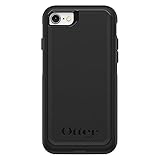
- Compatible with iPhone SE 3rd Gen, iPhone SE 2nd Gen, iPhone 8 & iPhone 7 (not compatible with Plus sized models)
- DOES NOT come with a screen protector
- Thin, lightweight 2-piece case provides protection against drops, bumps and shock (port covers block entry of dust and debris)
- Slides easily in and out of pockets
- Trusted OtterBox Quality: With OtterBox, you're not just buying a case; you're investing in peace of mind. Our limited warranty covers material and workmanship defects.
6. Identify apps using unusual amounts of power
Go to Settings > Battery and review activity by app, including On Screen and Background Activity where shown. High On Screen activity may simply mean you used an app a lot. High Background Activity is a reason to check whether it is syncing, uploading, using location or sending notifications more than you expect.
The Tool Desk
Outbyte Driver Updater FREEScan for outdated or missing drivers - takes under a minuteDriver Scan →Outbyte PC Repair FREERepair Windows errors before they cause bigger problemsFix Now →Change one relevant permission at a time and see whether the pattern changes; disabling every background feature can break useful services without identifying the cause. Battery use can also be temporarily higher after an iOS update while the phone performs tasks such as indexing and photo analysis. Apple’s battery usage and health guide explains the available information.
7. Check battery health before blaming settings
Open Settings > Battery > Battery Health & Charging. Maximum Capacity is an estimate of capacity relative to when the battery was new; it is not a measure of how much charge remains right now. Read any peak-performance or service message shown there as well.
A battery’s chemical capacity declines with age, and settings cannot restore it. If capacity is degraded or the phone reports a service need but otherwise meets your needs, compare battery service with the cost of replacing the phone. Apple’s battery replacement page has current service information; price and eligibility depend on region and service condition.
Reduce exposure without breaking useful services
8. Give apps only the location access they need
Open Settings > Privacy & Security > Location Services, select an app and choose an available option such as Never, Ask Next Time Or When I Share, While Using the App or Always. Turn off Precise Location for an app that only needs an approximate location.
Restrict apps individually rather than switching Location Services off globally without considering the consequences: maps, weather, geotagging, automation, Find My and emergency-related functions can depend on location. If an app stops behaving as expected, restore the access it needs. Options and behavior can vary by app. See Apple’s location-sharing guide.
Rank #3

- Compatibility : Designed for iPhone SE 2022(3rd)/iPhone SE 2020(2nd)/iPhone 8/iPhone 7 4.7 inch . Anti-fingerprints, anti-dust, anti-yellow, silky soft touch and durable. Matte translucent back ensure a comfortable, easy and secure grip. It perfectly fits the touchscreen, buttons, charging port, speaker and camera. Easy access to all controls and features
- Compatible with Magsafe & Magnetic : Built-in magnetic ring and provide excellent magnetic attraction. Compatible with most Magsafe and magnetic accessories, such as Mag-Safe and Qi wireless chargers, magnetic car mounts, magnetic holders, magnetic wallets and magnetic battery banks. Give you a safter, faster and more convenient charging experience
- Trustworthy Protection : Made from flexible TPU bumper and hard PC back, ensure an optimal shockproof and anti-drop protection. The raised lip of the screen and lens relieves impact, protects your phone and camera against drops & cracks & surface scratches
- Stylish & Elegant : Attractive when in your hand. The translucent back allows the original color and design of your phone faintly display. There are multiple stylish and elegant colors available for you to choose. Easy to match well with your phone of any color and express your aesthetics taste, confidence and personality
- Screen Protector included : Come with 1 pack tempered glass screen protector. Easy to install without bubble. Protects your phone screen from scratch, shock, and impacts. Hydrophobic and Oleophobic Coating protect your screen from fingerprint marks and liquid residue. Maintains the Original Response Sensitivity, Ultra Clarity and fingerprint unlock
9. Limit cross-app tracking requests
At Settings > Privacy & Security > Tracking, turn off Allow Apps to Request to Track or review the permissions listed there. This limits app requests to track activity across other companies’ apps and websites. It is not anonymity: it does not stop all data collection by an app within its own services. You can change the choice at the same path. See Apple’s tracking-permissions guide.
10. Keep message text off the Lock Screen
Go to Settings > Notifications > Show Previews and choose When Unlocked or Never. To apply a different rule to a particular app, open its settings under Notifications. Alerts can still arrive without showing their contents while the phone is locked, depending on the option you choose. Change the preview setting back if you prefer to read alerts at a glance. See Apple’s notification settings guide.
11. Make Focus silence only the people and apps you choose
Open Settings > Focus and configure a profile such as Work, Sleep or Reading. Choose allowed people and apps, and optionally associate a Lock Screen or Home Screen arrangement. Schedules can turn a Focus on automatically; review them if a profile starts at an unexpected time.
If a call or message you expected is silenced, check which Focus is active, its allowed people, repeated-call setting and schedule. Adjust or delete the Focus at the same path. See Apple’s Focus guide.
Speed up typing and capture information on screen
12. Create Text Replacement shortcuts
Go to Settings > General > Keyboard > Text Replacement and tap the add control. Enter a phrase and a short shortcut, such as @@ for your email address, addr for a postal address or sig for a sign-off. Avoid common words as shortcuts to reduce unwanted replacements. Edit or delete an entry on the same screen.
Text Replacement can sync through iCloud when the relevant Apple Account and settings are in use, but do not assume it will appear on every device automatically. Apple’s Text Replacement guide covers the feature.
Rank #4
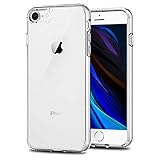
- Only compatible with iPhone 7 2016 released and iPhone 8 2017 released and iPhone SE 2nd Gen 2020 released and iPhone SE 3rd Gen 2022 released 4.7-Inch
- Package included: 1 x Clear iPhone 7/8/SE Case
- Note: Smartphone and other accessories are not included
- Made of Soft TPU, Precise Cutouts, Easy to Install or Remove, Wireless Charging Compatible, Protect Screen and Camera, Not Slippery and Nice Grip
- Anti-Scratch | Anti-Slip | Crystal | Flexible | Glossy | Lightweight | Scratch Resistant | Shock-Absorbent | Shockproof | Slim fit | Smooth | Soft
13. Choose whether keyboard taps should produce haptics
Open Settings > Sounds & Haptics > Keyboard Feedback and enable Haptic if tactile feedback helps you type. Turn off Sound if you want silent typing. Haptics use some power; if extending battery life matters more than tactile feedback, disable them. Change either option at the same path. See Apple’s onscreen keyboard guide.
Do these 3 things before closing this tab:
1Fix the driver behind crashes, sound loss and screen glitches2Repair Windows errors before they cause bigger problems3Scan for outdated or missing drivers - takes under a minute14. Copy or act on text with Live Text
Point Camera at clear printed text and tap the Live Text control when it appears. Depending on the detected content, you can copy text, translate it, call a number or open an address. Live Text can also appear in supported images and apps. It depends on language and regional availability, image quality, lighting and software version; it is not a dedicated document scanner.
If the control does not appear, improve the lighting, bring the text into focus, check the feature’s availability for your language and region, and make sure iOS is current. Apple’s Live Text guide and feature availability page provide details.
15. Save a long Safari page as a PDF
In Safari, take a screenshot, tap its thumbnail, then select Full Page and save or share the result as a PDF. This is useful for receipts, instructions and reference pages. Full Page is most reliable with webpages; some apps and dynamic pages do not offer it. If the option is absent, use the page’s own print or export function if available. See Apple’s screenshot and recording guide.
16. Record the screen with microphone audio
Add Screen Recording to Control Center if it is not already there. Open Control Center, press and hold Screen Recording to reveal the microphone control, turn the microphone on if narration is needed, then start recording. Stop from the recording indicator or Control Center.
Recommended Free Tools
Some apps block recording or audio capture, and protected video may appear blank or muted. Recordings can consume substantial storage, especially when they run for a long time. The same Apple guide covers screen recording.
Best Value

- "Compatible with iPhone SE 3rd Gen (2022), iPhone SE 2nd (2020), iPhone 8, iPhone 7 (Not Plus)"
- "Thin, sleek, stylish, pocket-friendly design, with wraparound colors and graphics add seamless style"
- "Dual-material construction absorbs shock and withstands drops, plus raised beveled edge keeps your touchscreen safe"
- Easy installation protects and stylizes your phone in a flash
- Includes OtterBox limited lifetime warranty (see website for details)
Get more from the SE 3 camera while respecting its limits
17. Set camera behavior and video quality deliberately
Review Settings > Camera > Photographic Styles to choose an available look, and Settings > Camera > Preserve Settings to decide which camera choices persist between launches. Use Settings > Camera > Record Video to choose resolution and frame rate, and Settings > Camera > Formats for available format options.
The SE 3 has one 12-megapixel rear camera and supports 4K video up to 60 frames per second. Higher resolution and frame rates create larger files and can use more battery. This model does not have an ultrawide camera or a dedicated Night mode. See Apple’s iPhone SE (3rd generation) technical specifications and advanced camera settings guide.
18. Use burst mode for action
In Camera, swipe the Shutter button in the direction indicated by the current interface to take a burst. Review the resulting group, keep the best frames and delete the rest; a burst can quickly fill available storage. If the gesture differs from what you expect, consult Apple’s burst-mode instructions. The SE 3 supports burst photography according to its technical specifications.
What’s actually slowing this PC down?
Pick the symptom - the matching free tool is one click away.
Prepare emergency information and recover safely
19. Set up Medical ID, Emergency SOS and Safety Check
Add emergency health information in Health > profile picture > Medical ID. Review Settings > Emergency SOS to understand the available emergency-call controls on your device and in your region. Use Settings > Privacy & Security > Safety Check to review information and access shared with people or apps when you need to manage it.
Emergency SOS is not the same as satellite emergency service. Do not expect satellite connectivity on the SE 3; cellular, carrier and regional conditions also affect emergency services. Apple’s emergency services guide and Safety Check guide explain the controls.
20. Back up before repair or reset, and know the force-restart sequence
To start an iCloud backup, go to Settings > [your name] > iCloud > iCloud Backup > Back Up Now. A backup needs enough available iCloud storage and a network connection. A Mac or PC backup is an alternative if iCloud storage is insufficient.
- Press and quickly release Volume Up.
- Press and quickly release Volume Down.
- Press and hold the Side button until the Apple logo appears.
A force restart is not a factory reset and normally does not erase data. Back up before a repair, erase, major troubleshooting step or trade-in. If a battery-drain problem persists, use Battery settings to identify the app or activity and check battery health before resetting the phone. Apple’s backup guide, force-restart guide and trade-in preparation guide give the full procedures.
Keep, repair or replace an iPhone SE 3?
- Keep it if battery health is acceptable and you value the compact size, Touch ID or Home button.
- Consider battery service if the battery is degraded but the phone otherwise does what you need. Check Apple’s live service information for your region before comparing repair with replacement.
- Consider a newer phone if you need Apple Intelligence, satellite features, Face ID, a larger screen, newer camera hardware or USB-C. The SE 3 has a Lightning connector, supports Qi wireless charging and uses an A15 chip; its capabilities remain bounded by its hardware.
Menu names and feature availability can change across iOS releases and vary by region, language and carrier. For a missing control, search Settings for its name and consult Apple’s current guide.
Quick Recap
Product prices and availability are accurate as of the date/time indicated and are subject to change. Any price and availability information displayed on Amazon at the time of purchase will apply.

