Some links on this page are affiliate links: if you buy through them we may earn a commission, at no extra cost to you.
If your camera will not work in Microsoft Teams on macOS 15 Sequoia, first find out whether the problem is limited to Teams. Test the camera in Photo Booth or FaceTime: if it works there, focus on Teams permissions, its camera selection, or its local configuration; if it fails everywhere, check macOS restrictions and the camera connection. The steps below move from quick, low-risk checks to resets and escalation.
On macOS 15, the camera permission is at Apple menu → System Settings → Privacy & Security → Camera. Older guides may call this “System Preferences” or “Security & Privacy.” A Teams camera failure does not, by itself, prove that macOS Sequoia has a universal camera bug.
Quick diagnosis: where does the camera fail?
| What you observe | Start with |
|---|---|
| Camera works in FaceTime or Photo Booth, but not Teams | Teams permission, device selection, competing apps, or Teams configuration |
| Teams web works, but the desktop app does not | Desktop Teams permission, client state, or app-specific configuration |
| Camera works in another app, but neither Teams version can use it | Camera contention, macOS permission, or browser site permission |
| Camera fails or is missing in every app | Mac settings, Screen Time or management restrictions, USB connection, or hardware |
| Several colleagues have the same issue | Ask your organization’s IT team to check policy, configuration, and service status |
Microsoft’s Teams camera troubleshooting guidance likewise recommends checking permissions, closing other apps, reconnecting external cameras, and updating or restarting. Use the test results below to avoid changing settings that cannot address the actual cause.
1. Test the camera in Photo Booth or FaceTime
Quit Teams, open Photo Booth or FaceTime, and check whether the image appears. This quick comparison separates a likely Teams-specific issue from a Mac-wide one.
#1 Best Overall

- ✅ USB A to Mini B: This is a USB 2.0 Type-A to USB mini-b male cable. the standard USB type A port connects your PC, Hub and USB Charger. another mini-B port can connect your devices with Mini USB 5-Pin connector.
- ✅ Fast Charging & Sync: this 1 meter mini USB cable can provide 3A(Max) current fast charging for devices, supports data transmission USB 2.0 speed up to 480Mbps(60M/s) with mini port.
- ✅ Durable & Reliable: the Ultra-durable PVC jacket has been bend tested over 10,000 times. Pure copper cable provides safer, more reliable charging. This cable's reinforced, specially designed connectors (longer than others) will never break and provide multiple protections for your cable.
- ✅ Wide Compatibility: usb mini b to usb cord is compatible with HERO 3+, Playstation-3 controller (also named PS3 controller cord ), MP3 players, Astro A40 / 50, HTC, Digital Cameras like Canon PowerShot ELPH / Rebel / EOS, Sat Navigation, compatible for Garmin GPS Receiver, Mic, Dash Cam, Ti-84 and other devices with Mini b 5 Pin connector.
- ✅ What You Get: 1 Pack x 3.3 feet USB A to Mini USB cable, with our 12-month product replacement warranty and lifetime 7*24h friendly technical support.
- It works: The camera is probably functioning. Continue with Teams permissions, camera selection, competing apps, and the app reset further down.
- It fails in both apps: Do not start by clearing Teams’ cache. Check macOS restrictions and restart the Mac; if you use an external webcam, test its connection and try it in another Mac app.
“Probably functioning” is not a guarantee: an intermittent camera, an external connection, or an app-specific conflict can still produce inconsistent results. Apple’s camera troubleshooting guidance also recommends checking settings and restrictions, updating software, and restarting.
2. Allow Teams to use the camera
Go to Apple menu → System Settings → Privacy & Security → Camera. Turn on the switch for the Teams entry you use. The name may appear as Microsoft Teams or Microsoft Teams (work or school).
- Quit Teams with Command–Q (closing a window may leave the app running).
- Enable the camera permission if the Teams entry is listed.
- Reopen Teams and join a test meeting, or use its device preview.
- If macOS asks for access, choose Allow.
Check the permission even if the camera works in FaceTime; macOS permissions are app-specific. Once you change it, fully quit and reopen Teams before testing.
Quick wins for a faster PC:
Repair Windows errors before they cause bigger problemsFix Now →Fix the driver behind crashes, sound loss and screen glitchesFind Drivers →Clear out junk files and repair common Windows errorsFree Scan →3. If Teams is missing from Camera permissions, trigger a fresh request
If Teams is not listed at Privacy & Security → Camera, there is no switch to turn on yet. The app may not have successfully requested access, or its permission record may have reset or become stale. If you are using Teams in a browser, grant permission to the browser instead.
- Quit and reopen the desktop Teams app.
- Start or join a test meeting and try to turn on video so macOS has a reason to show its permission prompt.
- Allow access if prompted, then quit and reopen Teams and test again.
If no prompt appears, continue with the later update and cache steps rather than repeatedly reinstalling Teams. Reinstalling is not guaranteed to recreate a missing permission entry. On an employer- or school-managed Mac, ask IT whether privacy controls are enforced by device management.
Rank #2
- ✅ USB A to Mini B: This is a USB 2.0 Type-A to USB mini-b male cable. the standard USB type A port connects your PC, Hub and USB Charger. another mini-B port can connect your devices with Mini USB 5-Pin connector.
- ✅ Fast Charging & Sync: this 2 meter mini USB cable can provide 3A(Max) current fast charging for devices, supports data transmission USB 2.0 speed up to 480Mbps(60M/s) with mini port.
- ✅ Durable & Reliable: the Ultra-durable PVC jacket has been bend tested over 10,000 times. Pure copper cable provides safer, more reliable charging. This cable's reinforced, specially designed connectors (longer than others) will never break and provide multiple protections for your cable.
- ✅ Wide Compatibility: usb mini b to usb cord is compatible with HERO 3+, Playstation-3 controller (also named PS3 controller cord ), MP3 players, Astro A40 / 50, HTC, Digital Cameras like Canon PowerShot ELPH / Rebel / EOS, Sat Navigation, compatible for Garmin GPS Receiver, Mic, Dash Cam, Ti-84 and other devices with Mini b 5 Pin connector.
- ✅ What You Get: 1 Pack x 6.6 feet USB A to Mini USB cable, with our 12-month product replacement warranty and lifetime 7*24h friendly technical support.
4. Quit every other app that could be using the camera
Close FaceTime, Photo Booth, Zoom, Webex, Slack, OBS, Loom, camera utilities, other Teams windows or profiles, and browser tabs running Google Meet or another video call. A browser tab can keep camera access even when it is not the active window.
Then reopen Teams and test its camera preview. If the camera starts working, reopen other apps one at a time to identify a conflict. If it still fails, restart the Mac; this can clear a stuck camera session. Microsoft also recommends closing other camera-using apps and restarting during troubleshooting.
5. Choose the intended camera in Teams
Open Teams settings, go to Devices, and find the Camera selector. Choose the built-in camera or the external webcam you actually want, then check the preview. Labels and menu placement can vary between Teams builds and account types.
Look out for a disconnected webcam, a monitor or dock camera that is no longer attached, an old virtual-camera driver, or a virtual output from a camera utility. Select a virtual camera only if you intend to use it. If the camera list is empty, changing the selection will not help: return to permissions and hardware detection, then try the later reset steps.
6. Update Teams and macOS, then retest
Check for updates in both places:
- macOS: Apple menu → System Settings → General → Software Update.
- Teams: Select your profile picture → Settings → About, then check for an available update or restart Teams if it offers one.
Microsoft says the Teams Mac desktop client supports one of the three most recent macOS versions. That rolling support window changes as Apple releases new major versions; check Microsoft’s current Teams system requirements if your Mac is on an older release. Updating is sensible but not a guaranteed camera fix, and an update can change prompts or device behavior. After installing updates, restart the Mac and test in a private or test meeting.
Rank #3

- 10FT PERFECT LENGTH: With the perfect 10ft length, you can play the game freely ,or lie on the sofa to use your devices for video while you are charging.What's more,you can also extend your surveillance camera (please make sure the camera interface is USB A port). Perfect Length for your easy life-use.
- REINFORCED SR CABLE JOINT:AINOPE USB 3.0 extension cable with test of 20,000+ bend, the special SR design makes the cable joints more sturdy. The flexible and wear-resistant armor nylon braided material offers stronger protection. The Included sticky buckles helps to shorten the length and keeps the USB 3.0 extension cable in an organized manner, no tangling worries and effectively prolong the service life.
- UPGRADED CONNECTOR:This USB extension cable with all-metal shell and aluminum alloy connector, provides you fancy texture with good hand-feeling, and ensure the extreme durability. Also constructed with multiple layers of shielding to minimize interference, corrosion-resistant and gold-plated connectors for optimal signal clarity, effectively prolong the cable service life.
- USB3.0 FAST CHARGING & DATA SYNCING:Charging and data transmission two in one, the charging speed is up to 2A, and the data transmission speed is 10X faster than USB2.0 cable, also, this USB 3.0 extension cable backwards compatible with USB 2.0 and USB 1.1 standard devices.
- WORRY-FREE SERVICE: If you have any questions about our product, please feel free to contact with our reliable customer service, we will reply you within 24 hours. Package: USB 3.0 Extension Cable*1
7. Reconnect an external webcam directly to the Mac
If you use a USB webcam, isolate its connection before assuming it is faulty:
The Tool Desk
Outbyte PC Repair FREEClear out junk files and repair common Windows errorsFree Scan →Outbyte Driver Updater FREEScan for outdated or missing drivers - takes under a minuteDriver Scan →- Unplug the webcam, then reconnect it directly to the Mac rather than through a monitor, hub, or dock.
- Try another USB port and, temporarily, disconnect other USB devices.
- Check for a physical privacy shutter and confirm the webcam works in Photo Booth or another Mac app.
- Restart the Mac with the camera connected, then check whether macOS apps can see it.
- If it works when connected directly but not through a dock, bypass or troubleshoot the dock before returning to Teams.
If the webcam is visible in Photo Booth but not Teams, concentrate on Teams permission and selection. If macOS apps cannot see it, focus on the USB path, camera, or system restrictions. Replacing a webcam will not solve a denied permission or faulty dock.
8. Check Screen Time and organization restrictions
Open System Settings → Screen Time → Content & Privacy and check whether camera use is restricted. This is worth checking on family-managed, school-owned, shared, or child-account Macs. Apple includes Screen Time restrictions among the settings to investigate when the built-in camera is unavailable.
If a camera control is unavailable, Teams repeatedly disappears from the permission list, or multiple employees have the same problem, contact your organization’s IT administrator. Mobile-device management, endpoint security, data-loss-prevention tools, virtual desktop rules, or Microsoft 365 meeting policies may limit access. An administrator may need to change a policy; repeatedly changing local settings will not override an enforced restriction.
Independent reader supportYour contribution helps us test, update, and keep practical guides available for everyone.9. Reset Teams’ local cache only after the simpler checks
If the camera works elsewhere and permissions, competing apps, selection, updates, and hardware checks have not helped, damaged local Teams data may be involved. A cache reset is a targeted troubleshooting step, not a guaranteed camera fix. Microsoft’s Teams reconnect guidance says clearing local cache does not uninstall Teams, but it can remove local cached data such as icons, thumbnails, local message history, display images, and add-ons. You may need to sign in again.
Recommended Free Tools
Rank #4
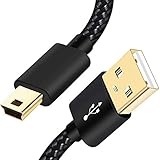
- SCOVEE Nylon braided mini usb cable connects your USB ready computer to a digital camera. This mini b cable is compatible with Canon PowerShot ELPH Rebel or other Mini-B portable device with a mini B 5-pin connector, such as an MP3 player,PDAs,old phone,Dash Cam Accessories,ps3 controller charger cord.
- Wide Compatibility: mini usb cable is compatible for GoPro HERO HD, HERO 3+,Fast Charger for Sony Playstation-3 controller (also named PS3 controller cord ), MP3 players,for Astro A40 50, Digital Cameras usb cable cord for Canon PowerShot ELPH Rebel EOS,Sat Navigation. Mini B cable for Garmin Nuvi Receiver, for Zoom Mic, Dash Cam,Ti-84 etc and other devices with Mini B 5 Pin connector.
- High Speed Transfer: This Type A Male to Mini B Cable data transfers speed up to 480 Mbps for USB 2.0 devices, the SCOVEE USB Mini B Cable is also backwards compliant with full-speed USB 1.1 (12 Mbps) and low-speed USB 1.0 (1.5 Mbps).
- Premium Connector and Cable Quality: Aluminum shell and nylon braided jacket build sturdy and durable mini usb cable, Corrosion-resistant bare copper conductors, gold-plated connector and nylon braid shielding keep the usb mini cable maximum conductivity and minimize data loss.
- What You Get: 1 Pack 6 feet Premium Nylon Braided Mini-USB Cable Cord. Color:Black. Length: 6ft SCOVEE USB Mini B cable, a perfect replacement.
- Quit Teams completely with Command–Q.
- In Finder, choose Go → Go to Folder.
- Enter
~/Library/Application Support/Microsoft/Teamsand press Return. - If that folder exists, move it to the Trash or rename it to
Teams-backupso you can restore it if needed. - Restart the Mac, open Teams, sign in again if asked, and recheck camera permission and the camera selector.
The folder is associated with a legacy Teams cache layout; current client builds may store local data differently, so it may not exist or resetting it may have no effect. Do not run a deletion command while Teams is open. Microsoft community guidance documents this legacy Terminal alternative:
rm -r ~/Library/Application Support/Microsoft/TeamsMoving or renaming the folder first is safer than immediately running a recursive deletion command. If the folder is absent, do not create or delete unrelated Library files in an attempt to force a reset.
10. Test Teams on the web, then escalate based on the result
Teams on the web can serve as a temporary way into a meeting and help isolate a desktop-app issue. Microsoft lists support for recent versions of Edge, Chrome, Firefox, and Safari; Safari support is limited to its two most recent versions. Verify current browser requirements in Microsoft’s requirements documentation.
- Open Teams in a supported browser and allow camera access when prompted.
- If no prompt appears, check that browser’s site permissions for
teams.microsoft.com. - Select the intended camera in Teams’ device settings and close other tabs that may be using it.
- If Safari fails, try a supported current version of Chrome or Edge; browser permissions are separate from desktop Teams permissions and from one another.
Use the comparison to choose your next step:
- Browser works; desktop app fails: Focus on desktop Teams permission, cache, device selection, or an app-specific issue.
- Neither Teams version works, but Photo Booth does: Recheck camera contention, macOS access, and browser site permission.
- No app sees the camera: Focus on Screen Time, management restrictions, connection, or hardware; contact Apple or the camera maker if system checks do not resolve it.
- Several people in your organization are affected: Ask IT to investigate policy, managed devices, and whether the problem is broader than one Mac.
If the camera still does not work
Before contacting support, record whether Photo Booth or FaceTime sees the camera, whether Teams web works, whether the Mac is organization-managed, and whether you use the built-in camera or an external model. Include your Mac model, macOS version, Teams version, and whether the problem began after an update. These details help separate an app issue from a hardware or policy problem.
Free tools Windows power users keep installed
One-click scans. No signup required.
- Contact IT for a work or school account when permissions are locked, restrictions appear enforced, or multiple managed devices are affected.
- Contact Microsoft when the camera works in other Mac apps, but the problem remains limited to Teams after the app-level checks.
- Contact Apple or the webcam manufacturer when macOS apps cannot detect the camera after checking restrictions and, for an external camera, trying a direct connection.
Do not treat a new webcam or a Teams reinstall as a universal fix. A replacement camera cannot bypass macOS permissions, Screen Time, device management, or a broken connection path; reinstalling cannot repair hardware or an enforced organization policy. Microsoft’s reported supported macOS window is the three most recent versions, so check its live requirements if your installation may be outside that window.
Quick Recap
Product prices and availability are accurate as of the date/time indicated and are subject to change. Any price and availability information displayed on Amazon at the time of purchase will apply.

