Free tools Windows power users keep installed
One-click scans. No signup required.
Some links on this page are affiliate links: if you buy through them we may earn a commission, at no extra cost to you.
Firefox’s built-in Screenshot tool needs no extension. Right-click an empty area of a web page and choose Take Screenshot, use Ctrl+Shift+S on Windows or Linux ( Command+Shift+S on macOS), or add a permanent Screenshot button to the toolbar. You can then capture the visible view or the entire page, save a PNG, or copy the image to your clipboard.
Open Firefox’s Screenshot tool
The current Mozilla help instructions (updated June 15, 2026) describe three ways to launch the browser’s built-in capture interface. All three expose the same selection and output controls; choose the entry point that fits your workflow.
Use the page context menu
- Open the page you want to capture.
- Right-click an empty part of the page, away from links, images, form fields, or other controls.
- Select Take Screenshot.
If you right-click an element, Firefox may show that element’s own context-menu commands instead. Right-clicking a blank area is the most reliable route.
The Tool Desk
Outbyte Driver Updater FREEFix the driver behind crashes, sound loss and screen glitchesFind Drivers →Outbyte PC Repair FREEClear out junk files and repair common Windows errorsFree Scan →Use a keyboard shortcut
- Windows and Linux: press Ctrl+Shift+S.
- macOS: press Command+Shift+S.
The shortcut is useful when a site intercepts right-clicks or when you are taking many captures in succession.
#1 Best Overall

- Media-Friendly: The K400 Plus wireless touch TV keyboard gives you integrated, comfortable control of your PC-to-TV entertainment, eliminating the clutter of a separate keyboard and mouse
- Plug-and-Play: Simply plug the Unifying receiver into a USB port and the wireless touchpad keyboard is ready to go; adjust controls using the Logitech Options Software to save preferred settings
- Power-Packed: Built with laid-back control in mind, this wireless TV keyboard has a reliable and long battery life of up to 18 months (2), including an on/off button to help it go even longer
- Wireless Freedom: Designed for seamless comfort and control, this HTPC keyboard boasts a range of up to 33 ft (1) wireless connectivity, with quiet keys and a large touchpad for easy navigation
- Broad Compatibility: Designed for use with Windows 7, Windows 8, Windows 10 and later, Android 7 or later, and Chrome OS
Add a persistent toolbar button
- Open the Firefox application menu.
- Choose More Tools, then Customize Toolbar.
- Find Screenshot and drag it to the main toolbar or to the overflow menu.
- Select Done to leave customization.
The button remains available in the location where you placed it. If you cannot see it later, repeat these steps before changing any advanced preferences.
| Access method | Best use | What to do |
|---|---|---|
| Context menu | Occasional captures | Right-click an empty page area and select Take Screenshot. |
| Keyboard shortcut | Fast, repeated captures | Press Ctrl+Shift+S (Windows/Linux) or Command+Shift+S (macOS). |
| Toolbar button | A visible, persistent control | Menu > More Tools > Customize Toolbar, then drag Screenshot. |
Choose what Firefox captures
After launch, Firefox places a screenshot interface over the page. It can capture the part currently visible in the tab or the full page, including content below the fold.
Capture the visible page
Choose the visible-page option when you need exactly what is on screen at that moment. This is useful for documenting a dialog, a chart in its current state, or a layout at a particular viewport size.
Capture the entire page
Choose the full-page option when the document extends beyond the current viewport. Firefox creates one image representing the page from top to bottom rather than requiring separate scroll-and-capture files.
Rank #2
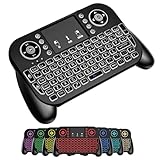
- DUAL WIRELESS CONNECTION - BLUETOOTH + 2.4GHZ RF: Easily switch between Bluetooth and 2.4GHz USB receiver modes for flexible connectivity. Enjoy stable, responsive control for Smart TVs, Android TV boxes, PCs, laptops, tablets, and more.
- BUILT-IN TOUCHPAD & FULL QWERTY KEYBOARD: Navigate, scroll, type, and control your device from the couch with the integrated high-sensitivity touchpad and compact full keyboard layout — no separate mouse needed.
- 7-COLOR BACKLITS KEYS FOR DAY & NIGHT USE: Adjustable multi-color backlit keyboard makes typing easy in dark rooms, home theaters, bedrooms, or nighttime media setups while adding a modern gaming-style look.
- WIDE DEVICE COMPATIBILITY: Compatible with most devices supporting Bluetooth or USB receiver connection, including Smart TVs, Android TV boxes, streaming devices, HTPCs, Windows PCs, laptops, Raspberry Pi, tablets, and projectors.
- GREAT FOR STREAMING, GAMING & HOME THEATER: Perfect for browsing, media streaming, presentations, casual gaming, and controlling your entertainment system from a distance with smooth wireless performance up to 33ft (10m).
Very long or highly dynamic pages can change while the capture is being prepared. For a reproducible result, finish loading the page, dismiss temporary dialogs, and leave the page at the state you intend to document before invoking the tool.
Select a region with the crosshair
You can drag across a specific rectangle instead of taking the whole visible view. The interface also supports moving the crosshair with the arrow keys. Mozilla notes that crosshair movement does not work on Wayland; on a Wayland session, use the pointer to draw the region or choose a page-level capture instead.
Cancel without creating a file
Press Esc or use the screenshot interface’s close control to leave capture mode. Cancelling does not save or copy an image.
Do these 3 things before closing this tab:
1Repair Windows errors before they cause bigger problems2Fix the driver behind crashes, sound loss and screen glitches3Clear out junk files and repair common Windows errorsChoose Download, Copy, or Cancel
Download a PNG
Select Download to save the screenshot as a PNG in Firefox’s normal download location. Mozilla says the generated filename includes the year, month, day, time, and page title, which makes a series of captures easier to identify later.
Rank #3

- 【Easy to Connect & Use】The mini wireles keyboard remote is connected via USB receiver(included) and the work distance up to 10 meters. Just plug and play. very easy to connect and use. Powerful function (keyboard + touchpad + mouse) very perfect for browsing the web, playing games or watching TV.
- 【Widely Compatibility】The mini keyboard with touchpad can be used for Android TV box, smart TV, PC, Pad, Raspberry PI, PS3, x-box, desktop, laptop, smart phone,HTPC/IPTV, etc. If there is not a USB port, you need to prepare a OTG cable.
- 【Mutil-Colors Backlit and Rechargeable Battery】The USB mini keyboard has mutil-colors of backlit mode which can clear operate the keys when work at night, don't need to turn on the light which disturbing your families. With auto sleep and wake-up function, and comes with a rechargeable Li-ion battery, it can work for a long time.
- 【Portable Keyboard】 This small keyboard is designed Small and handheld design, has a innovative shape and petite size, takes up very minimal space in you bag and just makes you say goodbye to chunky keyboard to horizon a new experience of office entertainment anywhere, anytime.
- 【Sensitive Touchpad & Hotkeys】Wireless mini keyboard with multi-finger touchpad and combo with 8 hotkeys can easy and accurate manipulation. Easy to type and copy / paste, making it faster and more convenient for you browse the page.
The screenshot uses the same download-location rules as other files. If Firefox is configured to ask where files should be saved, it asks for a destination for the screenshot as well.
Copy the image to the clipboard
Select Copy when you want to paste the capture directly into an image editor, document, issue tracker, chat, or email. Nothing is written to the download folder by this action; the image is placed on the operating system clipboard.
Close the tool
Use Esc or the close control if you opened Screenshot accidentally or decided that the current selection is not useful. There is no separate settings file to clean up after cancelling.
| Action | Destination | Result |
|---|---|---|
| Download | Firefox’s configured download folder, or a folder you choose when prompting is enabled | PNG file with a date/time-and-page-title filename |
| Copy | System clipboard | Paste the image into another application |
| Esc or close | Nowhere | Capture mode ends without saving |
Configure where downloaded screenshots are saved
Firefox does not use a separate screenshot folder in the normal workflow. It follows the browser’s regular download destination.
Rank #4

- ♚【Easy to use】 This wireless keyboard and mouse combo just need to plug the USB receiver into your device and use it. Plug the USB cable to the charging port easily charging (on the top left of the keyboard).
- ♚【10M Working Range & Portable】This mini keyboard can work up to 10 meters (33 Feet). And the small and handheld design take up very minimal space in your bag. Just let you say goodbye to chunky keyboard to enjoy controlling with the keyboard on the couch. (The range might be affected by the wireless environment)
- ♚【7-Colors Backlit & Rechargeable Battery 】This backlit keyboard has 7 colors of backlit mode which is easy to use even in dark environments. With auto sleep and wake-up function, and comes with a rechargeable Li-ion battery, it can work for a long time.
- ♚【Multi-function keyboard】This mini wireless keyboard built-in multi-finger function Touchpad and 8 hotkeys, which can easy to type and copy/paste, making it faster and more convenient for your browse the page.
- ♚【Widely Compatibility】This mini keyboard mouse combo perfect for PC, Andriod TV Box, Smart TV, x-box, Raspberry PI, TV Box, PS3, HTPC/IPTV, desktop, laptop, etc. If there is not a USB port, you need to prepare a OTG cable.
- Open the Firefox menu and choose Settings (called Preferences on some macOS installations).
- Open General and find the Files and Applications or Downloads section.
- Choose a folder for saved files, or enable Always ask you where to save files.
- Return to the page and use Take Screenshot > Download to verify the behavior.
With a fixed folder selected, each downloaded screenshot goes there automatically. With Always ask you where to save files enabled, Firefox displays a file picker for each screenshot, allowing a different folder or filename every time.
Advanced folder preferences
A 2025 Mozilla Support discussion about Firefox 141 describes additional screenshot-folder preferences in about:config. Treat those values as version-specific, advanced guidance rather than a stable settings-page feature: preference names, accepted paths, and behavior can change in later releases. The current screenshot help article documents the normal download location and the Always ask option, not a dedicated screenshot-folder menu.
To inspect advanced preferences, type about:config in the address bar and accept Firefox’s warning. Do not change a value merely because it contains the word “screenshot”; record the original value first and undo the change if downloads behave unexpectedly. Mozilla Support warns that edits made through about:config are not fully supported or guaranteed to persist.
Outdated Drivers Are Slowing You Down
One free scan finds every outdated or missing driver and matches the right update for your exact hardware.Free scan · exact hardware matchWindows Errors? Fix Them Before They Spread
Repair common Windows errors and clear accumulated junk for a smoother, more stable PC - no reinstall needed.Free scan · no reinstallTroubleshoot a missing Screenshot command or button
| Symptom | Likely cause | Fix |
|---|---|---|
| The toolbar icon is gone | It was removed or moved into the overflow menu | Open the menu, choose More Tools > Customize Toolbar, and drag Screenshot back. |
| You cannot find the icon but the command works | The feature is available but not pinned | Use the context-menu command or keyboard shortcut, then customize the toolbar if you want a permanent button. |
| Neither the command nor shortcut works | The screenshot component may be disabled | As a support-based diagnostic, check extensions.screenshots.disabled in about:config. If it is locked, an enterprise policy may be enforcing the setting; inspect about:policies or contact the administrator. |
| A support article mentions another preference | Different Firefox versions expose different implementation switches | screenshots.browser.component.enabled appears in a separate support discussion. Do not change it unless the symptom and Firefox version match that discussion. |
| The crosshair will not move with arrow keys | Wayland limitation | Use the pointer to draw the selection, or choose visible/full-page capture. |
After changing an advanced preference, restart Firefox and test the normal context-menu command. If the command returns after reverting a preference, leave the advanced value at its original setting and use toolbar customization instead.
Best Value
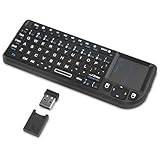
- Dual Mode 2.4G+BT Mini Keyboard pairs with 2 devices. BT for Smart TV, Tablet, Projector, Android Box, Fire Stick. 2.4G via USB receiver for non-BT devices. Seamless switching.
- 3-in-1 Mini Keyboard & Touchpad. 33ft range for Smart TV, PC, HTPC, Pi, Steam Deck. Ideal for media & slides. Verify device compatibility before buying
- 【Backlit Keyboard】 The wireless mini keyboard with White LED backlit is perfect for using in a dark environment
- 【Long-Lasting & USB-C Rechargeable】Mini usb Keyboard, Stay powered for over 30 days on a single charge with the built-in 500mAh battery. Features modern USB-C charging for quick and convenient power-ups
- 【Ultra-portable & Compact】Portable bluetooth keyboard, Roughly the size of an iPhone, it's designed for true on-the-go convenience. Perfectly easy to carry around while traveling or commuting
A repeatable screenshot workflow
- Navigate to the exact URL and wait until the content you need is present.
- Close transient menus, consent dialogs, or tooltips that should not appear in the evidence.
- Launch Screenshot with the context menu, shortcut, or toolbar button.
- Choose a visible region, the visible page, or the full page.
- Review the selection edges before committing the capture.
- Choose Copy for immediate editing or pasting, or Download for a PNG file.
- Press Esc if the selection is wrong and repeat without creating an unwanted file.
For technical records, keep the original PNG rather than repeatedly re-saving it through another editor. If you need a different format, convert a copy after capture so the browser-generated file remains available.
Quick decisions
- Need a quick image of what is visible? Open Screenshot and choose the visible-page capture.
- Need content below the fold? Choose full-page capture.
- Need only one panel or chart? Drag a rectangle around that region.
- Need to paste into another app? Choose Copy.
- Need a file in a known directory? Set Firefox’s download folder, then choose Download.
- Need a different folder each time? Enable Always ask you where to save files.
- Cannot find the feature? Try toolbar customization and the documented shortcut before touching about:config.
Or skip the browser setup
For automated or server-side captures, ScreenshotNeo is a website screenshot API and MCP server for developers. One GET request returns a PNG, JPEG, WebP, or PDF. It can accept a consent banner before capture and remove more than 60 known consent platforms, newsletter popups, and chat widgets; each cleanup step can be turned off. Bot checks or CAPTCHAs, blank pages, timeouts, failed loads, and cache hits are not billed, and each response identifies the page result and billing state with X-Page-Verdict and X-Billed headers.
Use the API documentation at https://screenshotneo.com/docs/ for authentication and options. The same endpoint supports full-page capture, CSS-selector element capture, dark mode, device presets, arbitrary viewports, retina scale, PDF paper sizes and page ranges, custom CSS or JavaScript, waits, request blocking, headers, cookies, user agents, authorization, timezone and geolocation, transparent backgrounds, resizing, selectable cache TTLs, signed image links, asynchronous jobs with signed webhooks, bulk capture of up to 100 URLs per call, usage reporting, and an OpenAPI specification.
cURL
curl -G "https://api.screenshotneo.com/v1/shot" -d access_key=YOUR_API_KEY --data-urlencode url=https://stripe.com -o shot.webpPython
import requests
r = requests.get("https://api.screenshotneo.com/v1/shot", params={"access_key": "YOUR_API_KEY", "url": "https://stripe.com"}, timeout=90)
open("shot.webp", "wb").write(r.content)
Node.js
const q = new URLSearchParams({ access_key: 'YOUR_API_KEY', url: 'https://stripe.com' });
const res = await fetch(`https://api.screenshotneo.com/v1/shot?${q}`);
The Free plan includes 1,000 screenshots per month with no card. Paid plans start at $5 for 3,000 shots; every feature is available on every plan. ScreenshotNeo also provides an MCP server so Claude, Cursor, and other MCP clients can call take_screenshot, get_page_info, and capture_pdf without setting up a local browser.
Create a free ScreenshotNeo account to try the 1,000 monthly screenshots without entering a card.
Quick Recap
Product prices and availability are accurate as of the date/time indicated and are subject to change. Any price and availability information displayed on Amazon at the time of purchase will apply.

