Some links on this page are affiliate links: if you buy through them we may earn a commission, at no extra cost to you.
TikTok LIVE Studio is TikTok’s desktop broadcasting app for sending a camera, microphone, game, screen, capture card, or other sources to a LIVE. It is useful for gaming, tutorials, music, product demonstrations, and multi-scene shows—but desktop access is separate from mobile LIVE access. Check that your account has LIVE Studio access before spending time on setup.
What TikTok LIVE Studio is—and what it is not
LIVE Studio is the desktop production application. TikTok Studio is a separate mobile/web creator-management product for uploads, analytics, monetization tools, and related resources; see TikTok’s explanation at TikTok Studio. Mobile LIVE is the quickest phone-based workflow. OBS Studio is third-party, cross-platform production software, while TikTok LIVE Manager is especially aimed at commerce and TikTok Shop sessions.
Desktop software is valuable when you need several sources, controlled audio, screen or game capture, scenes, dedicated lighting, or a second monitor for chat. Feature availability can vary by region and account, as TikTok notes in its creator-tools documentation.
PC Slower Than It Used to Be?
A free scan shows the junk files, broken settings and background clutter dragging Windows down - then fixes them in one click.Free scan · Windows 10 & 11Outdated Drivers Are Slowing You Down
One free scan finds every outdated or missing driver and matches the right update for your exact hardware.Free scan · exact hardware matchCheck eligibility and desktop access first
TikTok generally says LIVE creators must be at least 18 and usually have 1,000 followers, but the follower threshold can vary by region. LIVE and Gifts are not available everywhere. Review the current requirements at TikTok LIVE and the age-confirmation rules at TikTok’s age requirements page.
#1 Best Overall

- 【 All in One Package】Includes a GoStream Duet switcher, a 14'' 1080*1920 screen, a slient fan, 3 Cheese Plates with 1/4'' & 3/8'' Threads.
- 【 Carry Around Without Burden】GoStream Duet Kit weighs about 5kg. The compact design ensures ultimate portability and durability. Where you go, the mobile live streaming is in your hands.
- 【Ultimate and Rich Connection Ports】With 4 HDMI/SDI inputs, 2 HDMI outputs and 2 USB ports, it provides great flexibility to have PGM out while retaining the multiview to monitor. Equipped with 2 USB ports, it conveniently accommodates one for USB camera connectivity and the other for streaming software like OBS, Vmix, and Zoom.
- 【Multiple Power solution】GoStream Duet Kit can be powered by AC IN, DC IN, or a USB power bank. The three power supply modes can be switched seamlessly. And with a built-in USB DC 5V out, it effortlessly powers additional devices like your cameras.
- 【Expandable Cheese Plates】The robust bottom plate securely fastens to a light stand, ensuring stability in any setting. Two side plates open the door to limitless expansions—effortlessly customize your kit with additional equipment.
Those are general LIVE requirements, not a guaranteed LIVE Studio entitlement. TikTok can enable desktop access differently by account, location, rollout, or approval. If you can go LIVE on your phone but cannot find LIVE Studio after signing in, desktop access probably has not been enabled; it is not necessarily an installation fault.
Download LIVE Studio safely
- Open TikTok’s official download page: https://www.tiktok.com/studio/download.
- Sign in with the account you intend to broadcast from.
- Download the installer offered on that page and confirm the domain is TikTok-owned.
- Install it, then launch LIVE Studio and sign in to the same account.
Do not use cracked, repackaged, or mirror installers. The download page can show different experiences by location or login state, so verify current platform support there rather than relying on an old tutorial.
Install, sign in, and grant permissions
- Run the downloaded installer and accept the displayed terms and permissions.
- Open LIVE Studio and authenticate the intended TikTok account. If several accounts are open in your browser or phone, check the account name carefully.
- Complete any age or account verification TikTok requests.
- Allow camera, microphone, display-capture, and firewall access when prompted.
- Recheck the connected account before creating scenes; that account receives the broadcast.
Prepare a reliable setup
Minimum workable equipment
- Compatible desktop or laptop and a stable internet connection.
- Built-in or USB webcam if you need face video.
- Microphone or headset; headphones help prevent echo.
- Enough light to see your face or product clearly.
Useful upgrades
- Ethernet instead of congested Wi-Fi.
- USB microphone or audio interface, separate headphones, and a front-facing key light.
- Second monitor for chat and controls.
- Capture card for a console or HDMI camera.
- Hardware-encoder-capable graphics hardware for demanding games.
TikTok’s OBS guidance recommends Ethernet where possible and mentions 20 Mbps for that documented workflow; it is not a universal LIVE Studio minimum. Source: TikTok’s OBS guidance.
Recommended Free Tools
Understand the LIVE Studio workspace
Names and positions can change between builds, but the workspace normally includes a preview canvas, scene selector, sources list, audio mixer, chat or viewer controls, LIVE status indicators, and settings or diagnostics.
- Scene: a saved arrangement of sources.
- Source: webcam, screen, game, image, browser, capture card, or audio input.
- Overlay: text, alerts, frames, or graphics layered over video.
- Canvas: the final composition viewers see.
Add and tune your camera
- Open the camera or video-source area and select the built-in webcam, USB camera, camera feed, or capture-card input.
- Confirm the correct picture appears in preview, then add it to the active scene.
- Set framing, focus, exposure, white balance, and orientation. Improve lighting before increasing resolution.
- Close Zoom, Teams, browser camera tabs, or other applications that might be using the camera.
A black or frozen preview usually calls for closing competing camera apps, reconnecting the device, trying another USB port, reselecting it, checking operating-system privacy permissions, and restarting LIVE Studio.
Rank #2

- 【All-in-One Audio Setup for Creators】Complete Podcast Equipment Bundle for Streaming, Recording & Content Creation.Designed as a complete audio solution, this kit includes an audio mixer, condenser microphone, and essential accessories—ideal for building a clean and efficient setup without extra equipment.
- 【Clear, Balanced & Reliable Sound】Enhanced Vocal Clarity with Built-in Noise Reduction.Capture clean, natural sound with reduced background noise. Optimized for streaming, podcasting, voice recording, and everyday content creation.
- 【Follow Singing Mode for Live Performance】Hear the Original Track While Your Audience Hears Only Your Voice & Music.Perfect for live singing, TikTok streams, and online performances. Monitor the original vocals privately while delivering a clean mix to your audience.
- 【Voice Changer & Sound Effects】Multiple Voice Styles & Built-in Effects for Interactive Content.Switch between different voice styles and trigger sound effects like applause or laughter to enhance engagement during streaming or recording sessions.
- 【Real-Time Audio Control】Adjust Bass, Treble, Reverb & Pitch with Ease.Fine-tune your sound in real time to match different scenarios, from chatting and gaming to singing and recording.
Add and tune your microphone
- Select the intended input in the audio settings or mixer.
- Speak normally and watch the level meter; keep speech below clipping.
- Mute unused microphones and duplicate desktop-audio sources.
- Use headphones and make a short practice recording.
- Fix device selection and gain before adding filters.
No signal usually means the wrong input, a muted source, or denied operating-system permission. Echo comes from speakers or duplicate sources. Distortion means excessive gain. Bluetooth headsets can switch to a low-quality call profile; a wired headset or USB microphone is a useful diagnostic.
Capture a screen, game, or console
- Display capture: the whole monitor; simple, but notifications and private windows can appear.
- Window capture: one application; safer for privacy, although exclusive full-screen apps may fail.
- Game capture: often more efficient for supported PC games; borderless or windowed mode may help.
- Capture card: normally needed for consoles or external HDMI cameras.
Before going LIVE, disable desktop notifications, close password managers and private messages, hide personal tabs and files, and preview the complete frame. TikTok also recommends disabling system notifications and preventing sleep during a broadcast in its OBS guidance.
The Tool Desk
Outbyte PC Repair FREEClear out junk files and repair common Windows errorsFree Scan →Outbyte Driver Updater FREEScan for outdated or missing drivers - takes under a minuteDriver Scan →Create simple scenes and layouts
Start with a small, dependable set:
- Starting soon: camera or branded image and the topic.
- Main: gameplay, screen, camera, or product with microphone.
- Break: “Be right back” message and muted microphone.
- Ending: closing message and next-step information.
- Emergency: safe static image or camera view if a source fails.
Layer the background first, content next, camera above it, and text or alerts last. Keep important information visible. For TikTok’s portrait-oriented audience, design key content for a vertical canvas when your current build offers that option, without assuming every account has the same controls.
Choose stable stream settings
There is no single official resolution, frame rate, or bitrate that fits every account, build, content type, computer, and connection. Begin with LIVE Studio’s recommended or automatic settings. Prioritize clear audio and stable motion over maximum resolution.
- Talking head: test 720p at 30 fps.
- Standard gaming: test 720p or 1080p at 30 or 60 fps if hardware allows.
- Fast-motion gaming: use higher frame rates only while encoder, CPU/GPU, and upload indicators remain healthy.
- Product demonstrations: prioritize lighting, focus, and readable text.
Lower resolution or frame rate when you see dropped frames, encoder overload, high CPU/GPU use, or unstable upload. A 1080p source does not require a 1080p output.
Rank #3

- PODCAST EQUIPMENT BUNDLE FOR 2 - The Movo PodPro-TH includes the dual channel MDX-2 usb audio interface, 2 CastMic XLR Dynamic Microphones, and 2 pairs of studio headphones. The perfect complete podcast kit for content creators on the go.
- MDX-2 DUAL USB AUDIO INTERFACE: Compact with battery-powered capabilities (8-hour battery life/3-hour with Phantom Power on). Includes USB-A, USB-C, and Lightning cables for seamless connection to PC, Mac, iPhone, iPad, and Android devices. Comes with a travel case for on-the-go recording. Includes 2 XLR inputs (with 48V phantom power), 2 headphone outputs, and stereo 1/4" outputs
- CASTMIC XLR PODCAST MICROPHONE: The CastMic cardioid XLR microphone delivers rich, balanced sound with a 40Hz-16kHz frequency response, minimizing background noise for studio-quality recordings. Built with durable metal construction, it's ideal for streaming, podcasting, and music recording in any environment
- MADE FOR PODCASTING AND MORE: This bundle is designed to elevate podcasting with high-quality audio components, but it’s also ideal for music recording, streaming, and interviews. Perfect for creators who want versatile equipment that adapts to any recording scenario, whether in a studio, at home, or on the go.
- INCLUDES: MDX-2 Portable Audio Interface, 2 CastMic XLR Podcast Mics, 2 Tabletop Mic Stands, 2 XLR Cables, USB-A Cable, USB-C Cable, LIghtning Cable
Test before going LIVE
Use practice or preview features when your account provides them. TikTok documents a desktop practice mode for LIVE Manager, particularly with virtual-camera workflows; that interface is not guaranteed to be identical in LIVE Studio. See LIVE Manager’s documentation.
What’s actually slowing this PC down?
Pick the symptom - the matching free tool is one click away.
- Camera preview and framing are correct.
- Microphone meter responds without distortion or echo.
- Game, screen, or capture-card video is visible.
- Desktop audio is not duplicated or overpowering speech.
- Notifications and private information are hidden.
- The correct account, title, category, orientation, and moderation settings are selected.
- Chat and a moderator are ready.
- Upload stability and CPU, GPU, and memory use remain acceptable.
Start the desktop broadcast
- Select the intended scene.
- Confirm camera, screen/game, capture card, and microphone sources.
- Enter the title and available LIVE details.
- Review comment, safety, and moderation controls.
- Run the preview or pre-LIVE check if offered.
- Click Go LIVE, Start LIVE, or the equivalent current label.
- Wait for the LIVE indicator and viewer-facing preview to confirm that broadcasting has actually started.
Manage chat and the broadcast
Read and answer comments, switch scenes, mute or unmute sources, and watch connection and encoder warnings. Use moderators where possible; apply keyword filters and mute or block disruptive viewers. Keep a second device available for chat or account recovery.
TikTok says comments can be unavailable when comments are disabled, filtered, keyword-blocked, or when a viewer is muted or blocked. Troubleshooting details are at TikTok LIVE troubleshooting.
End the LIVE correctly
- Tell viewers the session is ending.
- Use the desktop end or stop control and confirm if prompted.
- Wait until LIVE Studio shows the session has ended.
- Review available replay, analytics, and moderation information.
- Check whether a recording was saved locally or is available only through TikTok’s post-LIVE tools.
- Write down technical issues before the next session.
Do not normally close the laptop, kill the process, or shut down the computer to end a broadcast.
Fix common LIVE Studio problems
LIVE Studio is missing
- Confirm the account can go LIVE from mobile.
- Sign in to the official download page with that same account.
- Check account notifications and creator tools, then update TikTok and LIVE Studio.
- If you meet the stated requirements but still lack access, report the problem through TikTok’s support route described in its LIVE troubleshooting page.
Camera unavailable or black
Close other camera applications, reconnect the device, check privacy permissions, reselect the input, test another USB port, and restart LIVE Studio.
Rank #4
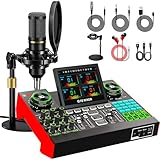
- 【Podcast Equipment Bundle】The podcast microphone bundle includes everything you need for professional-quality audio creation: a 3.5mm condenser microphone with a disk bracket and the G10 Sound Board. Perfect for podcasters, gamers, streamers, and content creators who want an all-in-one solution for mixing, recording, and streaming.
- 【Sound Board for 3.5mm/6.35mm Dynamic/48V Microphone】No complicated setup required! Just plug the live sound card into your PC, Mac, or mobile device, and start streaming or recording right away. This pod cast equipment kit is designed to make your audio experience seamless and easy.
- 【3.5mm Podcast Microphone with Disk Bracket】The included 3.5mm streaming microphone is designed for clear, reliable sound capture. Combined with the boom arm, you can position your streaming mic perfectly for optimal sound quality, while saving space and reducing clutter.
- 【Customizable Sound Effects & Voice Control】Take full control of your sound with customizable settings for bass, treble, reverb, pitch, and more. Plus, the soundboard offers 16 built-in sound effects, like applause and laughter, to make your streams more engaging and entertaining.
- 【Clear Sound with Built-in Noise Reduction】Achieve crystal-clear audio with the audio mixer for pc’s advanced noise reduction technology. Whether you’re podcasting or streaming live, your voice will always be crisp and professional, eliminating unwanted background noise.
Microphone silent or echoing
Choose the correct input, check permissions and mute states, inspect the meter, disconnect competing Bluetooth devices, use headphones, and ensure the same microphone is not added twice.
Lag, dropped frames, or disconnections
Determine whether the indicator points to network instability or encoder overload. Use Ethernet, close demanding applications, lower resolution, frame rate, or bitrate, enable hardware encoding when supported, and test a static scene. For game-related slowdowns, use game capture where appropriate, reduce game graphics, cap the game frame rate, and close overlays.
Viewers cannot comment
Check whether comments or keywords are filtered, the viewer is muted or blocked, or TikTok has restricted that viewer’s commenting ability.
Independent reader supportYour contribution helps us test, update, and keep practical guides available for everyone.Choose the right alternative
| Option | Best when | Trade-off |
|---|---|---|
| LIVE Studio | TikTok-first desktop production with integrated account access, scenes, and multiple sources. | Desktop access is account- and region-dependent; controls can change. |
| Mobile LIVE | You need the fastest setup, outdoor streaming, or your account has mobile access only. | Fewer production sources and controls. |
| OBS Studio | You need extensive scenes, filters, automation, or a multi-platform workflow. | It is third-party and TikTok workflows vary. TikTok documents both OBS Virtual Camera through LIVE Manager and RTMP/stream-key paths: LIVE Manager and OBS guidance. |
| TikTok LIVE Manager | TikTok Shop catalogs, flash sales, giveaways, commerce moderation, planning, and analytics. | It is not a universal replacement for general gaming or entertainment production. |
For mobile LIVE, TikTok’s documented path is app + → LIVE → configure the session → Go LIVE; that is separate from the desktop workflow described here.
Optional upgrades after your first successful stream
- Headphones or a straightforward USB microphone.
- Basic lighting.
- Ethernet connection or adapter.
- Webcam upgrade.
- Capture card for console or HDMI sources.
- OBS or other advanced software only when LIVE Studio lacks a capability you actually need.
Fix lighting, framing, microphone selection, and network stability before buying expensive cameras, mixers, overlays, or control decks. LIVE Studio itself is a broadcast tool; Gifts, subscriptions, commerce, and other monetization features have separate regional and account eligibility rules.
Best Value

- [Complete Gaming Duty] Using the gaming equipment bundle with XLR dynamic microphone and gaming audio mixer together enhances your gaming voice experience. The stability of the XLR streaming microphone allows you to output natural conversations interaction. Intuitive function keys on the PC audio mixer give you a quick way to to control audio. The gaming equipment bundle can not only improve the quality of audio, but also bring a more experiential game streaming process.
- [Gaming Audio Mixer] Podcast equipment bundle gaming mixer with individual mute control, headphones monitoring and volume fader achieve audio control for a certain output and input channel. You can achieve a faster experience with fewer steps. Multiple entertainment modes allow you to create more fun when team work or streaming. RGB lights on the gaming audio mixer sound effects machine enhance visual atmosphere, further matching the theme aura of gaming streaming.
- [XLR/USB Gaming Mic] Connect the XLR dynamic microphone to the PC mixer. The live streaming equipment upgrade the convenience of gaming voice and streaming devices, while improve voice quality. If you want to use the USB connection of the USB gaming microphone set easily, mute button, gain knob, real-time monitoring and headphone volume knob meets basic audio control needs. RGB light on the PC computer mic deepens the color scheme of your desktop.
- [Visual RGB Lighting] Five kinds of RGB lighting effects on the gaming streaming mixer create enjoyable effects together with different types of game styles. The RGB can both stay in a static single color or flowing. Podcast kit for beginners with controllable RGB form a theme matching with cool glowing devices.
- [Applicable to Multiple Scenarios] The XLR microphone paired with XLR audio mixer for PC provides a fast start for podcasts, streaming and gaming. The output and input channels or headphone channels of the audio mixer enhance the development of work in different fields. Worked with different devices, the podcasting equipment present clear game voice. You can turn on various entertainment sounds to activate interactive gameplay on streaming and game voice.
Frequently Asked Questions
Do I need 1,000 followers to use LIVE Studio?
TikTok generally lists 1,000 followers for LIVE, with regional variation. That baseline does not guarantee desktop LIVE Studio access.
Why can I go LIVE on my phone but not on desktop?
Mobile LIVE and desktop LIVE Studio access are separate. TikTok may not have enabled LIVE Studio for your account or region.
Do I need a stream key?
It depends on the workflow. TikTok documents an OBS Virtual Camera route through LIVE Manager without a stream key and separate RTMP/stream-key workflows.
Free tools Windows power users keep installed
One-click scans. No signup required.
Is LIVE Studio the same as TikTok Studio?
No. LIVE Studio broadcasts from a desktop; TikTok Studio is a separate creator-management app and web product.
Quick Recap
Product prices and availability are accurate as of the date/time indicated and are subject to change. Any price and availability information displayed on Amazon at the time of purchase will apply.

